Skip to content

macOS Inventory Collection Script

The macOS inventory collection script extends the same custom-inventory pattern to Mac endpoints managed by Intune. It uses native macOS tools to gather hardware specifications, disk and battery health, and the installed application list, then sends the data to your Azure Log Analytics workspace via the Log Ingestion API. From there, the data flows into the BI for Intune Power BI reports alongside Windows inventory.

Prerequisites

Before configuring the script, complete these steps:

  1. Create an Entra Application
  2. Deploy Azure Resources

You should have recorded: Tenant ID, Client ID, Client Secret, DceURI, and DcrImmutableId.

Get the script

The script is hosted on GitHub. Download Mac_Custom_Inventory.sh from the repository:

github mark2

macOS Custom Inventory repository

Configure the script

Update the following settings near the top of Mac_Custom_Inventory.sh:

Parameter Value
LogAPIMode LogIngestionAPI
TenantId Your Directory (Tenant) ID
ClientId Your Application (Client) ID
ClientSecret Your Client Secret value
DceURI From deployment outputs
DcrImmutableId From deployment outputs

Collection toggles

Variable Description Default
CollectDeviceInventory Hardware inventory (CPU, memory, disks, battery, model) true
CollectAppInventory Installed-application list true
InventoryDateFormat date format string for the final status timestamp "%m-%d %H:%M"

Deploy via Intune

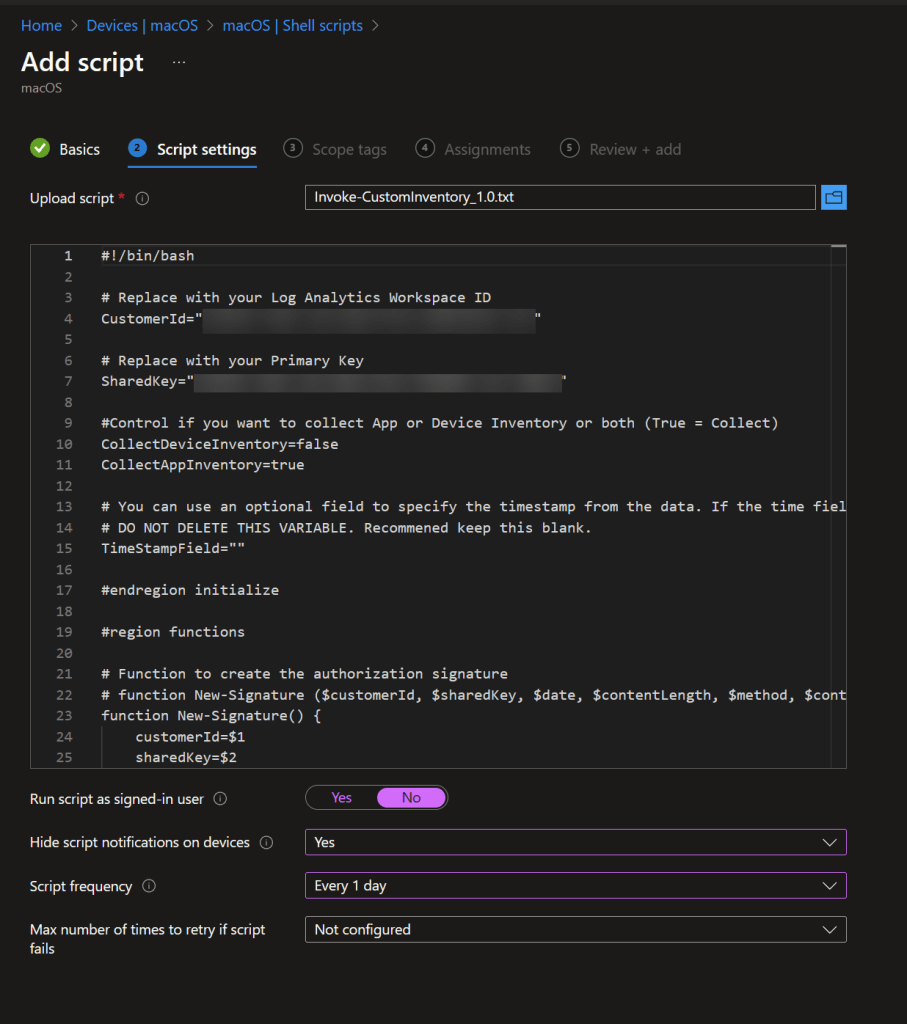
Deploy the script using Intune's Shell scripts feature:

  1. In the Intune admin center, go to Devices > macOS > Shell scripts.
  2. Upload Mac_Custom_Inventory.sh.
  3. Set Run script as signed-in user to No (the script runs as root).
  4. Set Script frequency to Every 1 day.
  5. Assign the script to your target device groups.

The script runs silently on each device and sends inventory data to your Log Analytics workspace.

Data collected

The macOS script writes to the same custom tables as the Windows script, so data from both platforms flows into the same BI for Intune reports without duplicate plumbing.

PowerStacksDeviceInventory_CL

One row per device per run. Includes a flat envelope (ComputerName, ManagedDeviceID) and a DeviceDetails payload that holds the nested hardware inventory.

Field Source Notes
ComputerName scutil --get ComputerName
ManagedDeviceID Intune MDM device CA certificate (via security find-certificate) Matches Intune's reported device ID
Memory sysctl hw.memsize Bytes
CPUManufacturer sysctl machdep.cpu.vendor (or Apple on Apple Silicon)
CPUName sysctl machdep.cpu.brand_string
CPUMaxClockSpeed sysctl hw.cpufrequency_max ÷ 1000 MHz; Intel Macs only
CPUPhysical sysctl hw.packages Physical CPU package count
CPUCores sysctl hw.physicalcpu
CPULogical sysctl hw.logicalcpu
LastBootTime sysctl kern.boottime UTC ISO 8601
BatteryHealthPercent (MaxCapacity ÷ DesignCapacity) × 100 Calculated; differs by Intel vs. Apple Silicon
BatteryFullChargedCapacity ioreg AppleSmartBattery (AppleRawMaxCapacity on Apple Silicon, MaxCapacity on Intel)
BatteryDesignedCapacity ioreg AppleSmartBattery (DesignCapacity)
DeviceManufacturer Hardcoded Apple Inc.
DeviceModel system_profiler SPHardwareDataType (Model Identifier)
PhysicalDisks[] diskutil info + ioreg Array of disk objects (see below)

PhysicalDisks[] per-disk fields: BusType, HealthStatus (SMART status — Verified is normalized to Healthy), Manufacturer (Apple), Model, Size (bytes), Type (SSD or HDD), Temperature.

PowerStacksAppInventory_CL

One row per device per run. Includes the ComputerName/ManagedDeviceID envelope and an InstalledApps payload listing every detected application.

Per-application fields

Field Source
AppName system_profiler SPApplicationsDataType (_name)
AppVersion system_profiler SPApplicationsDataType (version)
AppInstallDate system_profiler SPApplicationsDataType (lastModified)
AppInstallPath system_profiler SPApplicationsDataType (path)

The macOS app payload is intentionally narrower than the Windows app payload because macOS does not expose an equivalent of Windows's per-application uninstall registry data — application metadata on macOS lives inside each .app bundle's Info.plist, which system_profiler already aggregates.

The macOS script does not currently collect drivers (macOS has no equivalent of the Windows PnP driver model that admins typically need to inventory), Microsoft 365 channel data, or vendor warranty data.

Verify data ingestion

After the script has run on at least one device:

  1. In the Azure Portal, navigate to your Log Analytics workspace.
  2. Go to Logs and run:
PowerStacksDeviceInventory_CL
| where DeviceModel_s startswith "Mac"
| take 10

If data appears, the macOS pipeline is working.

For troubleshooting, use the LogIngestionAPI_CheckDCR script from the EnhancedInventoryDeploy repository.