Semantic Model Parameters
Configure The Dataset Parameters
The BI for SCCM dataset contains some parameters that must be configured to synchronize data from ConfigMgr to Power BI. Other parameters add additional functionality to BI for SCCM. In this article we will only configure the parameters required for basic functionality. Optional parameters are discussed in other articles within our documentation.
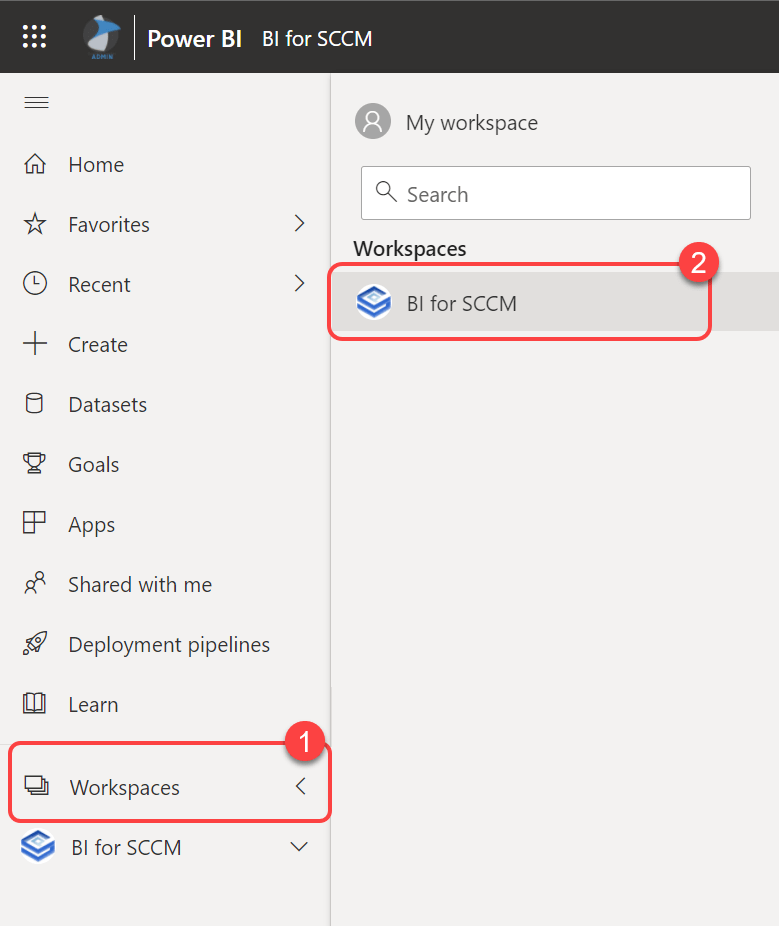
Step 1: Open the Workspace
- Select Workspaces.
- Select the BI for SCCM workspace.
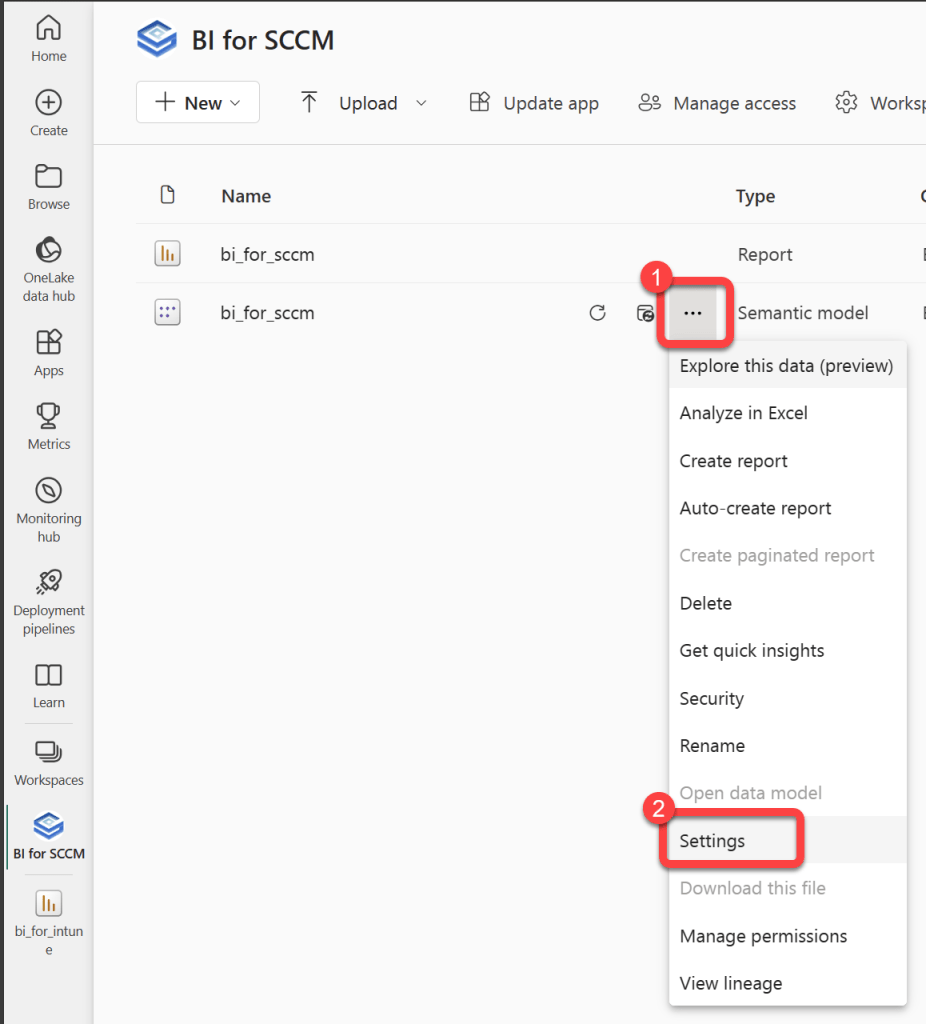
Step 2: Open Semantic Model Settings
- Hover over the bi_for_sccm Semantic model to reveal a kebab menu (three vertical dots).
- Select the kebab menu.
- Select Settings.
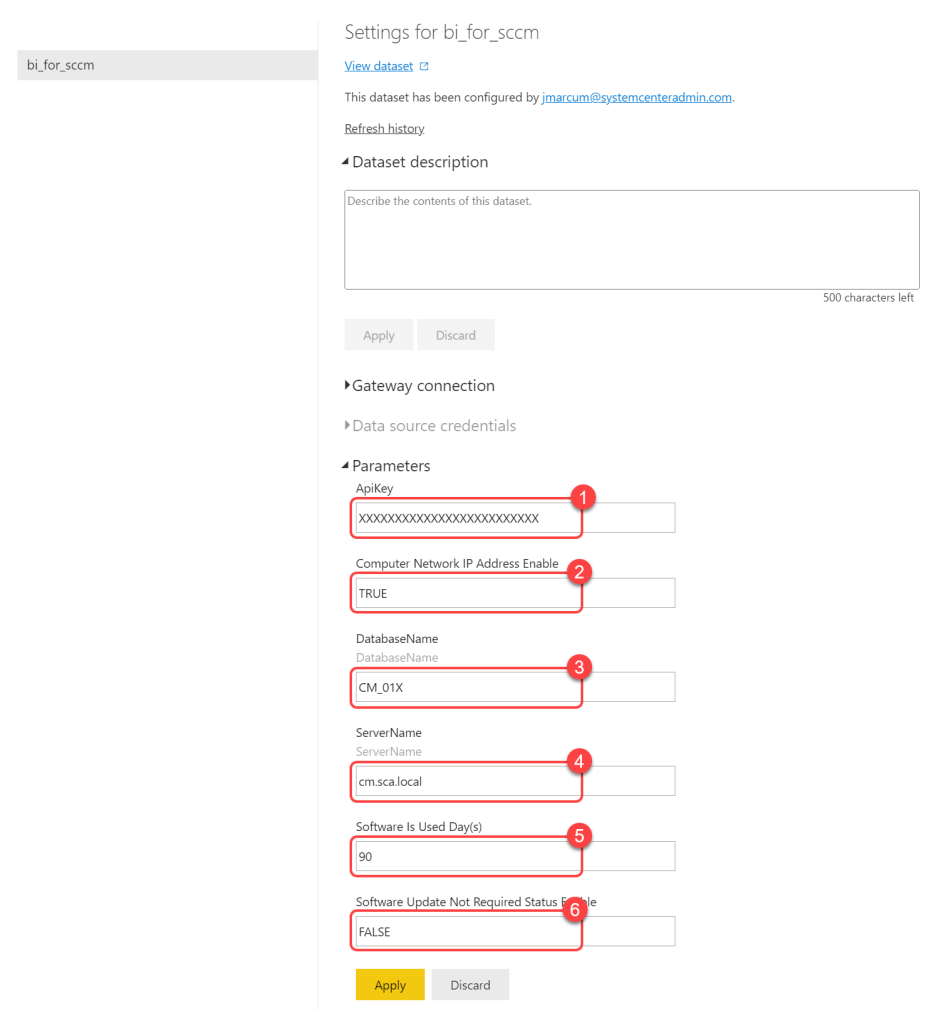
Step 3: Configure Dataset Parameters
- Expand Parameters.
- Enter the API Key that you received from us after completing the Request a Trial Key form.
- The Computer Network IP Address Enable fields accepts TRUE/FALSE values. This field controls whether or not IP Addresses from ConfigMgr inventory are sync'd to Power BI or not.
- Enter the ConfigMgr database name in the DatabaseName field.
- Enter the Server name of the SQL Server hosting the ConfigMgr database in the ServerName field.
- The Software Is Used Days(s) value is the number of days that installed software must have been used within for the reports to show Is Used = True.
- The Software Update Not Required Status Enable field accepts
- TRUE/FALSE values. This field controls whether or not software updates required by no computers are displayed in Power BI. It's strongly recommended to leave this value as FALSE.
- Select Apply.
Step 4: Expand Gateway Connection
- Expand Gateway Connection.
- Under Actions, expand the toggle button to view the data sources.
- Select the Add to gateway link for the SQL Server data source.
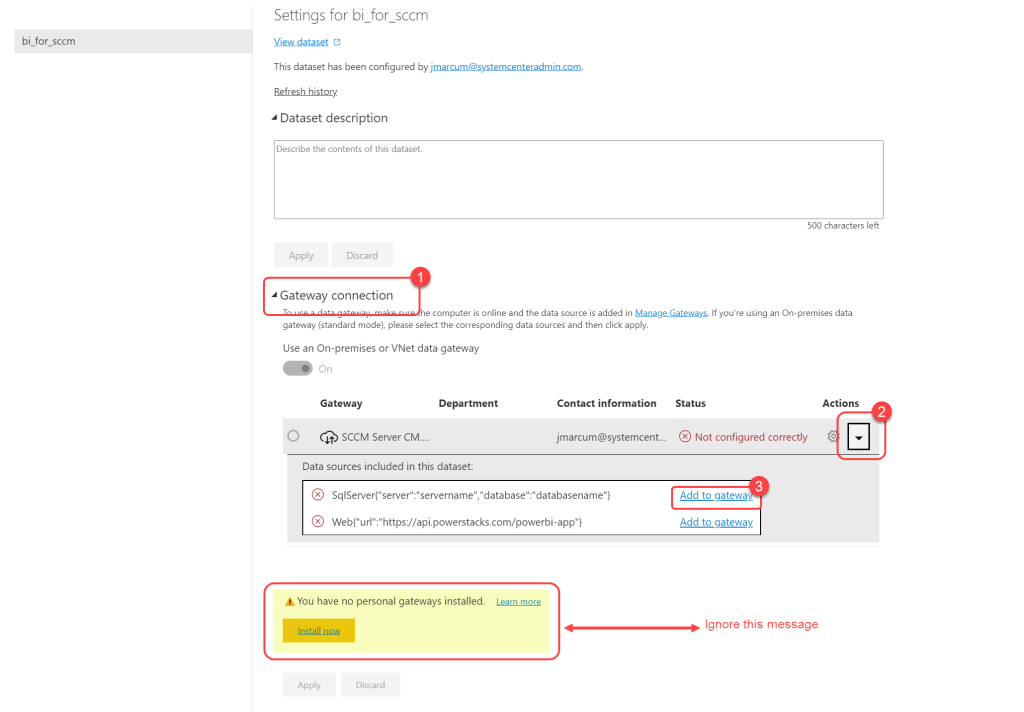
Step 5: Create SQL Data Source
- On the Data Source Settings page enter the following.
- For the Data Source Name enter a meaningful name to identify this data source.
- For the Data Source Type select SQL Server.
- Enter the SCCM SQL Server name in the Server field.
- Enter the SCCM SQL database name in the Database field.
- Select Windows as the Authentication Method.
- Enter database reader user account in the Username field. If this is an Active Directory user account you must prefix the username with the domain name and a "". Do Not Use the "@" sign plus domain name.
- Enter the password for the database reader account in the Password field.
- Select Add.
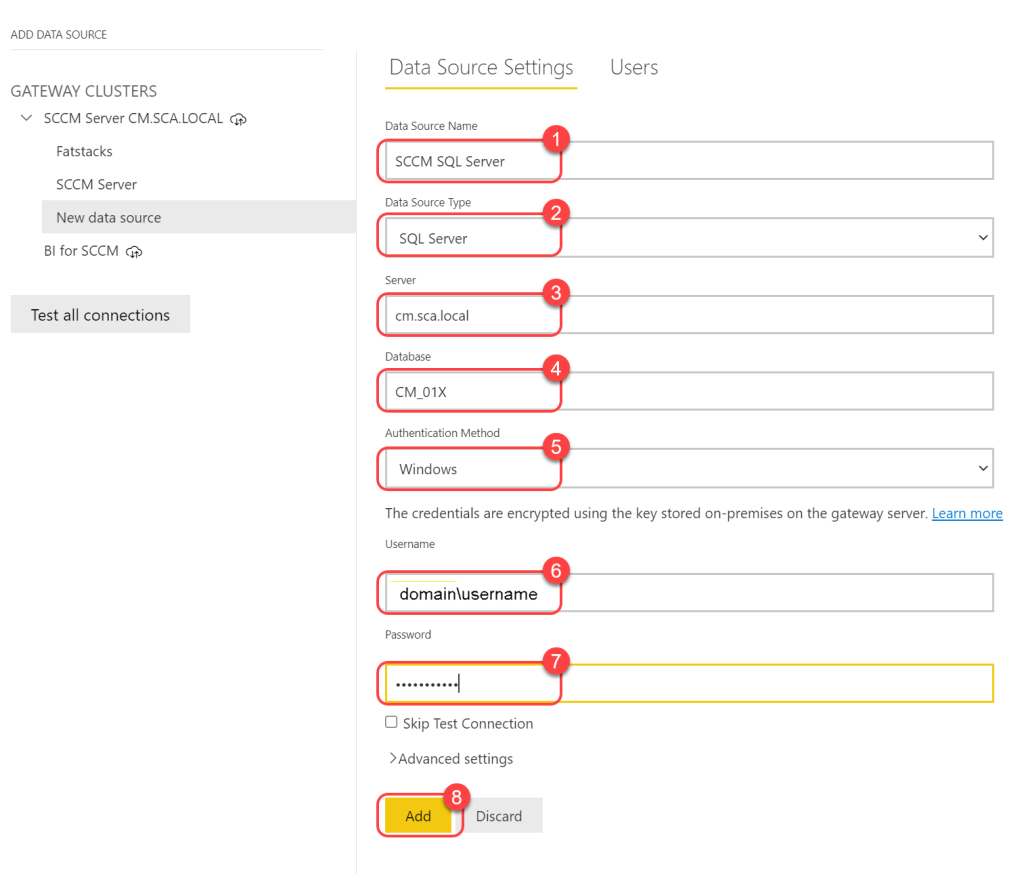
Step 6: Return to the Workspace
- Select Workspaces.
- Select the BI for SCCM workspace.
Step 7: Open Dataset Settings
- Select Datasets + dataflows.
- Hover over the bi_for_sccm dataset to reveal a kebab menu (three vertical dots).
- Select the kebab menu.
- Select Settings.
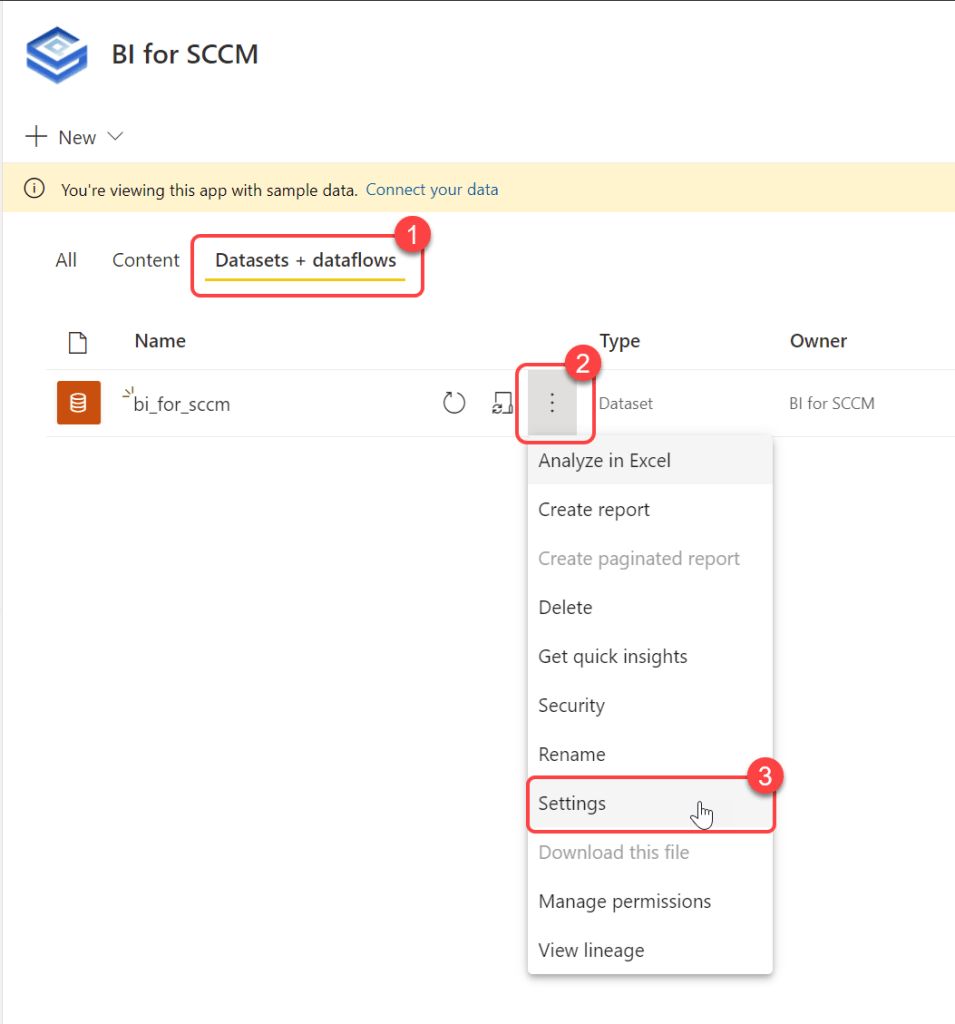
Step 8: Add Gateway Data Source
- Expand Gateway Connection.
- Under Actions, expand the toggle button to view the data sources.
- Select the Add to gateway link for the SQL Server data source.
Step 9: Map SQL Server Source
- Expand Parameters.
- In the Maps to dropdown list in the SqlServer source select the SQL Server data source that you created in Step 5.
- Ignore the warning that your data source can't be refreshed.
- Select Apply.
- Select Edit credentials.
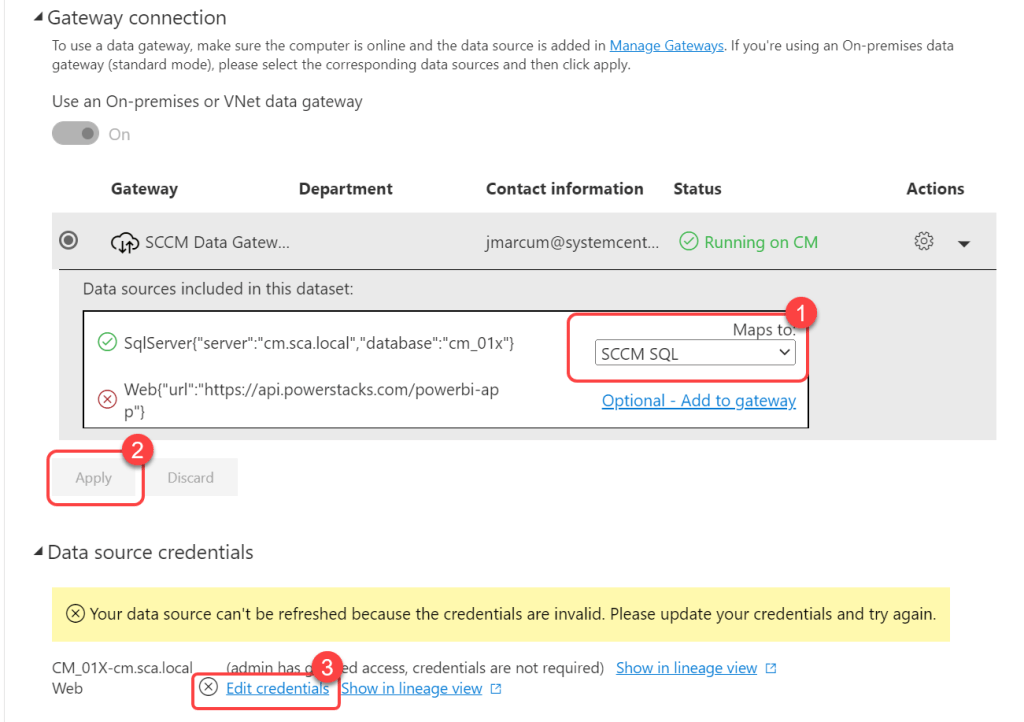
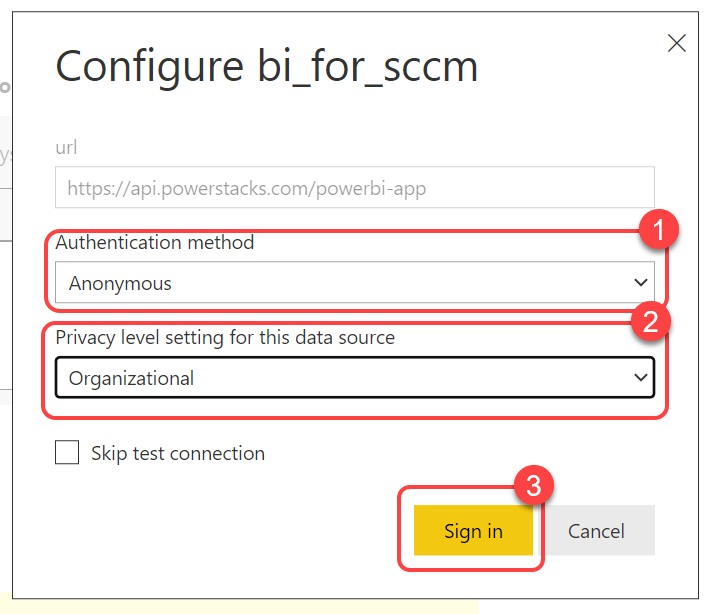
Step 10: Configure Authentication
- Select Anonymous as the Authentication Method.
- Select Organizational as the Privacy level setting for this data source.
- Select Sign in.
Step 11: Schedule Data Refresh
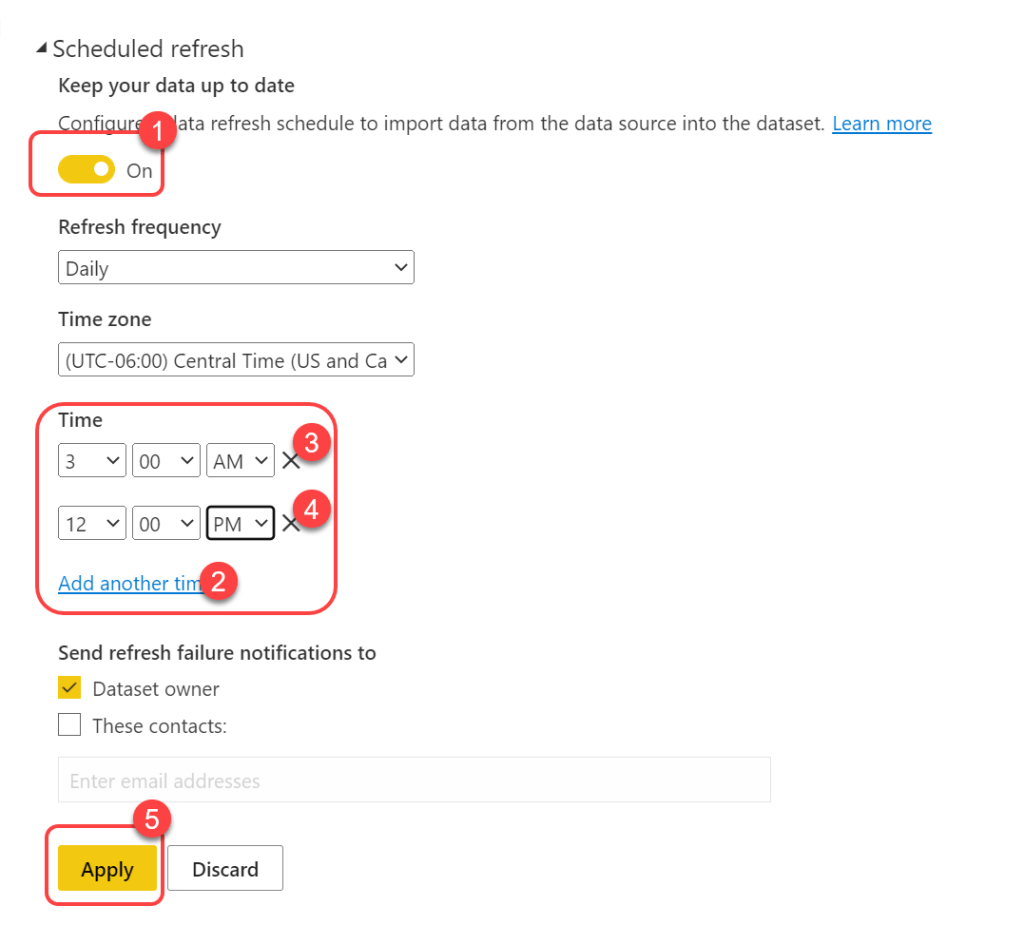
- Expand Scheduled refresh.
- Select Add another time.
- Enter up to eight times of the of the day for the data to refresh. Depending upon the environment, most customers select 1-3 times per day.
- Grab something cold to drink, you made it through configuring the dataset. The refresh can take anywhere from 5 minutes to 2 hours depending upon your environment. On average, it's about 30 minutes.
Step 12: Navigate to Workspace
- Select Workspaces.
- Select the BI for SCCM workspace.
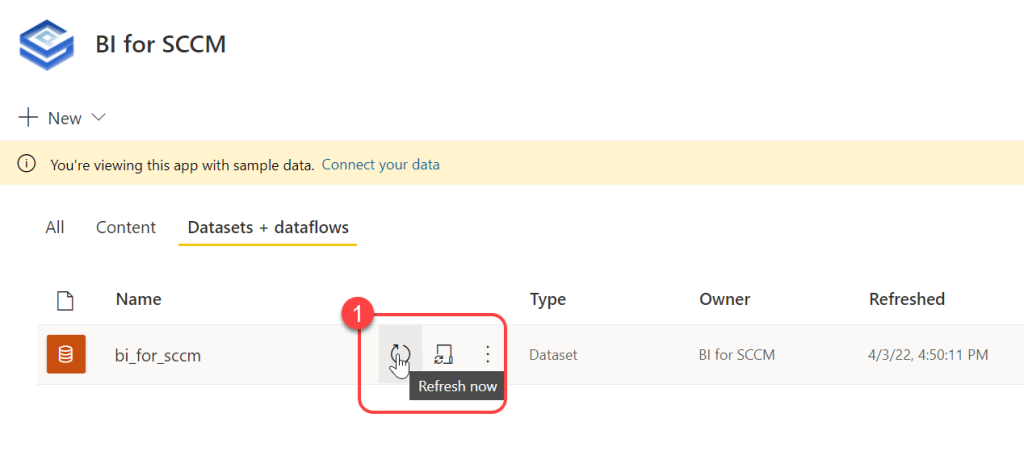
Step 13: Trigger Manual Refresh
- Select Datasets + dataflows.
- Hover over the bi_for_sccm dataset to reveal the Refresh now button.
- Select the Refresh now button.
- Grab something cold to drink. You've made it through configuring the dataset. The refresh will take anywhere between 5 minutes and 2 hours depending on the environment, however the average is about 30 minutes.