App Store for Intune - User Guide
This guide helps employees use the App Store for Intune to browse, request, and track application installations for their devices.
Last Updated: February 2026
Table of Contents
- Getting Started
- Browsing Apps
- Requesting an App
- Requesting a New App
- Tracking Your Requests
- Install Status
- Request on Behalf of Another User
- Settings and Preferences
- FAQ
Getting Started
Signing In
- Navigate to your organization's App Store for Intune URL
- Click Sign in with Microsoft
- Enter your work email and password
- Complete any MFA (multi-factor authentication) prompts if required
Once signed in, you'll see the home page with featured apps and categories.
First-Time Users
On your first visit, you may be asked to: - Accept the Terms of Service (if configured by your admin) - Review portal features and navigation
Browsing Apps
Home Page
The home page displays: - Hero App: A featured application highlighted by your admin - Featured Apps: Curated apps recommended for your organization - Browse by Category: Quick links to app categories (Productivity, Development, Communication, etc.)
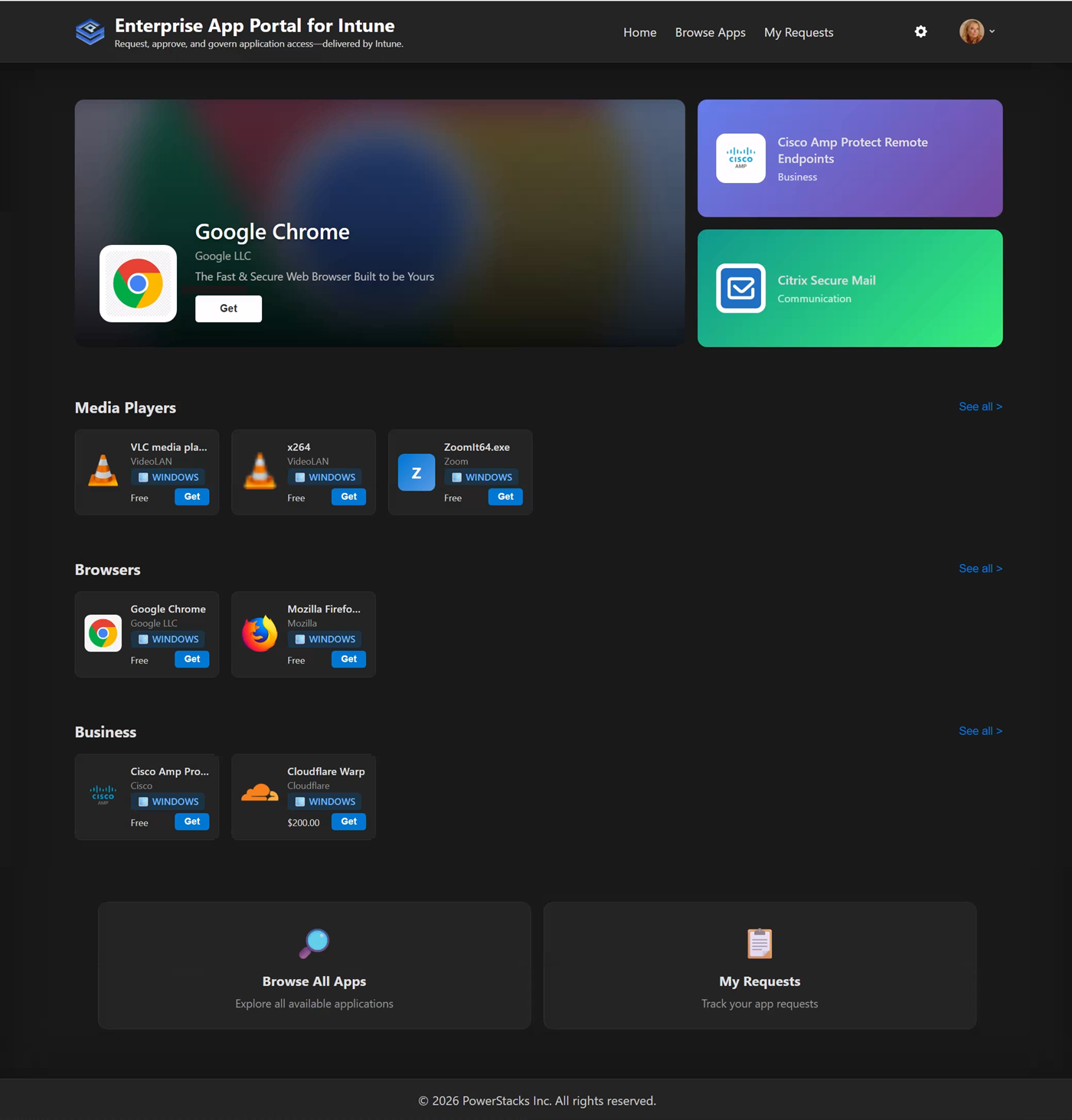 The home page showing featured apps and hero app
Browse Apps Page
Click Browse Apps in the navigation to see all available applications.
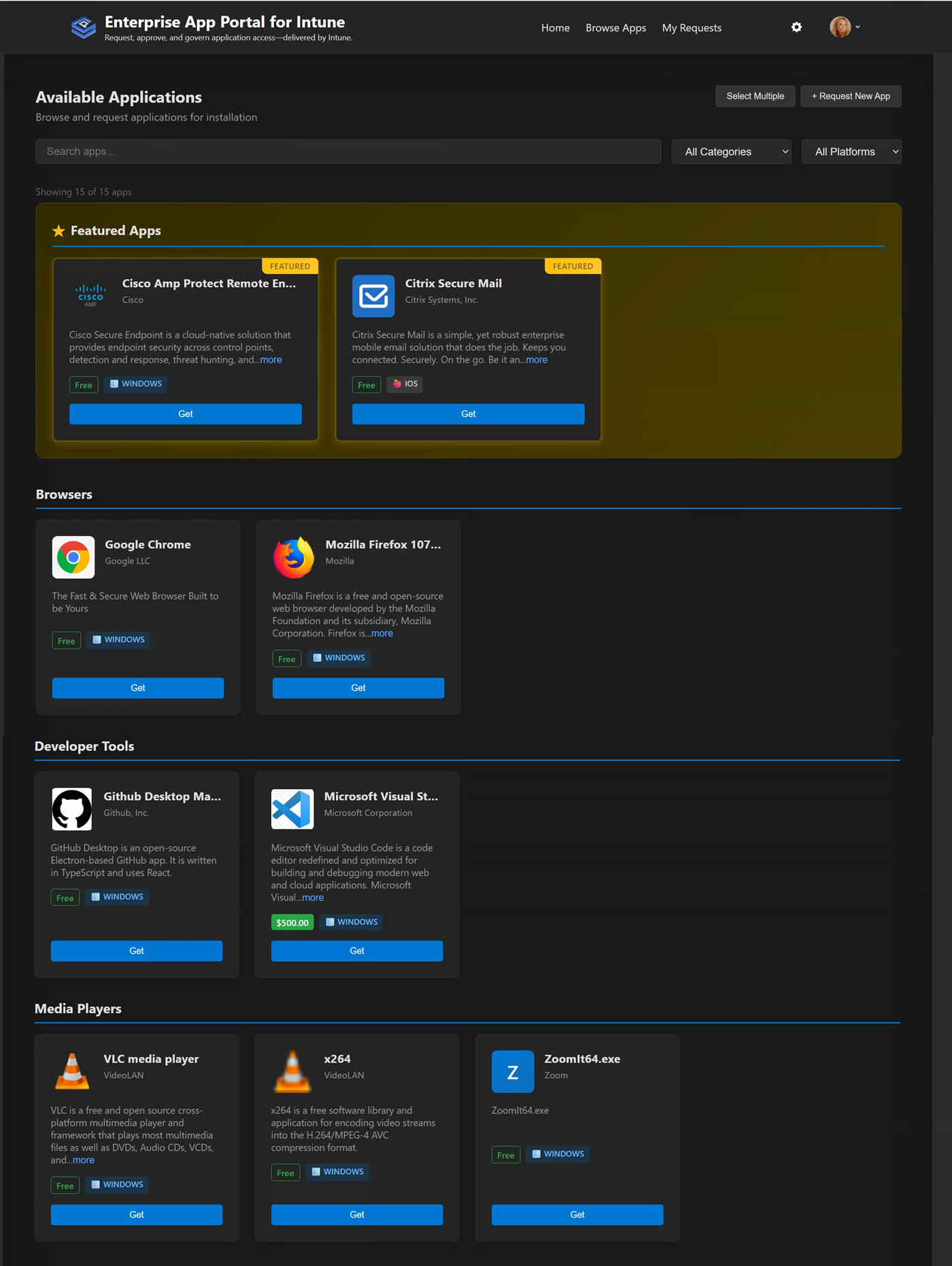 The browse apps page with search and filters
Filtering and Search
- Search Box: Type to search by app name, publisher, or description
- Platform Filter: Filter by Windows, iOS, Android, macOS, or Web
- Category Filter: Filter by app category
- Show Requested: Toggle to see only apps you've already requested
App Cards
Each app card shows: - App icon - App name - Publisher - Platform icon (Windows, iOS, Android, etc.) - Brief description - Cost estimate (if configured) - Request or Requested button
Requesting an App
Basic Request
- Find the app you want to install
- Click the Request button on the app card
- Fill out the request form:
- Justification (required): Explain why you need this app
- Device (for device-targeted apps): Select which device should receive the app
- Click Submit Request
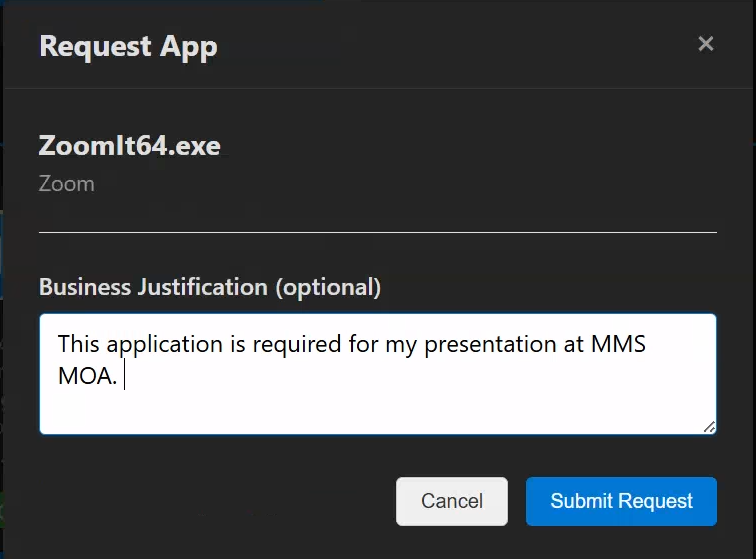 The app request form with justification field
Device Selection
Some apps are deployed to specific devices rather than your user account. For these apps: - You'll see a Select Device dropdown - Choose from your enrolled Intune-managed devices - The app will be installed only on the selected device
Approval Requirements
Apps may have different approval requirements: - No Approval Required: Automatically approved and deployed - Manager Approval: Your direct manager must approve - Designated Approver: A specific person or group must approve - Multi-Stage Approval: Multiple approvers in sequence
You'll see the approval requirements before submitting.
Requesting a New App
If the app you need isn't in the catalog, you can submit a request to have it added.
How to Request a New App
- Go to the Browse Apps page
- Click the + Request New App button in the top-right corner
- Fill out the request form:
| Field | Required | Description |
|---|---|---|
| App Name | Yes | The name of the application you need |
| Publisher | No | The company that makes the app (e.g., Microsoft, Adobe) |
| Why do you need this app? | No | Your business justification for needing this app |
| Download URL | No | A link to where the app can be downloaded |
- Click Submit Request
What Happens Next
- Your request is emailed to the IT administrators
- An administrator reviews your request
- If approved, they add the app to the portal
- You'll be able to request the app through the normal process
Tips for Getting Your Request Approved
- Be specific: Include the exact app name and version if known
- Explain the business need: How will this app help you do your job?
- Provide a download link: If you know where to get the app, include the URL
- Check first: Make sure the app isn't already in the catalog under a different name
Tracking Your Requests
My Requests Page
Click My Requests in the navigation to see all your app requests.
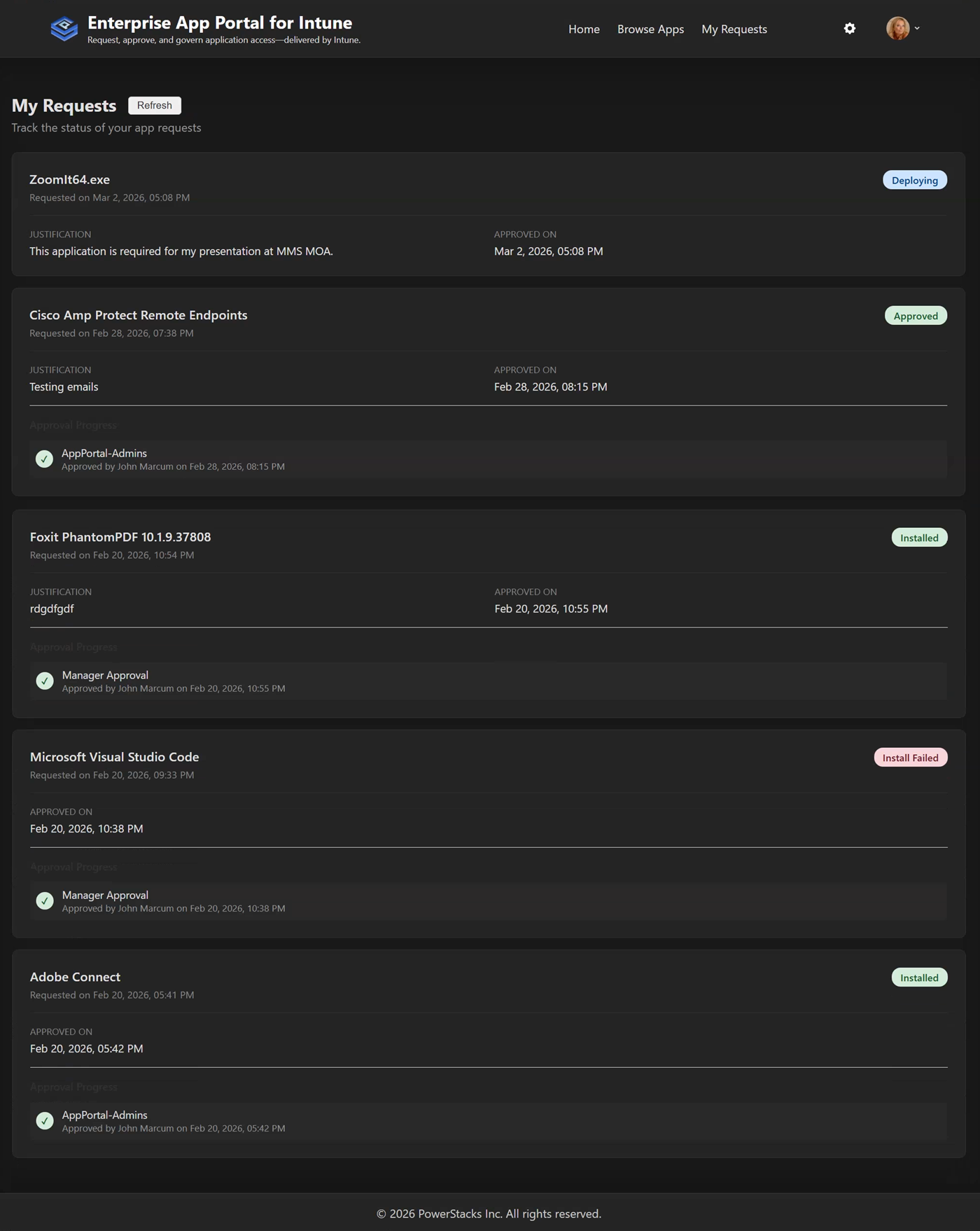 The My Requests page showing request history and status
Request Status
| Status | Meaning |
|---|---|
| Pending | Waiting for approval |
| Approved | Request approved, awaiting deployment |
| Rejected | Request denied (see rejection reason) |
| Completed | App deployed successfully |
| Failed | Installation failed (contact support) |
Request Details
Click on any request to see: - Request date and time - Current status - Approval history (who approved/rejected and when) - Rejection reason (if applicable) - Installation status
Email Notifications
You'll receive email notifications when: - Your request is submitted (confirmation) - Your request is approved - Your request is rejected - Your app is installed (completion)
Teams Notifications
If configured by your admin, you'll also receive Microsoft Teams direct chat notifications for request updates.
Install Status
After your request is approved, you can track the installation progress.
Install Status Indicators
| Status | Meaning |
|---|---|
| Pending Install | Deployment queued, waiting for device sync |
| Installing | Installation in progress |
| Installed | App successfully installed |
| Install Failed | Installation encountered an error |
| Not Applicable | User-targeted app (no device-specific status) |
Install status is visible on the My Requests page (see Tracking Your Requests above).
How Long Does Installation Take?
- User-targeted apps: Install at next device sync (typically within 8 hours)
- Device-targeted apps: Install within 15-30 minutes for online devices
- Mobile devices (iOS/Android): May require Company Portal app update
Installation Not Working?
If your app shows "Pending Install" for more than 24 hours: 1. Make sure your device is connected to the internet 2. Open the Company Portal app and check for updates 3. Restart your device to trigger a sync 4. Contact IT support if the issue persists
Request on Behalf of Another User
If you're a manager, IT help desk member, or in a designated group, you may be able to request apps for other users.
How to Request on Behalf
- Click Request on the app you want to request
- In the request form, look for Request for another user option
- Search for and select the user
- Enter justification explaining why this user needs the app
- Submit the request
Visibility
- The target user will receive notifications about the request
- The request will appear in the target user's "My Requests" page
- Both your name and the target user's name are recorded in the audit trail
Settings and Preferences
User Profile
Click your profile picture or name in the top-right corner to: - View your profile information - Sign out
Dark Mode
Toggle dark mode from: - The settings gear icon in the header - Your profile dropdown menu
Your preference is saved and persists across sessions.
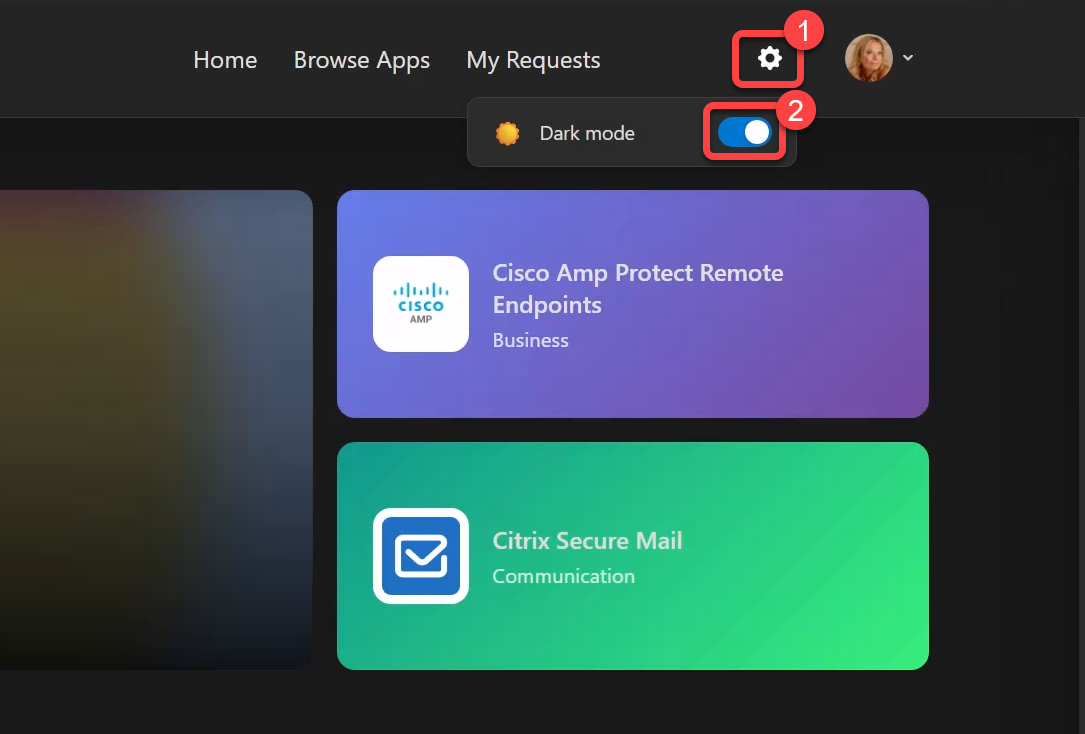 Settings panel with dark mode toggle
FAQ
Why can't I see an app I know exists?
Apps may be hidden from the catalog if: - Your admin hasn't made it visible yet - The app isn't supported for self-service deployment - The app requires a license your organization doesn't have
Contact your IT admin if you need access to a specific app.
Can I cancel a pending request?
Contact your IT administrator to cancel a pending request. Currently, users cannot self-cancel requests after submission.
What happens if my request is rejected?
You'll receive an email (and Teams message if enabled) explaining why the request was rejected. Common rejection reasons: - Software not approved for your role - Similar app already available - Licensing restrictions - Security/compliance concerns
You can submit a new request with additional justification if needed.
Can I request the same app again after rejection?
Yes, you can submit a new request. Consider: - Providing more detailed justification - Discussing with your manager first - Contacting IT to understand the rejection reason
How do I request an app that's not in the catalog?
Use the Request New App feature:
- Go to the Browse Apps page
- Click the + Request New App button in the top-right corner
- Fill out the form:
- App Name (required): The name of the application you need
- Publisher: The company that makes the app
- Why do you need this app?: Explain your business justification
- Download URL (optional): Link to where the app can be downloaded
- Click Submit Request
Your request is sent directly to the IT administrators, who will review it and may add the app to the portal.
Alternatively, contact your IT administrator directly. They can: - Add the app to the Intune catalog - Make it visible in the portal - Configure appropriate approval workflows
Who approves my requests?
It depends on the app configuration: - Manager Approval: Your direct manager (from Entra ID) - Designated Approver: A specific person shown in the app details - Approval Group: Any member of a designated approver group
Can I install apps on my personal device?
The App Store for Intune only deploys to Intune-enrolled devices. Personal devices are typically not eligible unless your organization has a BYOD (Bring Your Own Device) policy.
I'm getting "Access Denied" - what do I do?
Your organization may restrict portal access to specific groups. Contact your IT administrator to request access.
Getting Help
If you need assistance: 1. Check this user guide first 2. Contact your IT help desk 3. Email your IT administrator
Glossary
| Term | Definition |
|---|---|
| Intune | Microsoft's cloud-based device management service |
| Enrollment | The process of registering your device with Intune |
| Company Portal | The app used to manage and install apps on enrolled devices |
| Justification | The reason you need an app, used for approval decisions |
| Deployment | The process of installing an app on your device |
| User-targeted | Apps assigned to you, available on all your enrolled devices |
| Device-targeted | Apps assigned to a specific device only |