Semantic Model Settings for Log Analytics
The BI for Intune dataset contains some parameters that must be configured to synchronize data from Intune to Power BI. Other parameters, such as this one, add additional functionality to BI for Intune. In this article we configure the parameters required for Log Analytics integration (used by both Custom Inventory and WUfB Reports).
Step 1: Open the BI for Intune workspace
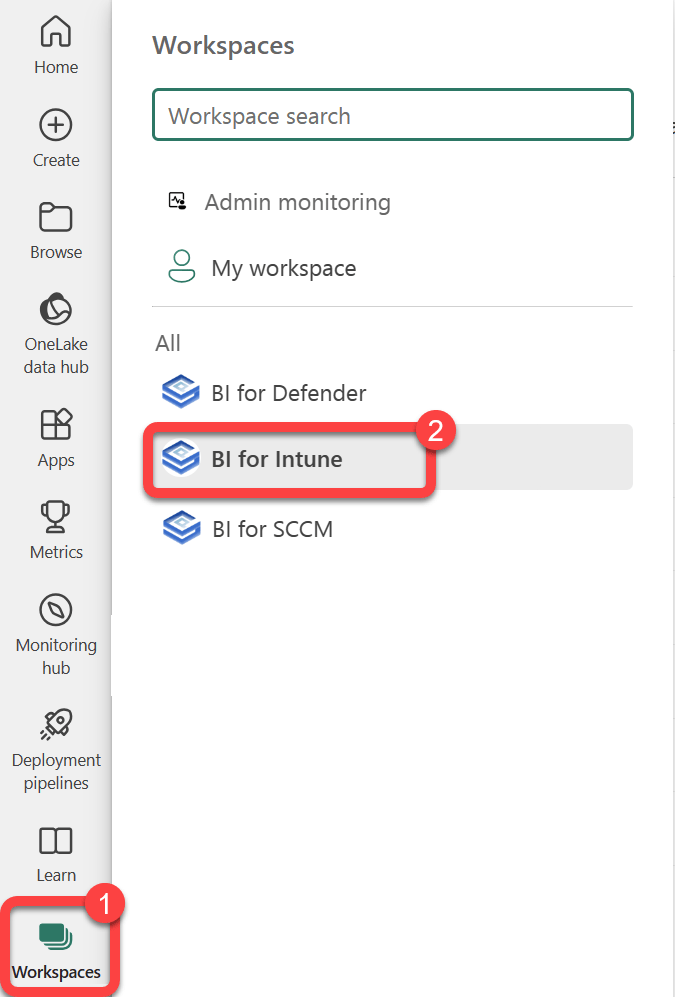
- Select Workspaces.
- Select the BI for Intune workspace.
Step 2: Open semantic model settings
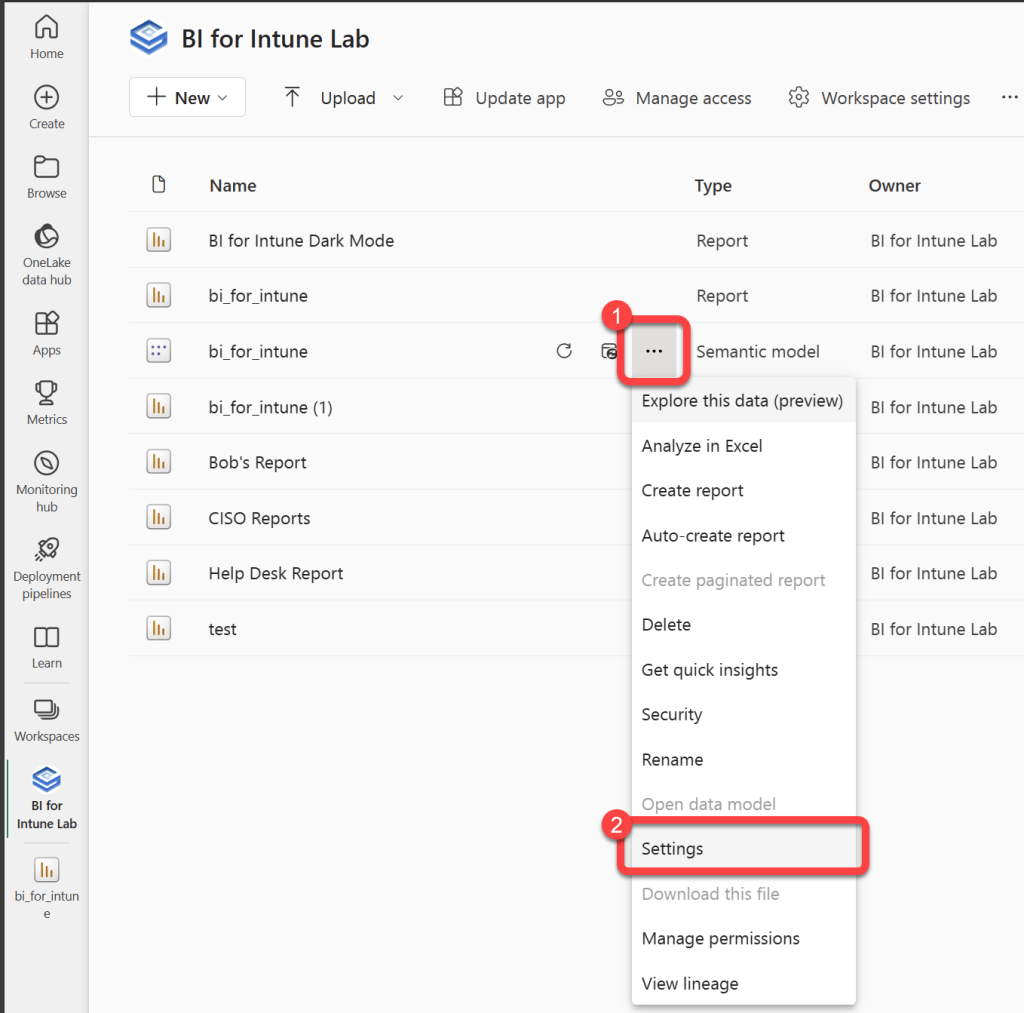
- Hover over the bi_for_intune Semantic model to reveal a kebab menu (three vertical dots).
- Select the kebab menu.
- Select Settings.
Step 3: Enable Log Analytics parameters
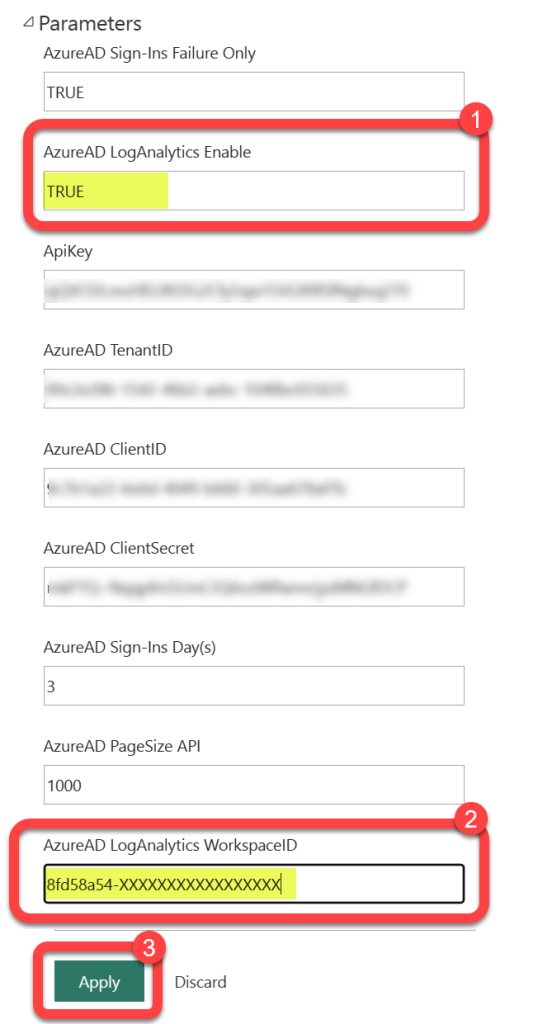
- Expand Parameters.
- Locate the AzureAD LogAnalytics Enable field and change the value from FALSE to TRUE.
- Locate the AzureAD LogAnalytics WorkspaceID field and enter the Log Analytics Workspace ID recorded during Deploy Custom Inventory Resources Step 4, or from the workspace Overview page in the Azure portal.
- Select Apply.
Step 4: Edit gateway source credentials
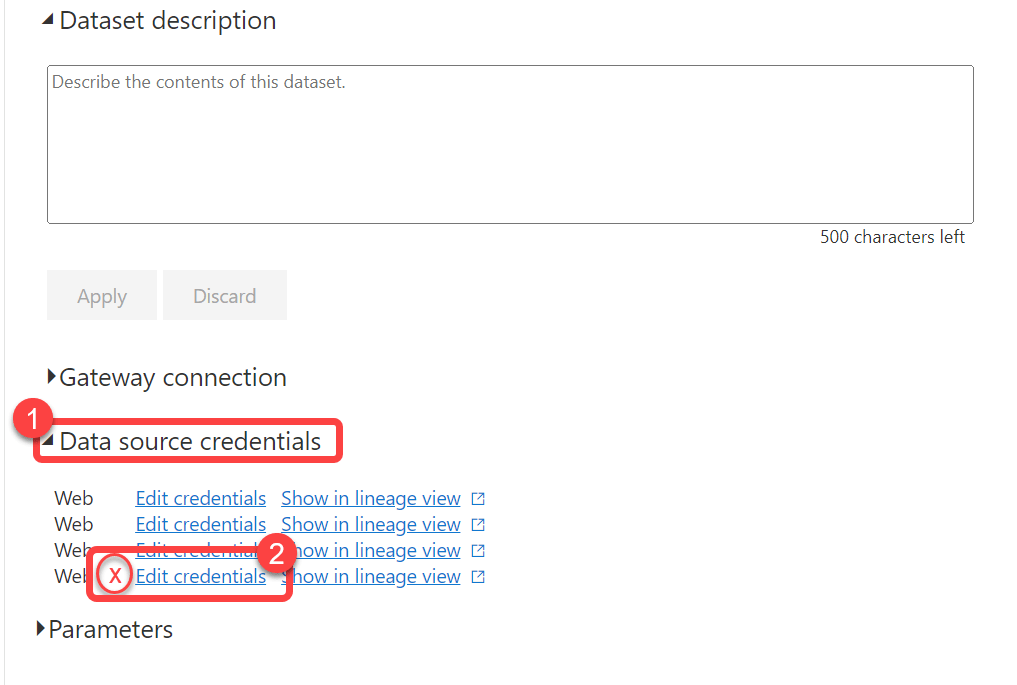
- Expand Gateway source credentials.
- One of the four Web data sources should have an "X" next to it, select Edit credentials on that line.
Step 5: Configure Log Analytics credentials
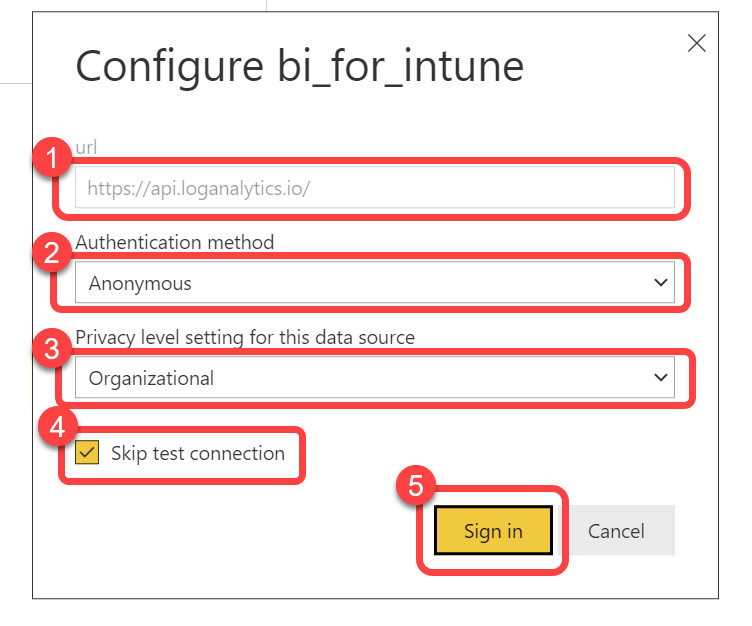
- Confirm the URL is https://api.loganalytics.io/. If not, you have selected an incorrect Edit credentials. Go back to the previous step and ensure that you select the correct line.
- Select Anonymous as the Authentication method.
- Select Organizational as the Privacy level setting for this data source.
- Check the box to Skip test connection.
- Select Sign in.