Inventory USB Devices
To populate the data required to report on USB devices you must add the "USB Device - Asset Intelligence (Win32_USBDevice)" class to Hardware Inventory. Skipping this step will not generate any errors however, the fields in the "Computer USB" will be blank.
For more information on extending Configuration Manager hardware inventory see Enable or disable existing classes in the How to extend hardware inventory Configuration Manager documentation page.
Prerequisites: Hardware inventory must be enabled.
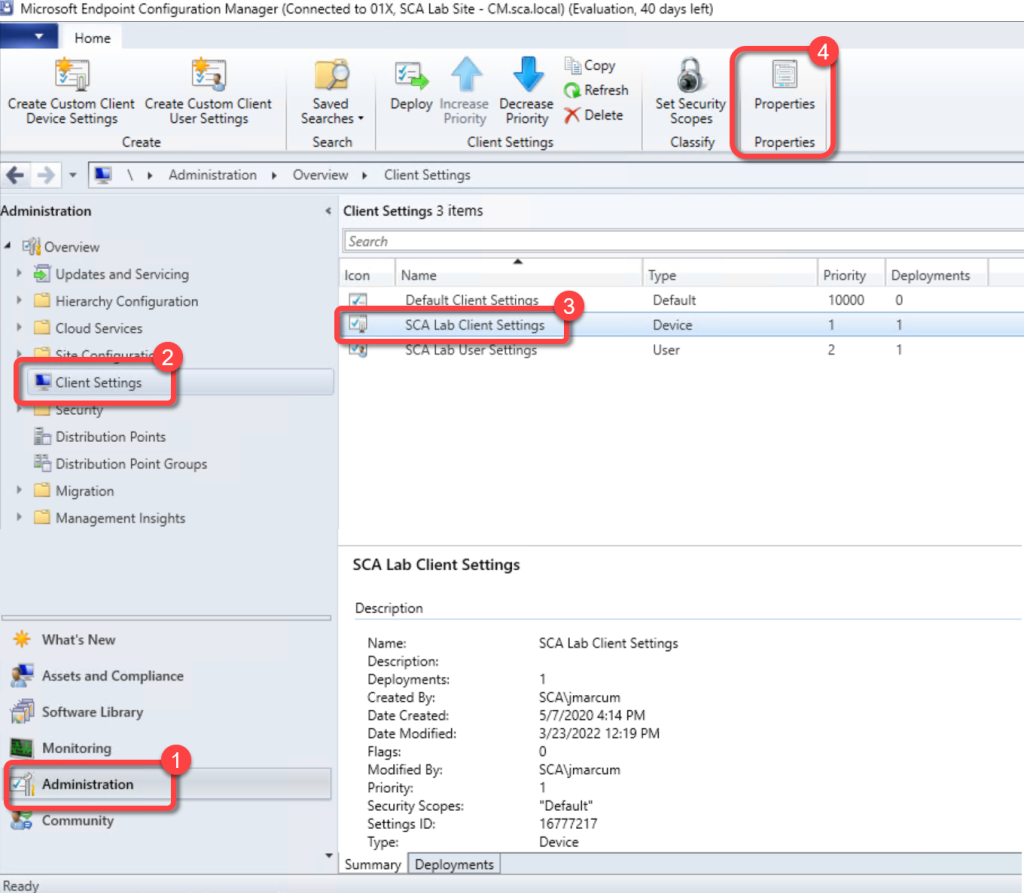
Step 1: Open Client Settings Properties
- In the Configuration Manager console, go to the Administration workspace.
- Select the Client Settings node.
- Select the client settings in which you have configured your hardware inventory settings.
- On the Home tab, in the Properties group, choose Properties.
Step 2: Open Hardware Inventory Classes
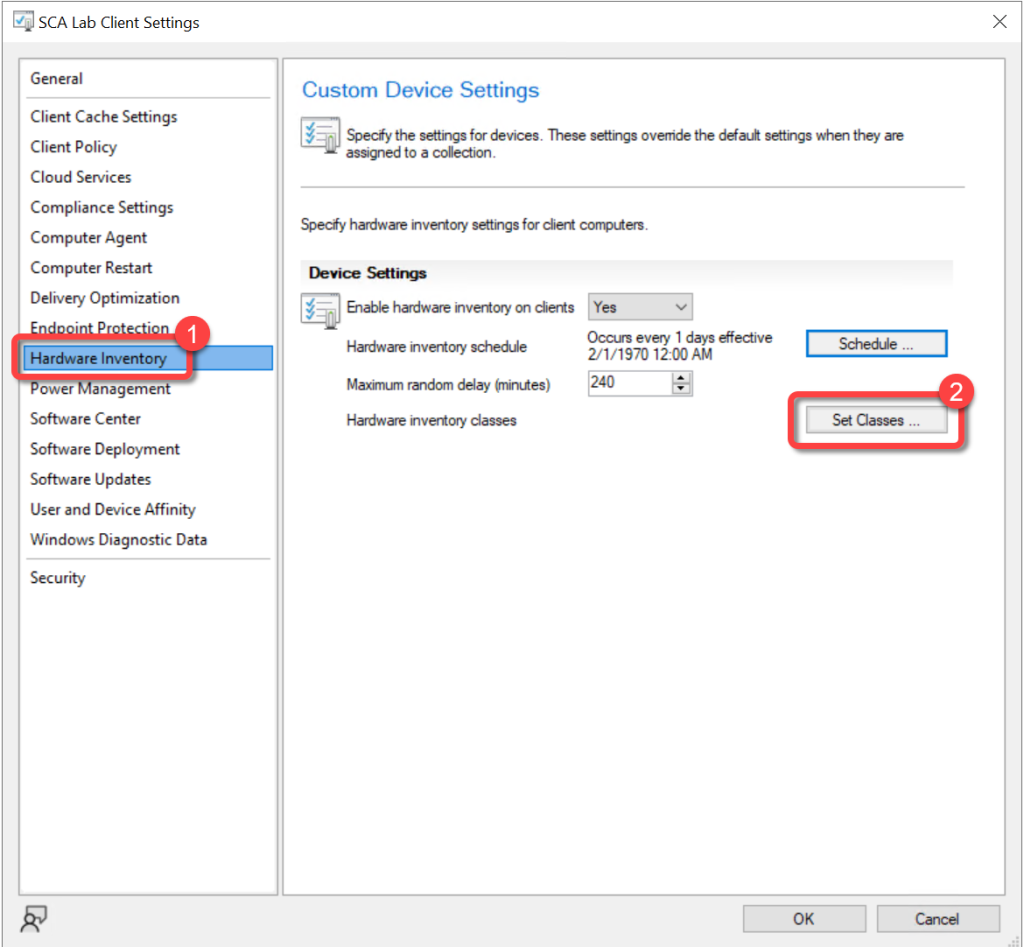
- In the client settings dialog, choose Hardware Inventory.
- In the Device Settings list, select Set Classes.
Step 3: Enable USB Device Class
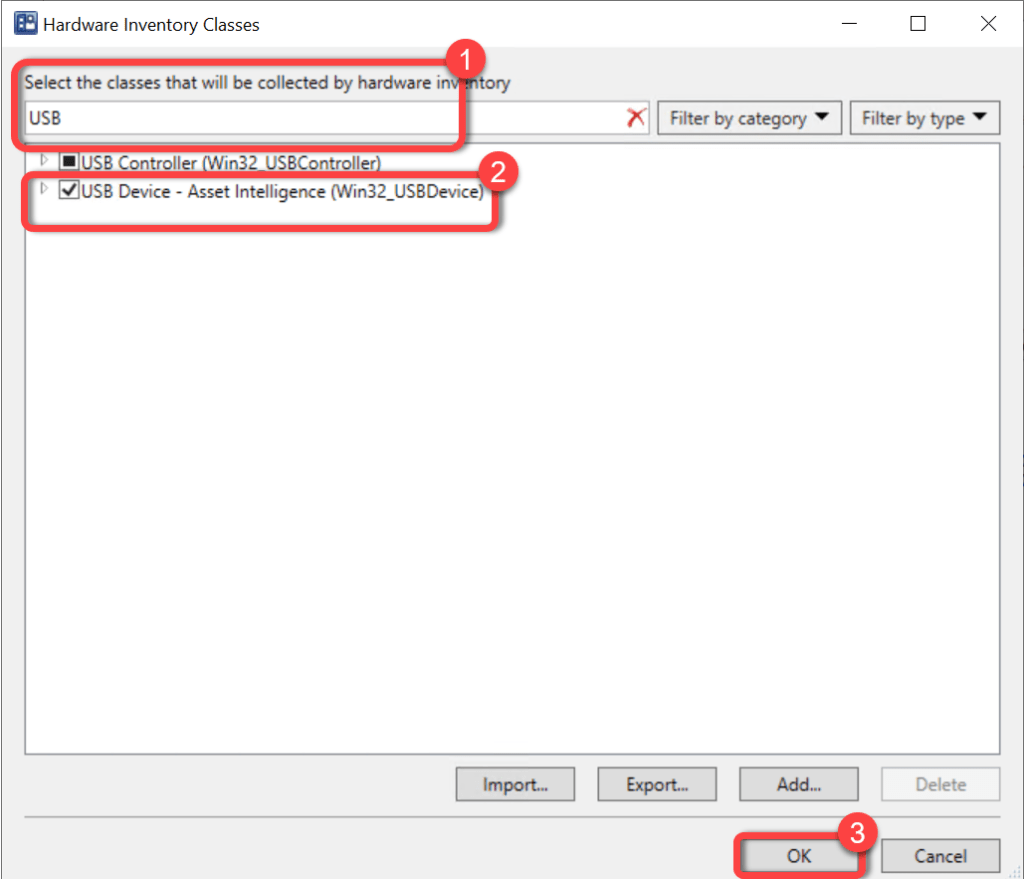
- In the Hardware Inventory Classes dialog, use the Search for inventory classes field to search for the USB Device - Asset Intelligence (Win32_USBDevice) class.
- Select the USB Device - Asset Intelligence (Win32_USBDevice) class.
- Select OK
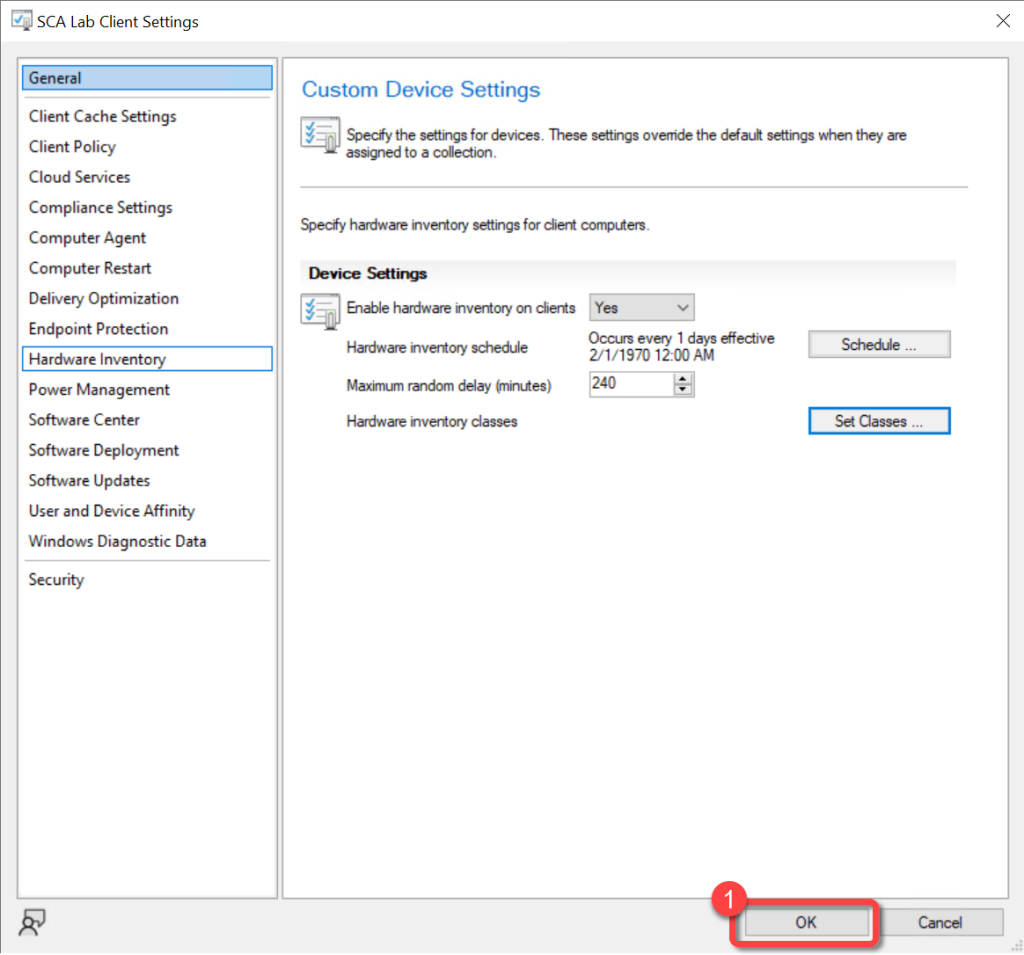
Step 4: Confirm Client Settings
- In the client settings dialog, select OK.