Perform In-place Upgrade
We strongly advise customers to always backup their custom reports before performing any in-place upgrades. Failure to do so could result in the loss of your custom reports!
Prerequisites: The user executing these steps should be the owner of the BI for Defender workspace.
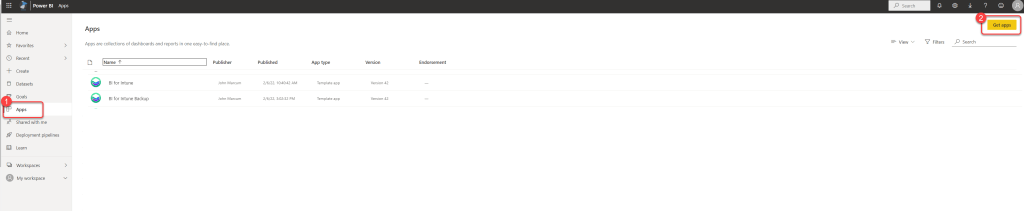
Step 1: Open the Power BI App Store
- Log in to Power BI.
- Select Apps.
- Select Get apps.
Step 2: Search for BI for Defender
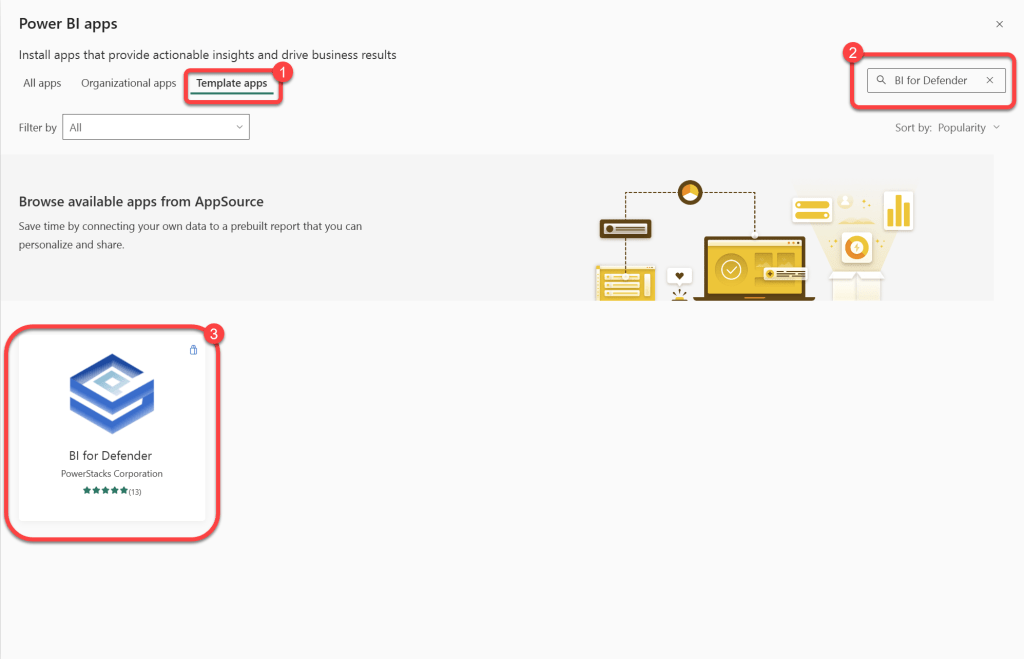
- Select Template apps.
- Search for BI for Defender.
- Select BI for Defender.
Step 3: Get the Latest Version
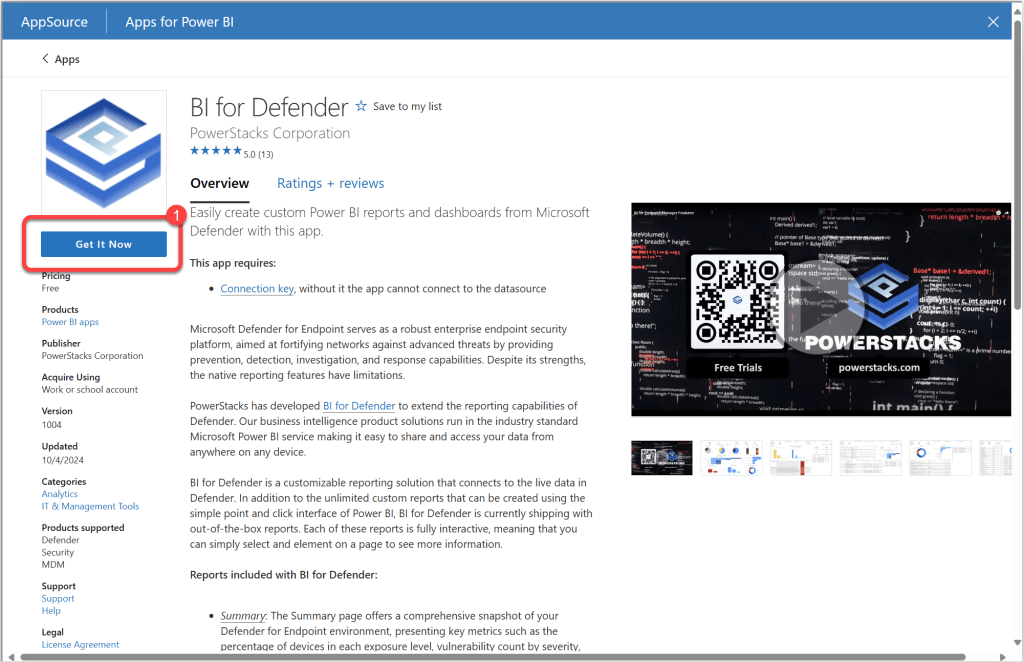
- Select Get It Now.
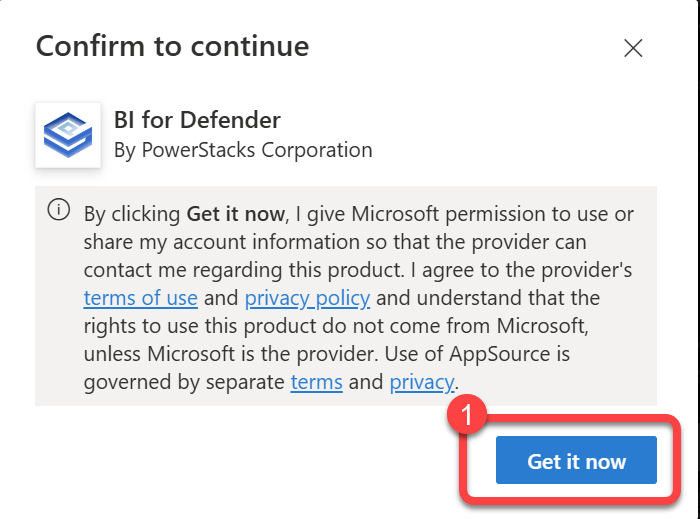
Step 4: Confirm the Download
- Select Get it Now.
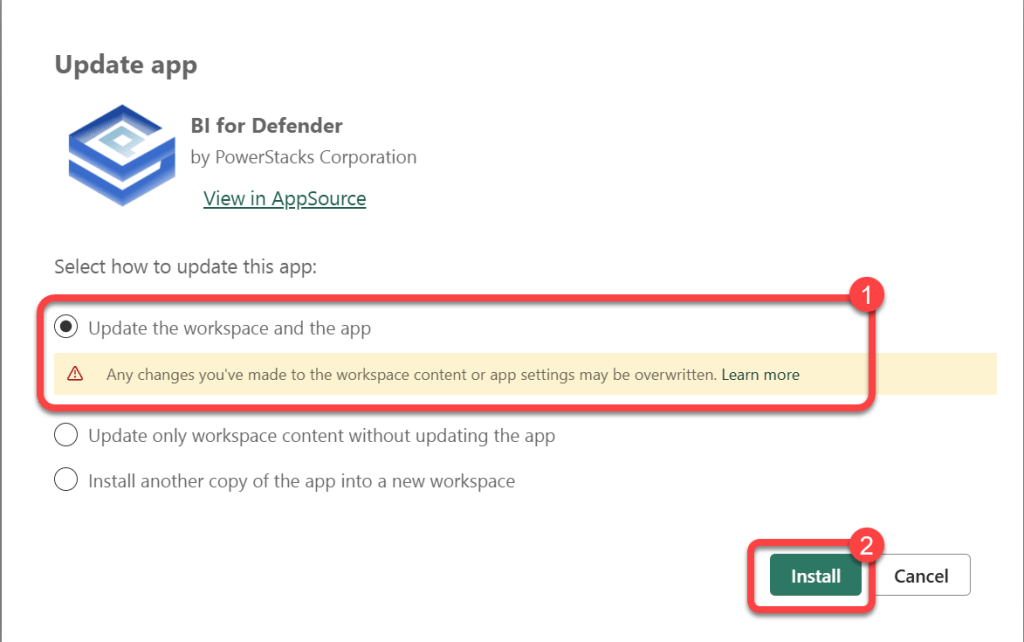
Step 5: Update the Existing Workspace
- Select Update the workspace and the app.
- If prompted, select your production BI for Defender workspace.
- Select Install.
Step 6: Verify Update and Refresh Data
- Watch for the update completed notification in your browser.
- The data will revert back to the sample data that comes with BI for Defender.
- Start a manual refresh to sync your data if a refresh does not start automatically.