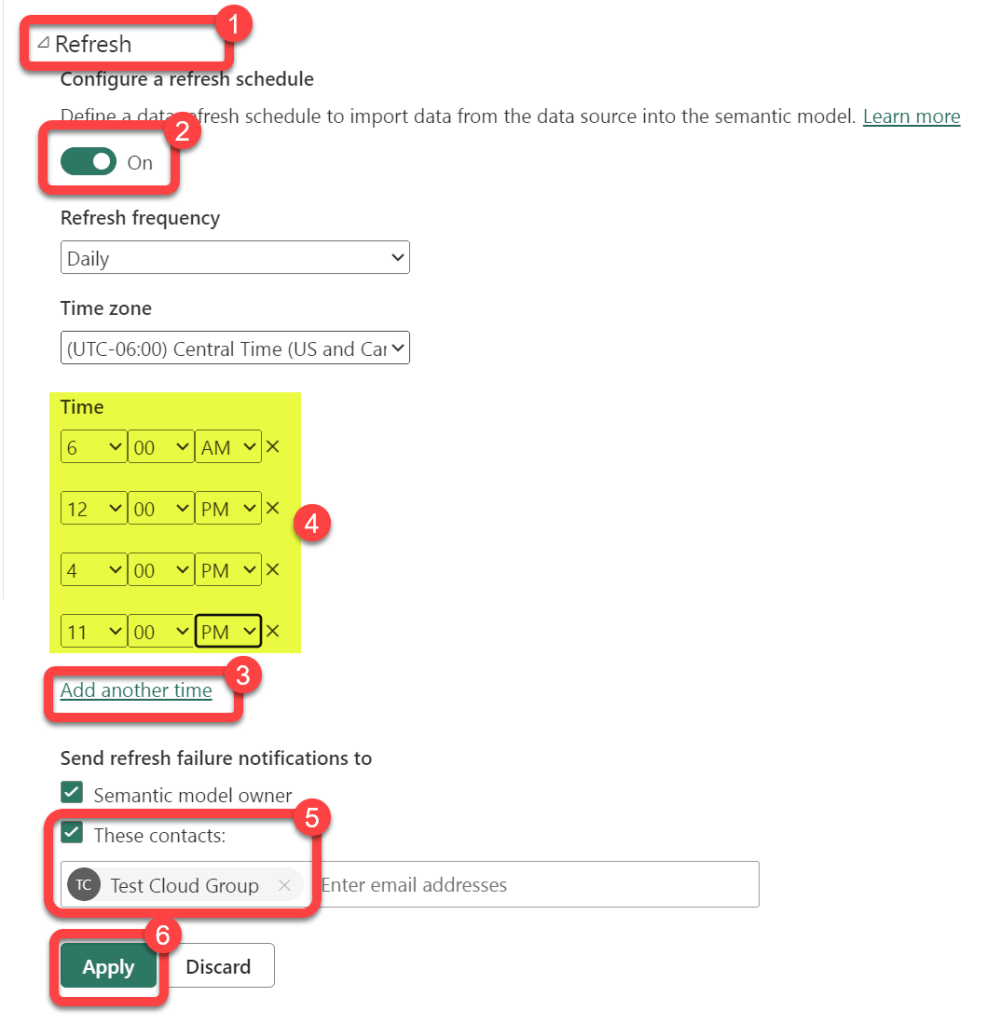
Configure Data Synchronization
Data is synchronized from the data sources to Power BI on a schedule as described here. Most customers sync approximately 3 times per day.
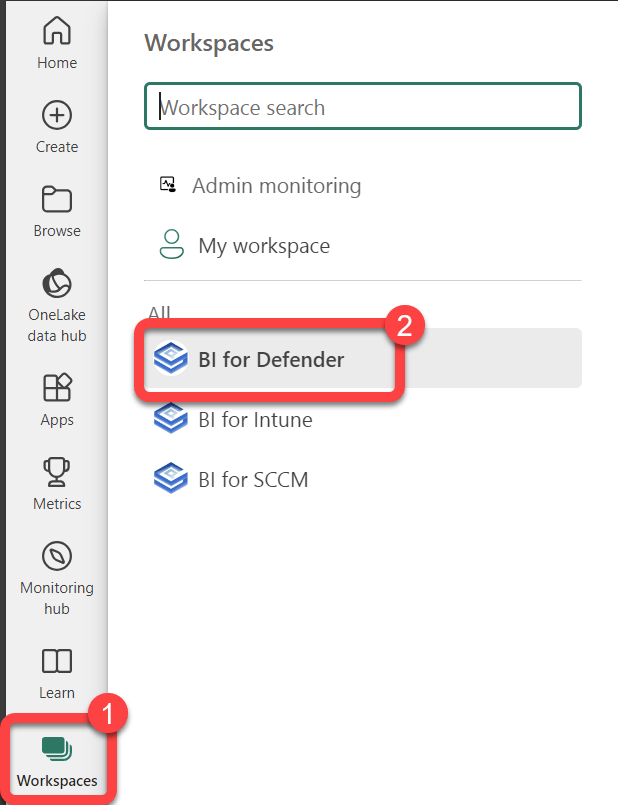
Step 1: Open the Defender Workspace
- Select Workspaces.
- Select the BI for Defender workspace.
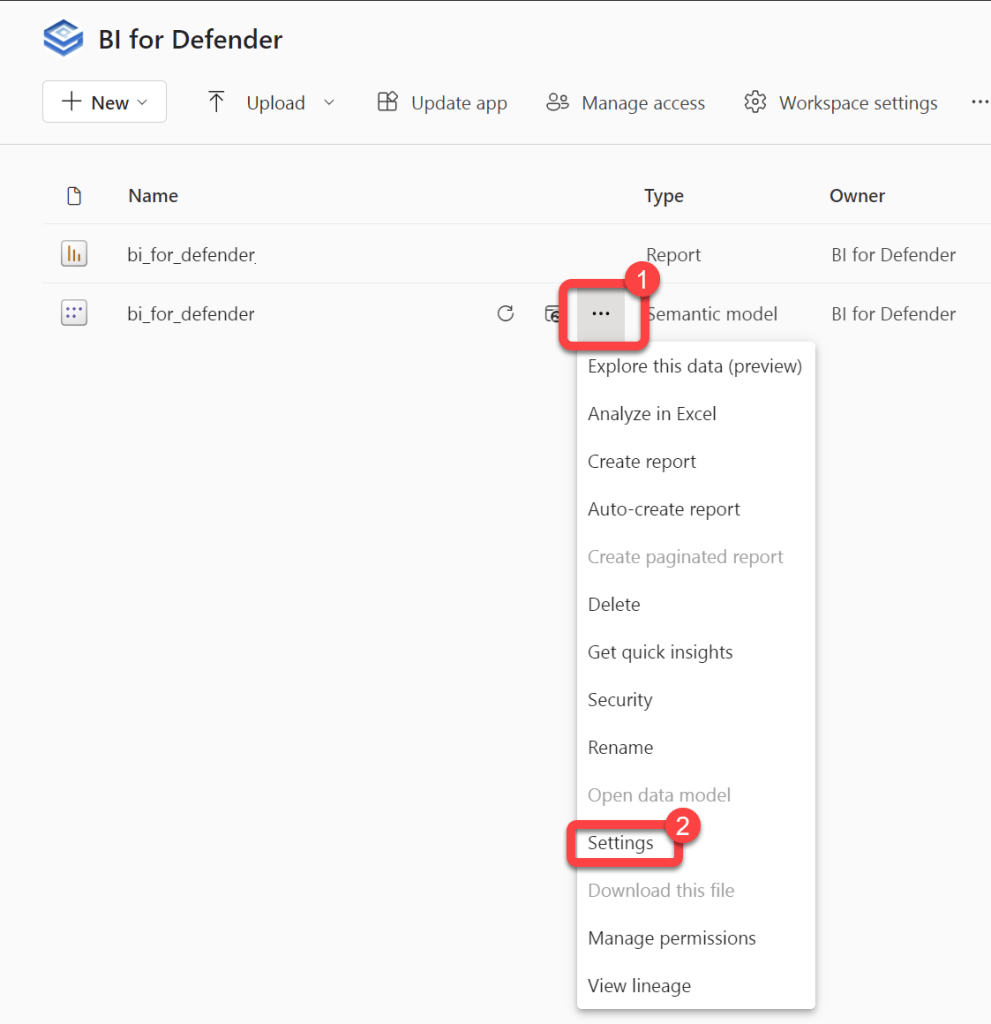
Step 2: Open the Dataset Settings
- Hover over the bi_for_defender Semantic model dataset to reveal a kebab menu (three vertical dots).
- Select the kebab menu.
- Select Settings.
Step 3: Configure Scheduled Refresh
- Expand Scheduled refresh.
- Move the Keep your data up to date slider to On.
- Select Add another time and enter up to 8 times for the data synchronization to happen.
- Optionally, enter contacts to be notified of synchronization failures.
- Select Apply.