Enable Azure Maps in Power BI
Several of the pages in the out-of-the-box reports contain the map visual. If the map visuals do not display in your environment they might be disabled. To ensure that the maps visual is enabled follow this guide.
Step 1: Open the Admin Portal
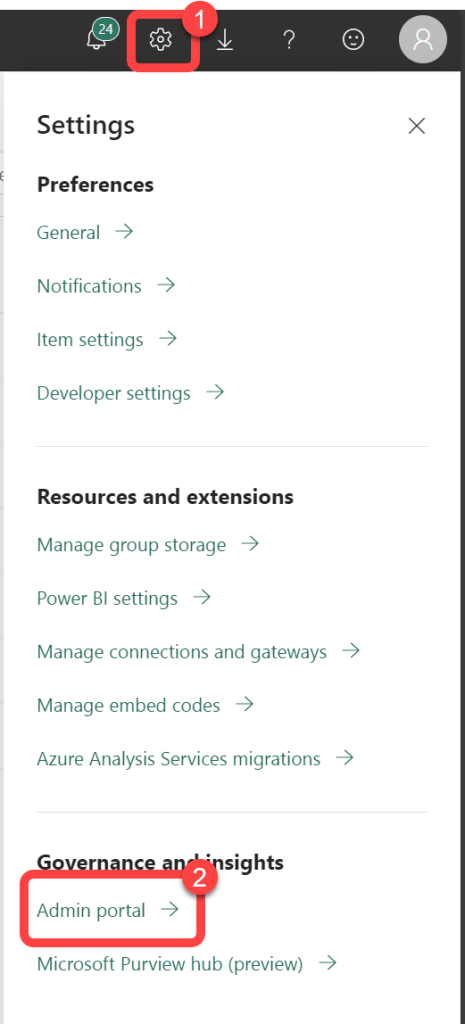
- In Power BI select the Settings icon.
- Select Admin portal.
Step 2: Enable Azure Maps Visual
- Select Tenant settings.
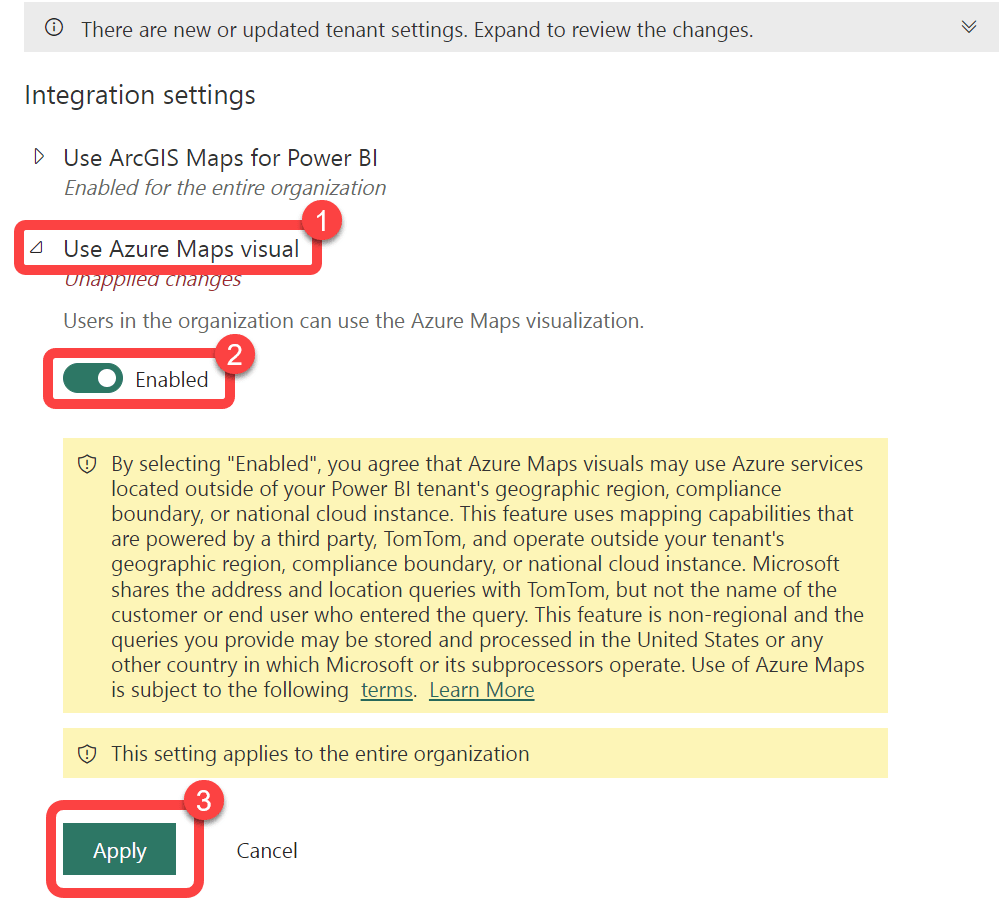
- In the Integration settings section expand Use Azure Maps visual.
- Select Enabled.
- Select Apply.