Configure AD User Discovery
Ensure the following items have been added to AD User discovery. Skipping this step will not generate any errors however some report fields will be blank if your organization does not use these active directory attributes.
Prerequisites:
Active Directory User Discovery must be enabled.
Step 1: Open User Discovery Properties
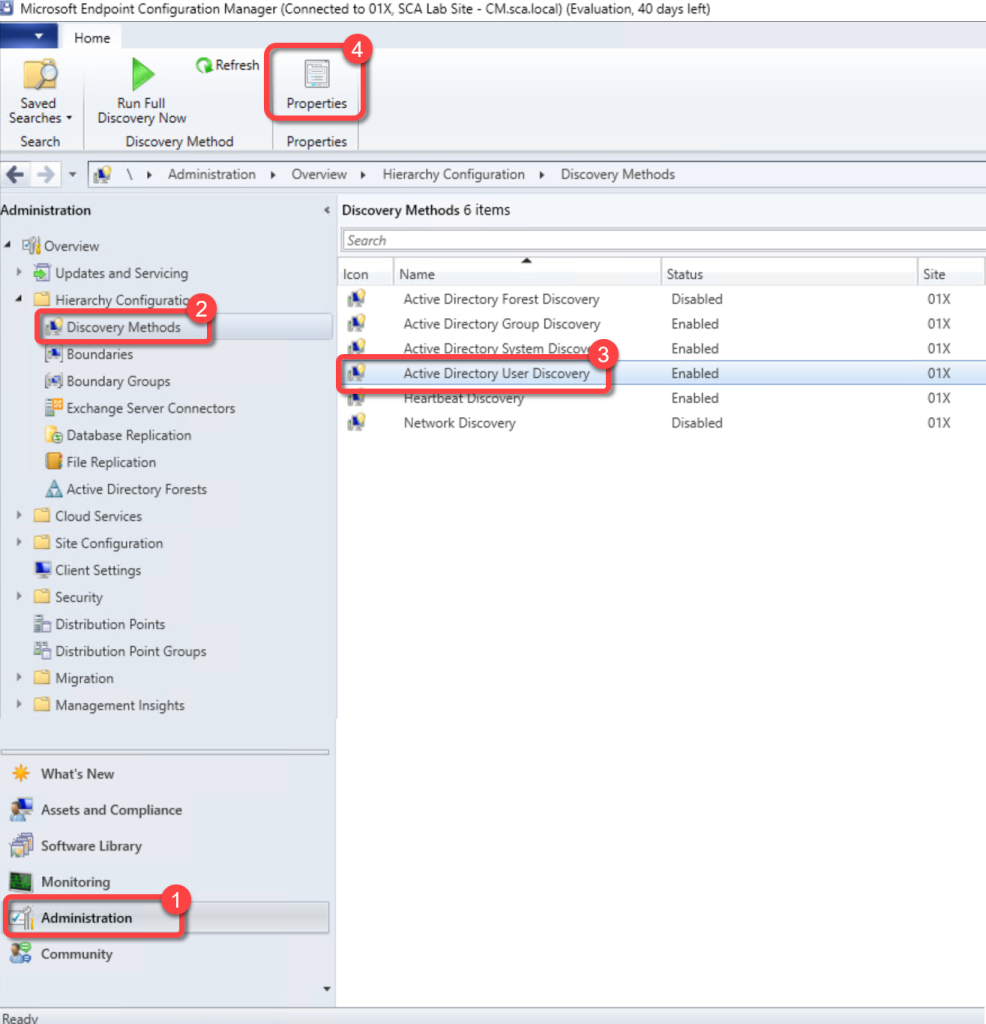
- In the Configuration Manager console, go to the Administration workspace, expand Hierarchy Configuration, and select the Discovery Methods node.
- Select Active Directory User Discovery.
- On the Home tab of the ribbon, select Properties.
Step 2: Add Active Directory Attributes
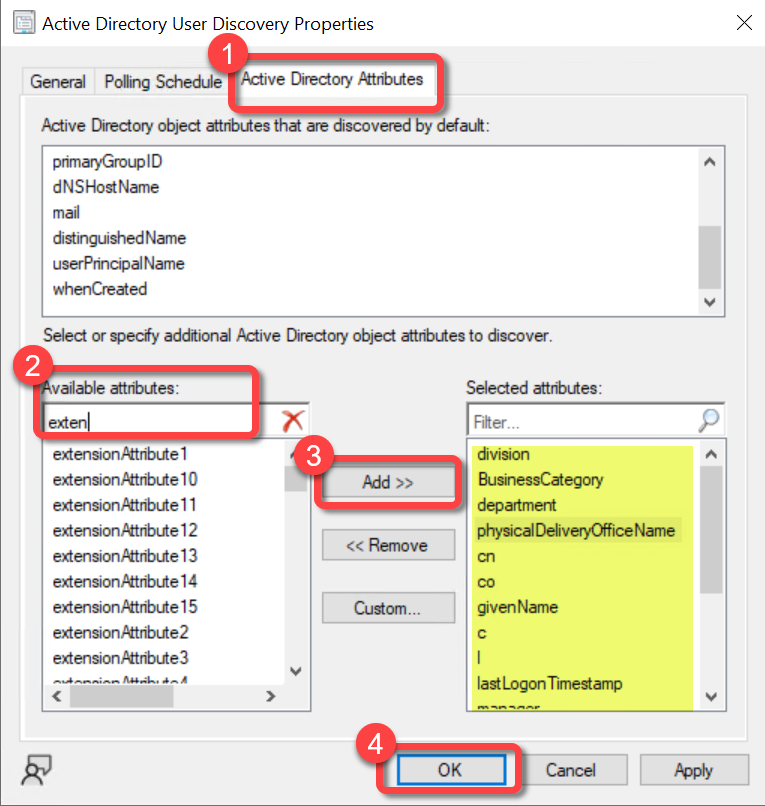
- Select the Active Directory Attributes tab.
- In the list of Available attributes locate each of the following, select Add to add each to the list of Selected attributes:
- cn
- co
- department
- division
- BusinessCategory
- physicalDeliveryOfficeName
- givenName
- L (in ConfigMgr it looks like an upper case i)
- lastLogonTimestamp
- manager
- postalCode
- sn
- st
- StreetAddress
- telephoneNumber
- title
If your organization uses the user extensionAttributes (1-15) in Active Directory, consider adding those as well. Select OK