Perform an In-place Upgrade
We strongly advise customers to always backup their custom reports before performing any in-place upgrades. Failure to do so could result in the loss of your custom reports! Our backup process consists of creating a new workspace by installing a second instance of BI for SCCM. There is no need to configure this instance, it's just a place-holder to which our script, documented in our "Backup Custom Reports" document, copies all of your custom reports in case something goes wrong during the upgrade. In the unlikely even that the upgrade fails it may be necessary to configure the backup workspace and move it to production. Prerequisites: The user executing these steps should be an administrator of the BI for SCCM workspace.
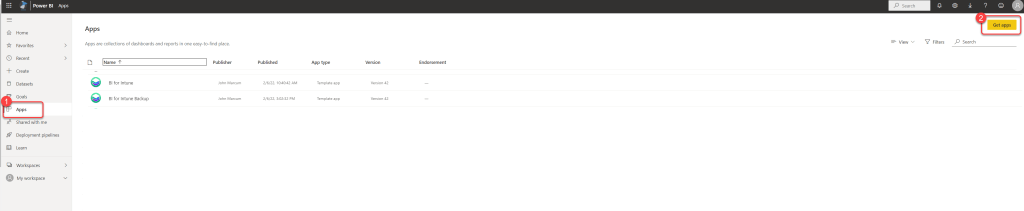
Step 1: Open Power BI Apps
- Log in to Power BI.
- Select Apps.
- Select Get apps.
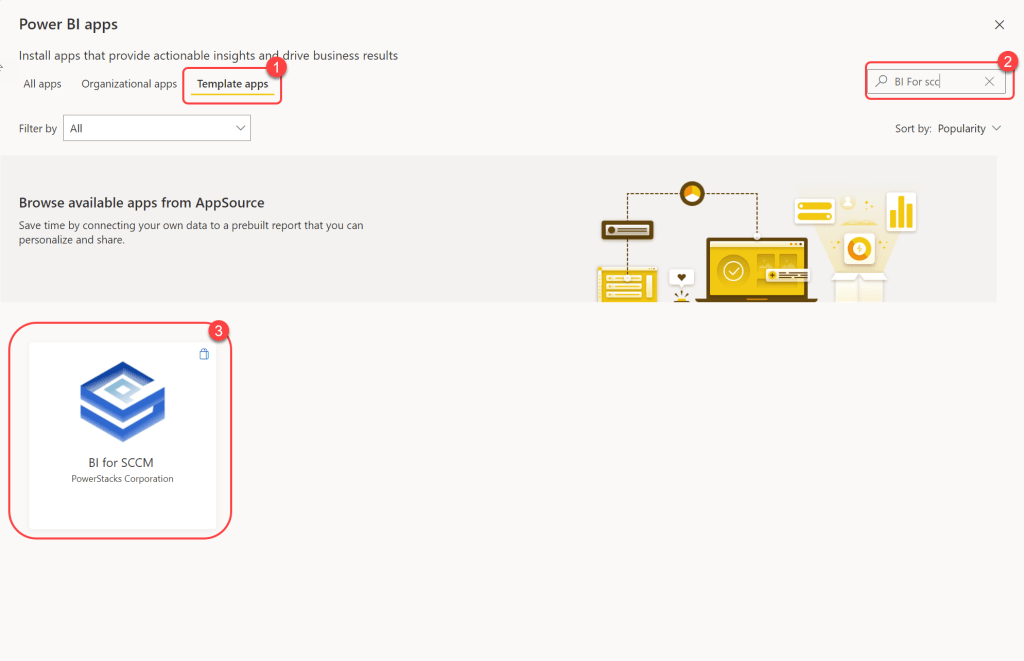
Step 2: Search for BI for SCCM
- Select Template apps.
- Search for BI for SCCM.
- Select BI for SCCM.
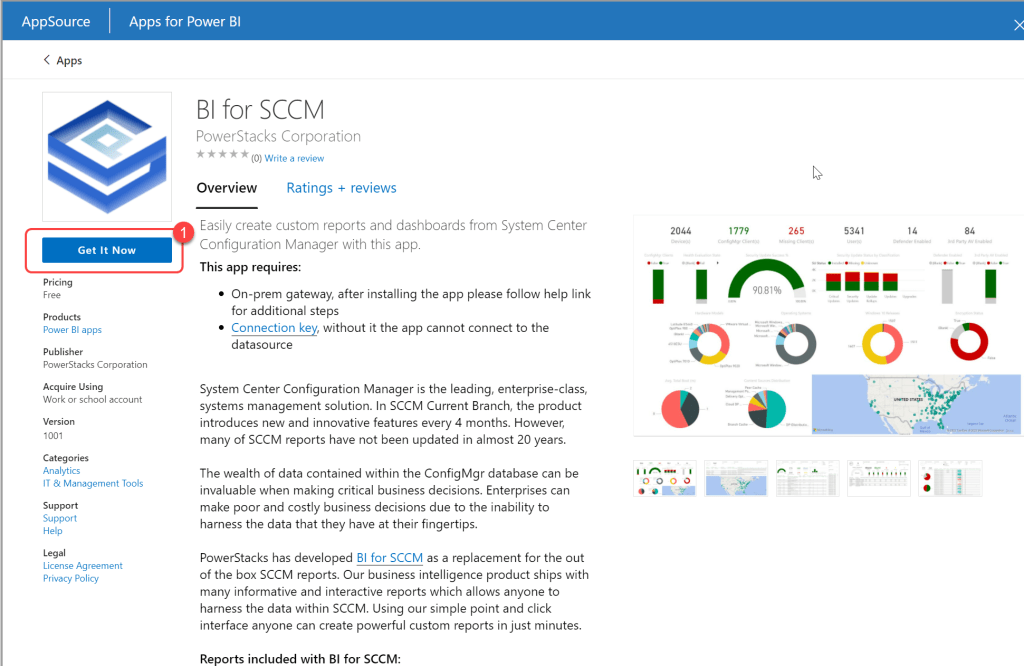
Step 3: Get the App
- Select Get It Now.
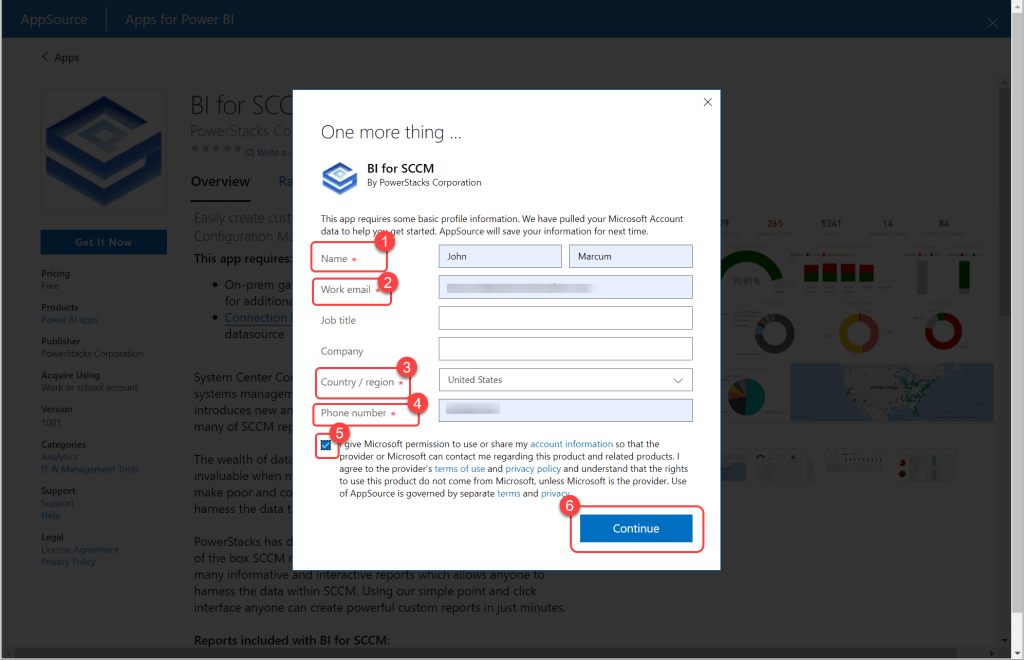
Step 4: Accept the Agreement
- Enter the required information.
- Accept the Microsoft agreement.
- Select Continue.
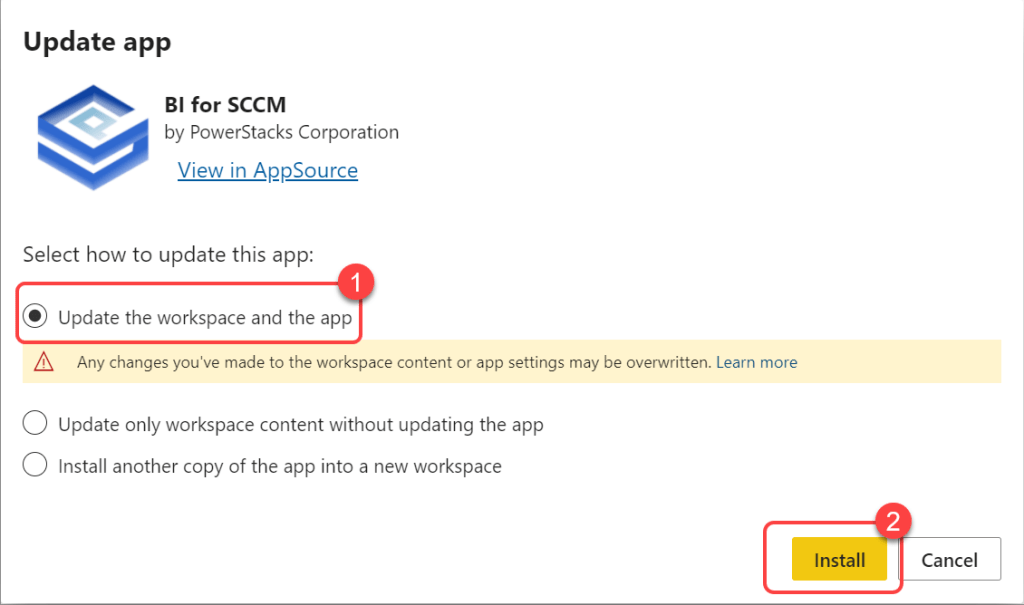
Step 5: Update Existing Workspace
- Select Update the workspace and the app.
- Select Installto accept the terms and conditions.
Step 6: Refresh the Data
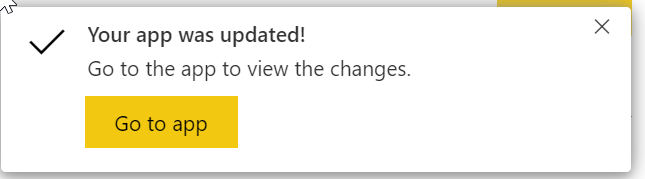
- Watch for the update completed notification in your browser.
- The data will revert back to the sample data that comes with BI for SCCM. Start a manual refresh to sync your data.