Install BI for Intune
BI for Intune installs from the Microsoft Marketplace directly into your Power BI tenant. No on-premises infrastructure is required. After installing, you can preview the app with sample data or request a 30-day trial license to connect your own data.
Prerequisites
- A Power BI Pro license, Power BI Premium Per User license, or a Power BI tenant licensed for Power BI Premium. Microsoft offers a free Power BI Pro trial license via self-service sign-up for those who want to try BI for Intune before purchasing Microsoft licenses.
- Permissions to create an app registration in Microsoft Entra ID. Required to configure the trial.
Step 1: Install BI for Intune from the Microsoft Marketplace
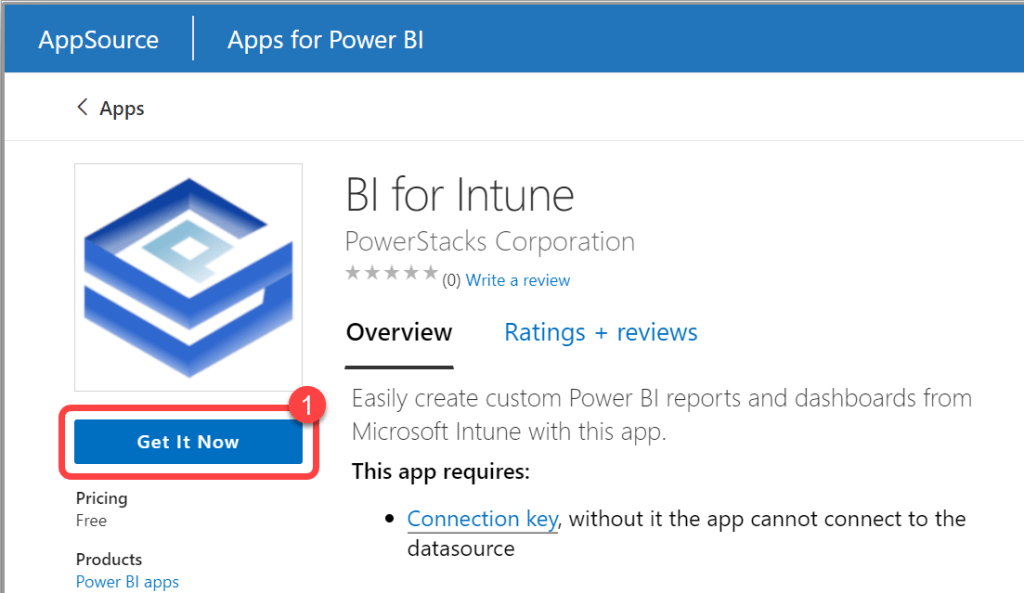
- On the BI for Intune page in the Microsoft Marketplace, select Get it now.
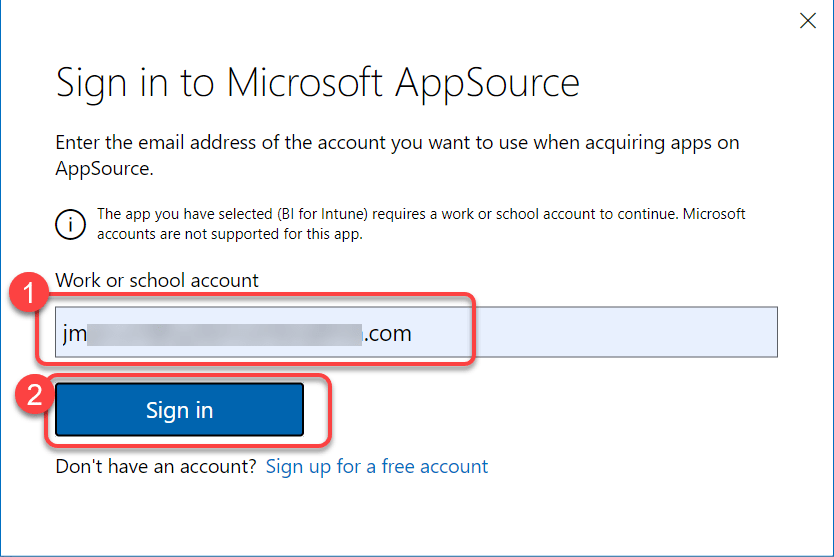
- Enter your work email address and select Sign in.
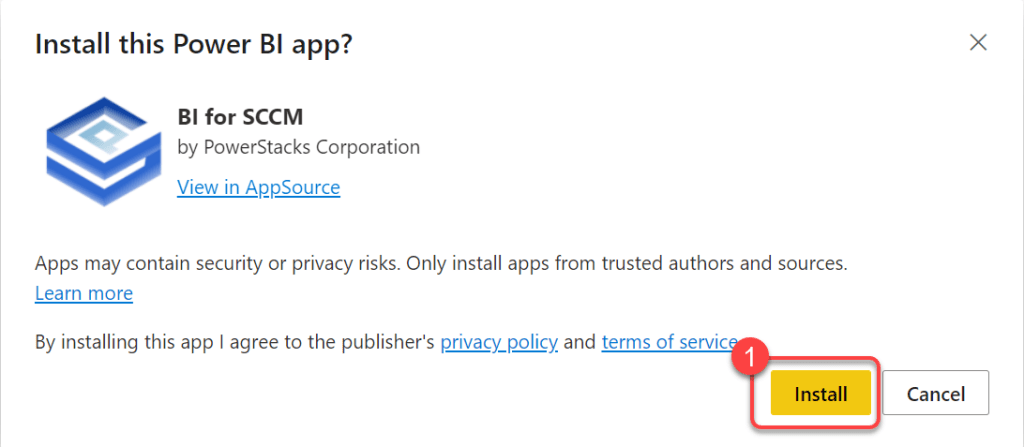
- Select Install.
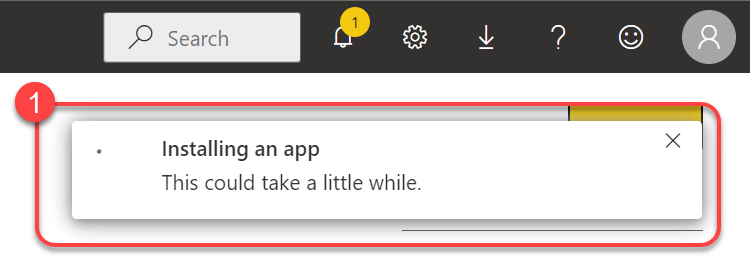
- Wait for the installation to complete. When it finishes successfully, a notification tells you that your new app is ready.
Step 2: View the app with sample data
The app installs with sample data so you can preview the reports immediately.
- In the Power BI service, open the BI for Intune app from your Apps list.
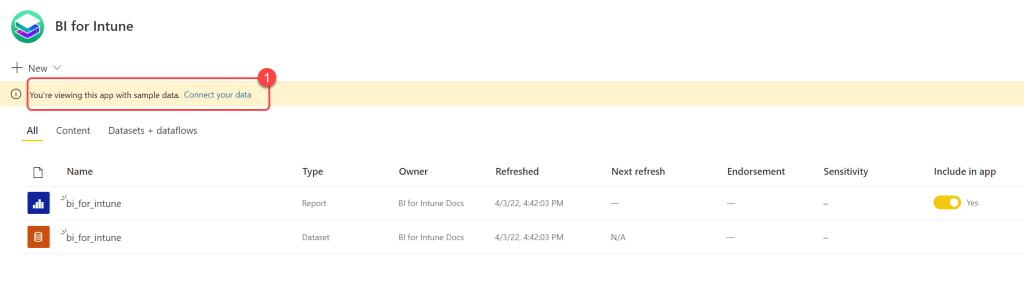
- A banner across the top says, "You're viewing this app with sample data. Connect your data." Ignore this banner while you preview the reports. To connect your own data, request a trial license key and continue with the setup guide.