Inventory Monitors
BI for SCCM can report on the monitors connected to devices. This information includes the make, model, and manufacture date.
To populate the data required for reporting on monitors you must extend hardware inventory to include the "WMIMonitorID" WMI class from the "rootWMI" namespace. You can only add inventory classes from the hierarchy's top-level server by modifying the default client settings. This option isn't available in custom client settings.
For more information about adding a new WMI class to Configuration Manager hardware inventory see the Add a New Class section in the How to extend hardware inventory Configuration Manager documentation page.
Prerequisites:
- Hardware inventory must be enabled.
- Permissions to edit the default hardware inventory settings.
Skipping this recommended configuration will not generate any errors however, you will not be able to report on monitors and the out of the box Monitors page will be blank.
Step 1: Open Default Client Settings
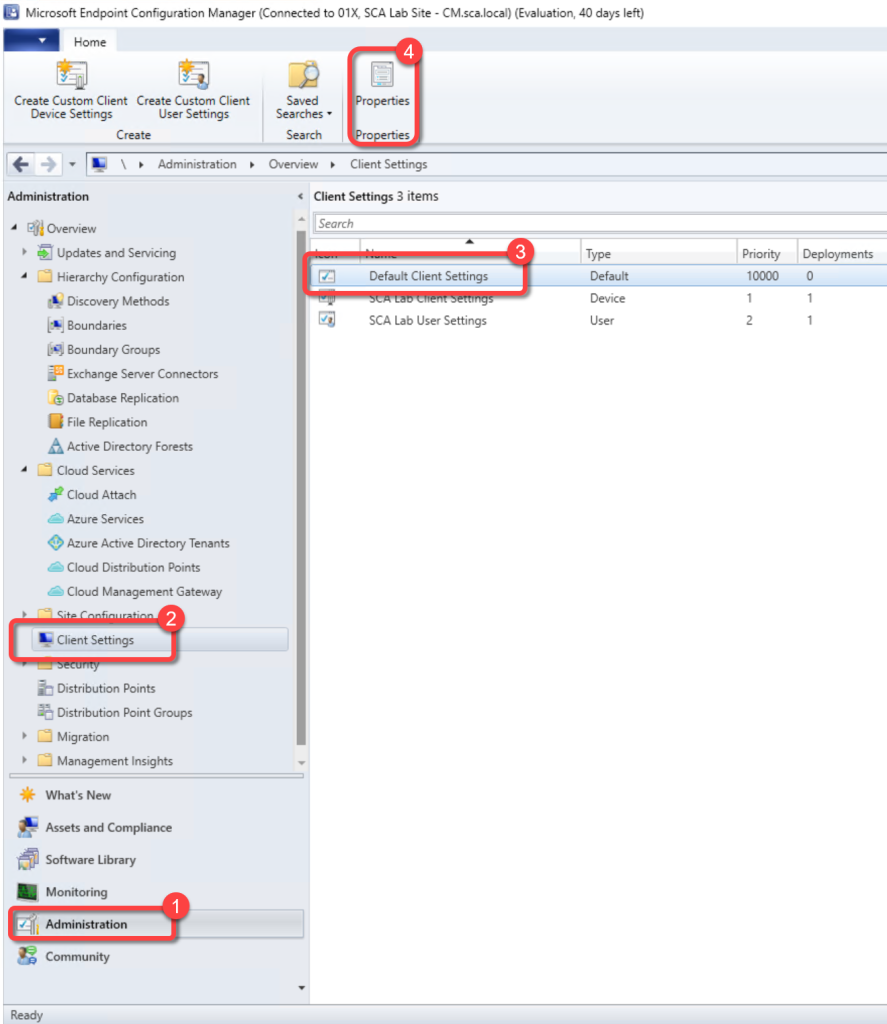
- In the Configuration Manager console, go to the Administration workspace.
- Select the Client Settings node.
- Select the Default Client Settings. (Note: New classes must be added in the Default Client Settings.)
- On the Home tab, in the Properties group, choose Properties.
Step 2: Open Hardware Inventory Classes
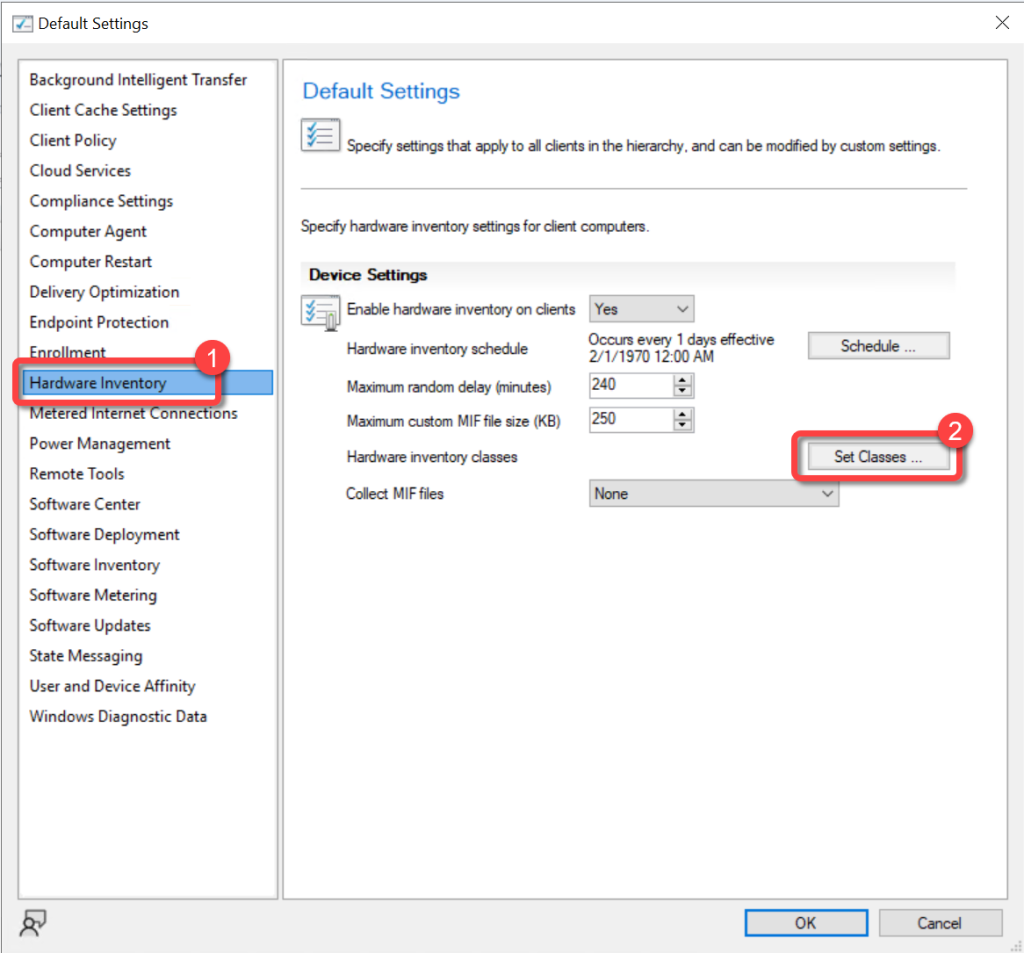
- In the Default Settings dialog, choose Hardware Inventory.
- In the Device Settings list, select Set Classes.
Step 3: Add New Inventory Class
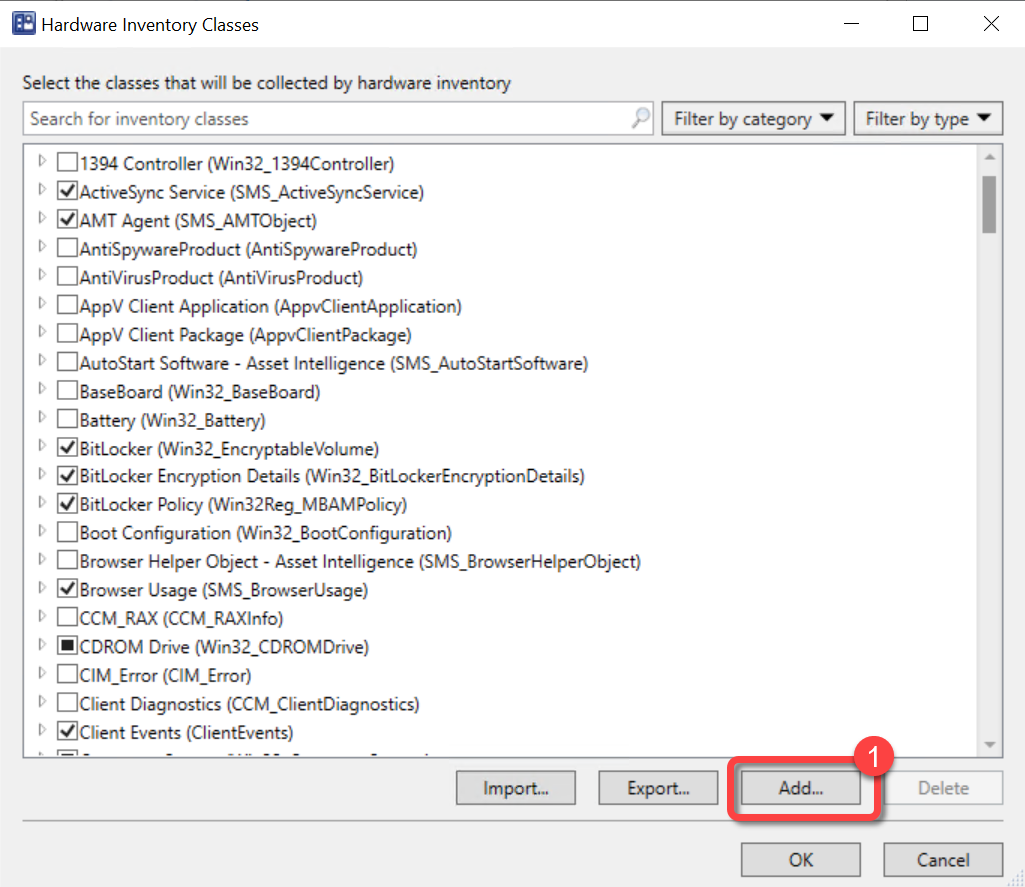
- In the Hardware Inventory Classes dialog select Add.
Step 4: Connect to WMI
- In the Add Hardware Inventory Class dialog, select Connect.
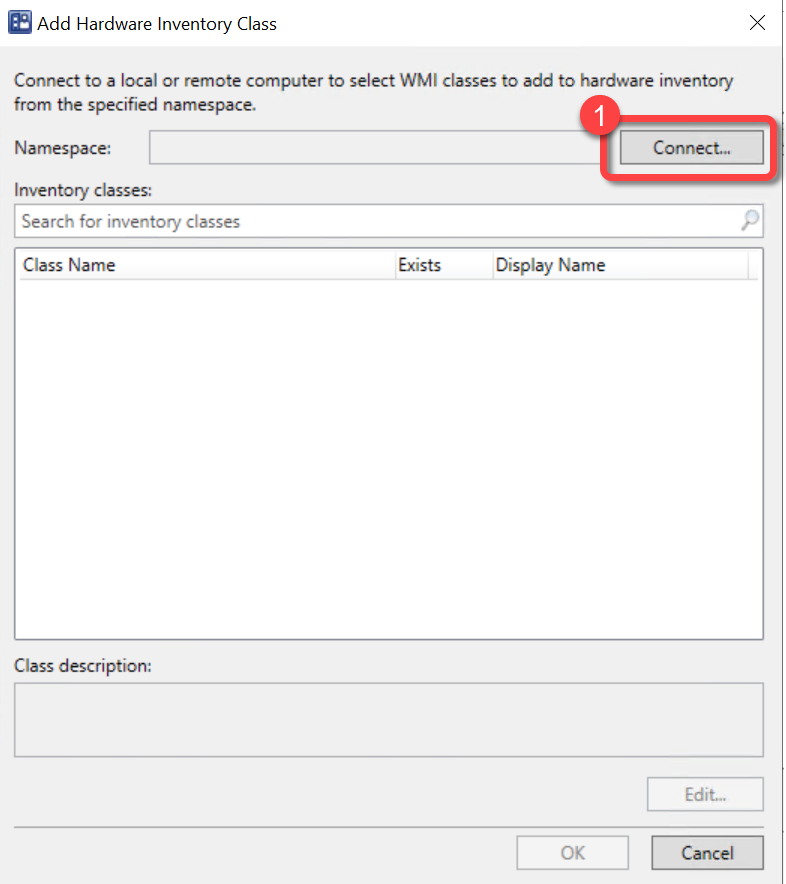
Step 5: Specify WMI Namespace
- In the Connect to Windows Management Instrumentation (WMI) dialog, specify the rootWMI namespace and select Recursive.
- select Connect.
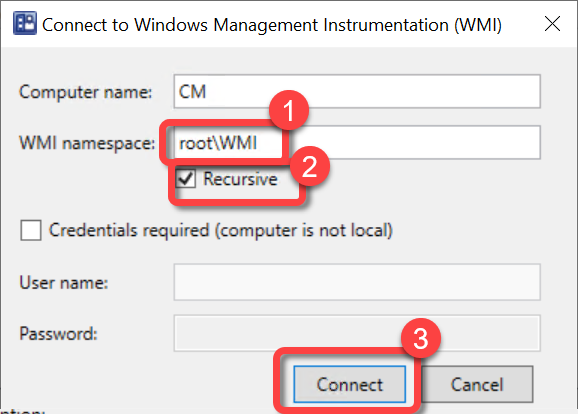
Step 6: Select WMIMonitorID Class
- In the Add Hardware Inventory Class dialog, use the Search for inventory classes field to search for the WMIMonitorID class.
- Select the WMIMonitorID class.
- Select OK.
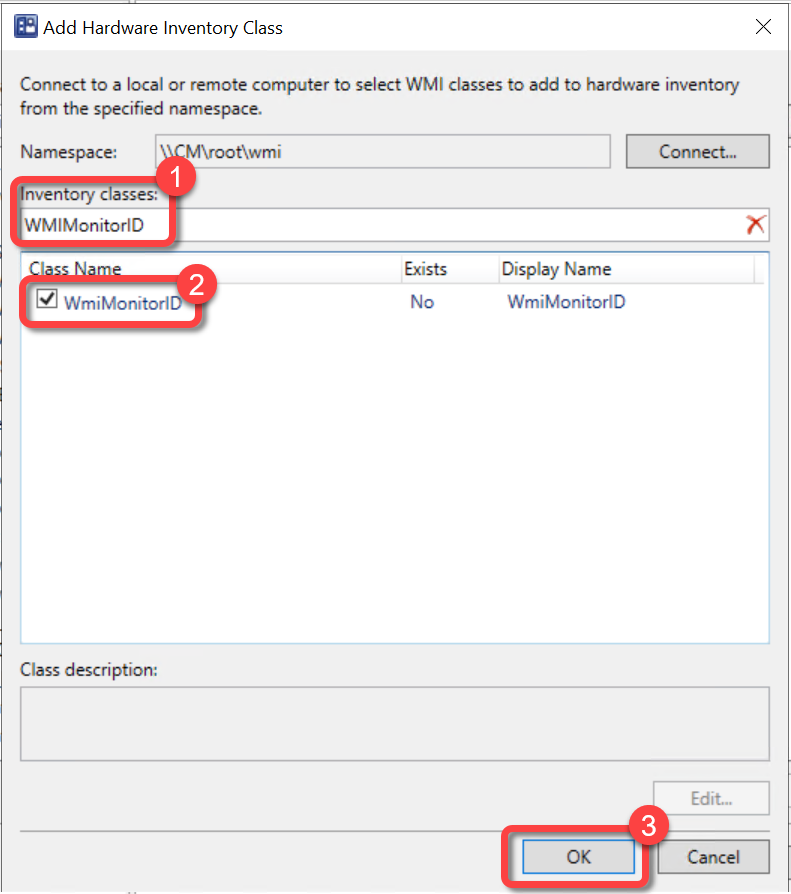
Step 7: Review Inventory Classes
- In the Hardware Inventory Classes dialog, you might want to clear the WMIMonitorID and add it to a custom client agent setting instead. Using a custom client agent setting is typically advised however it is not covered in this document. If you would like to have the monitor inventory collected using the Default Client Settings do not clear WMIMonitorID here.
- Select OK.
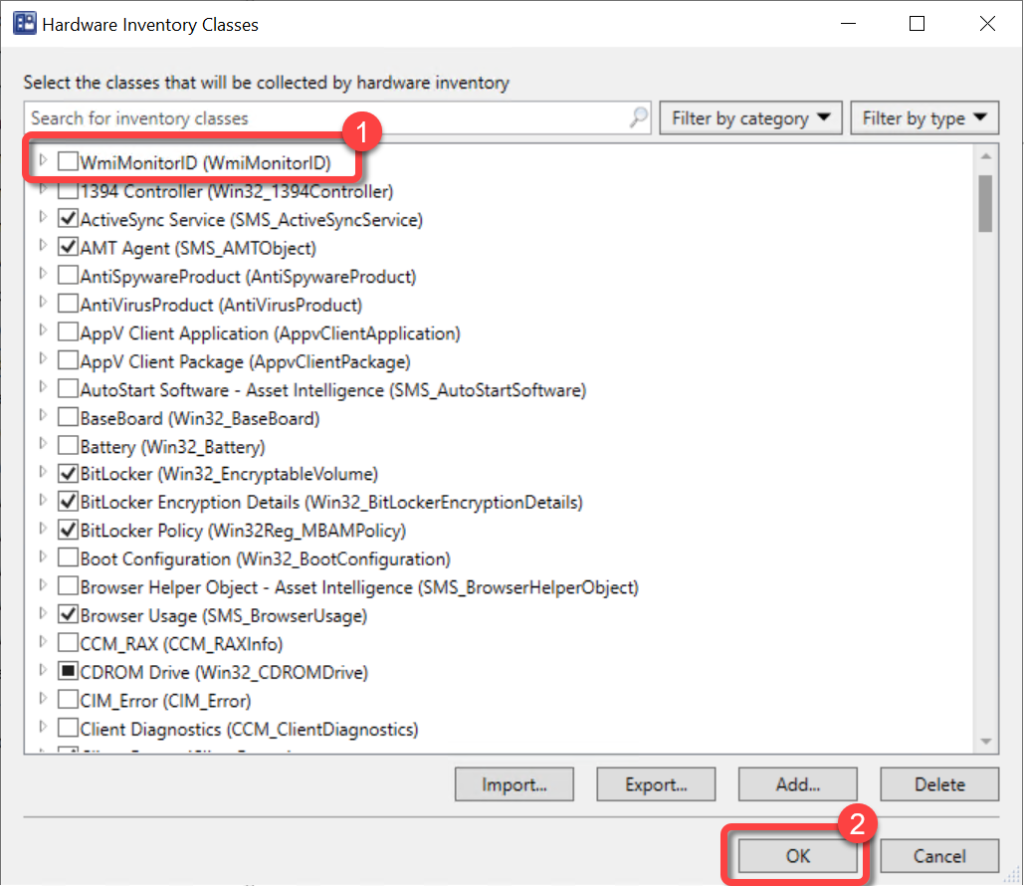
Step 8: Confirm Default Settings
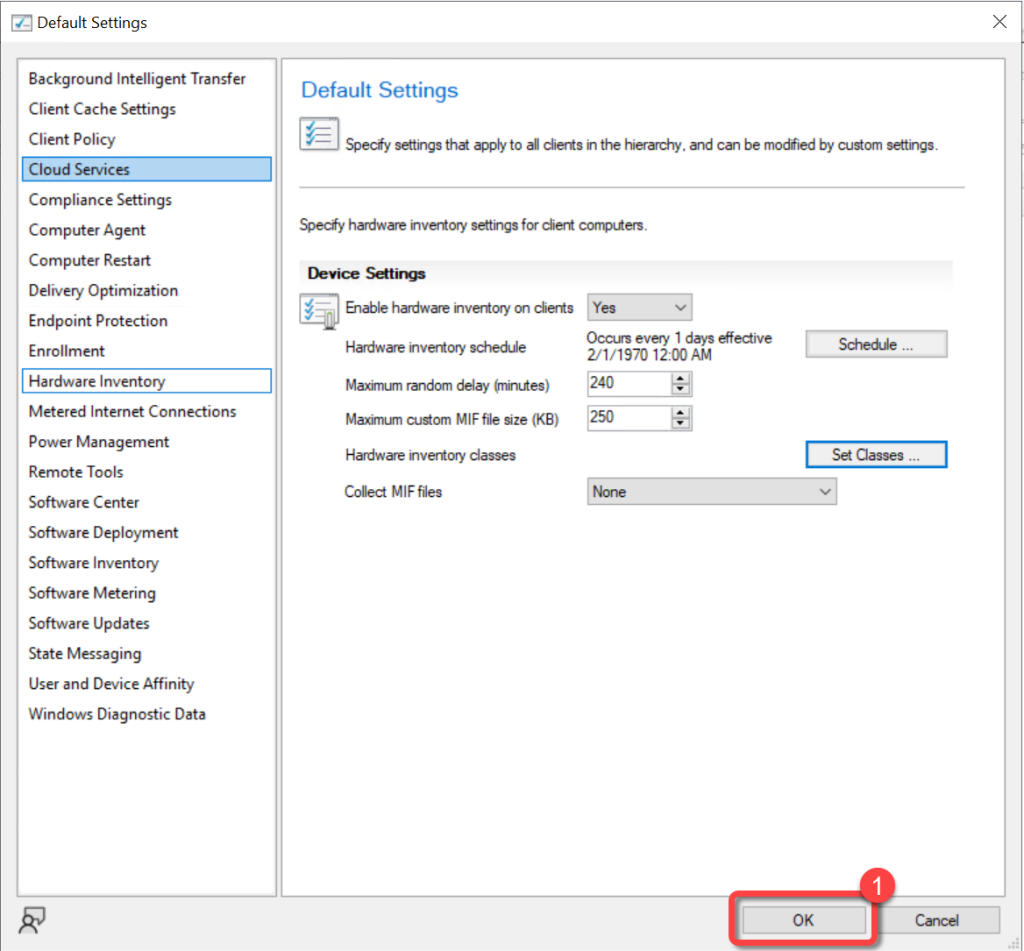
- In the Default Settings dialog, select OK.