Create the Microsoft Entra app registration
Synchronizing data from Intune, Microsoft Entra ID, Log Analytics, and other cloud data sources is done using application permissions. The steps here configure the permissions required for Power BI to connect to those data sources to get the data.
Prerequisites
The user performing these steps requires Global Admin and Subscription Admin rights.
Step 1: Register the application in Microsoft Entra ID
- Sign in to portal.azure.com or entra.microsoft.com using a global administrator account.
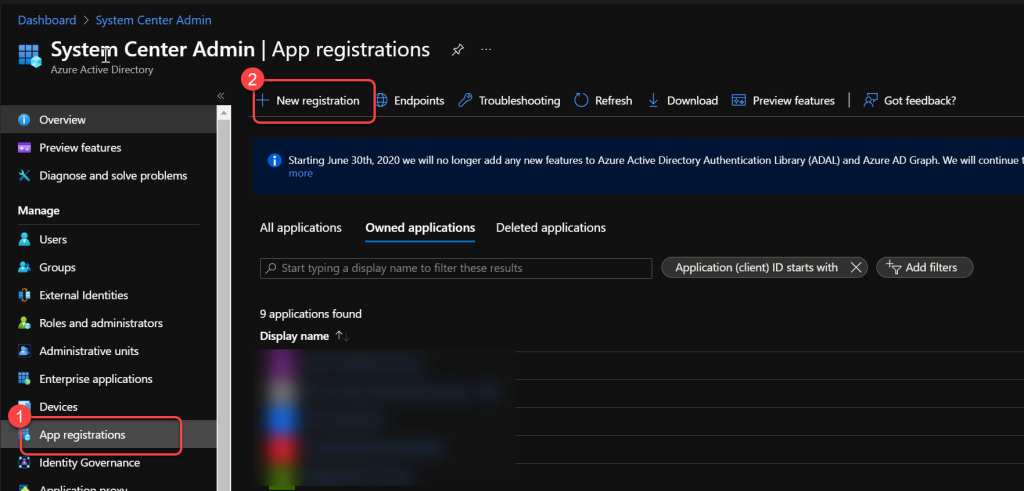
- Search for and select App registrations.
- Select New registration.
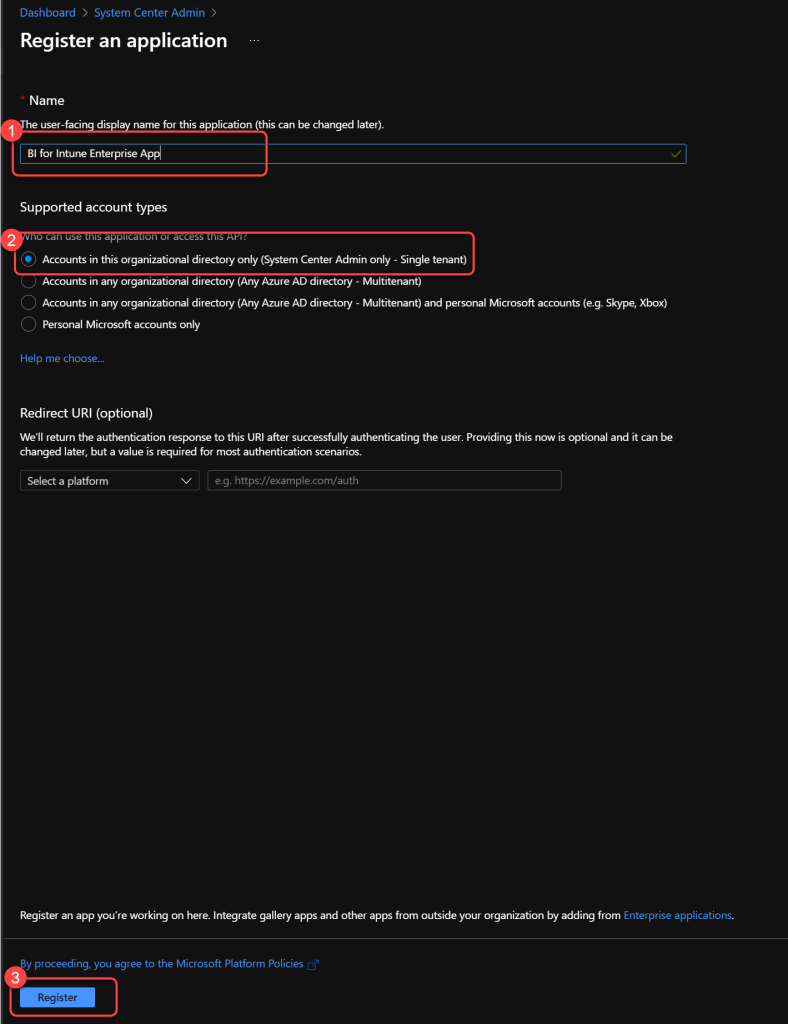
- Enter a Name for the application. (This will not be seen by anyone other than admins.)
- Specify who can use the application as Accounts in this organizational directory only.
- Select Register.
Step 2: Add Microsoft Graph permissions
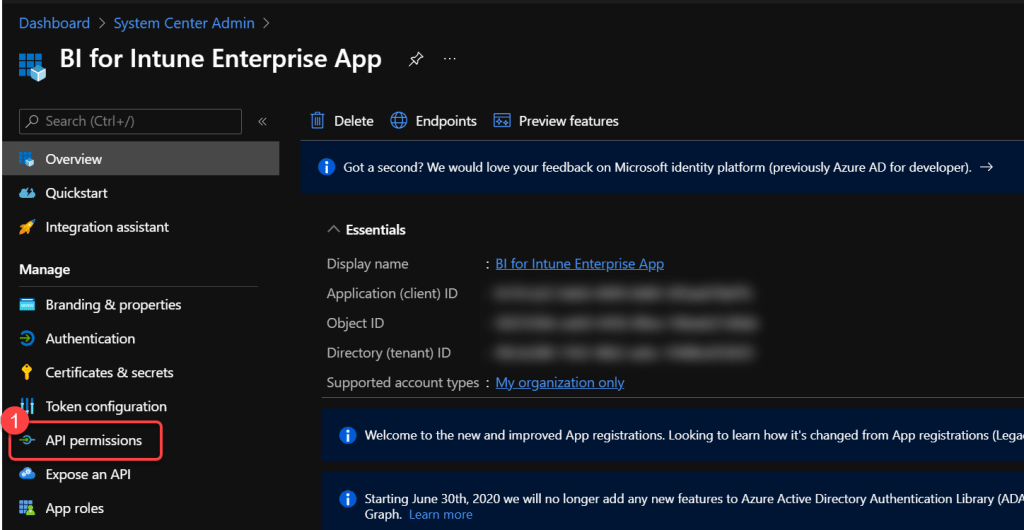
- On the app registration page select API Permissions.
- Remove the User.Read permission.
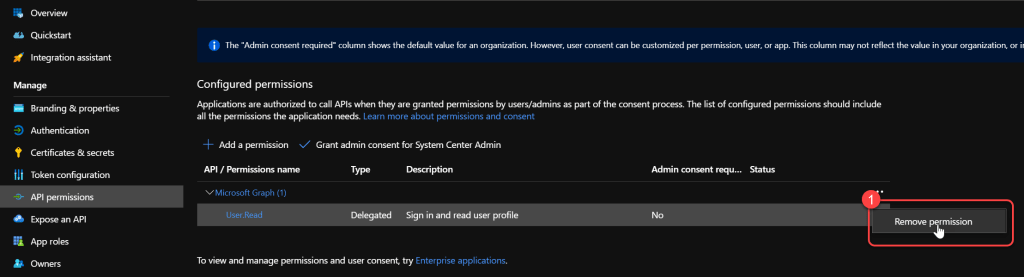
- When prompted, select Yes, remove.

- Select Add a permission.
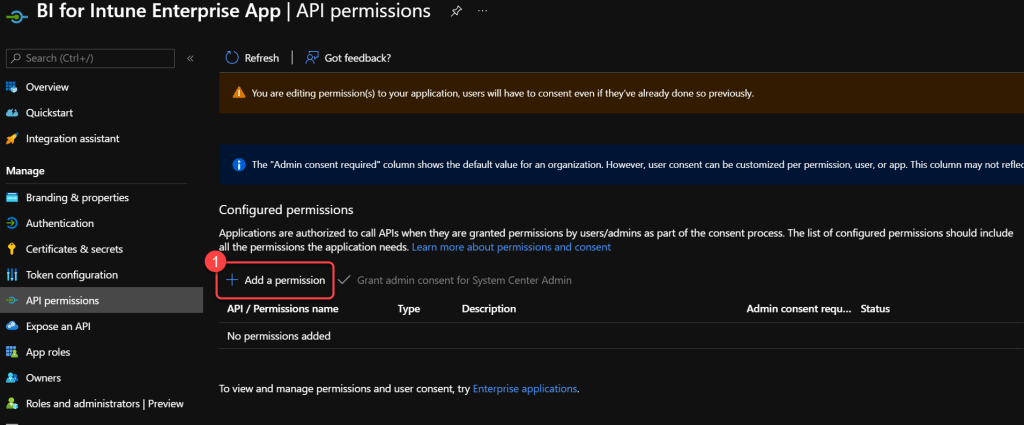
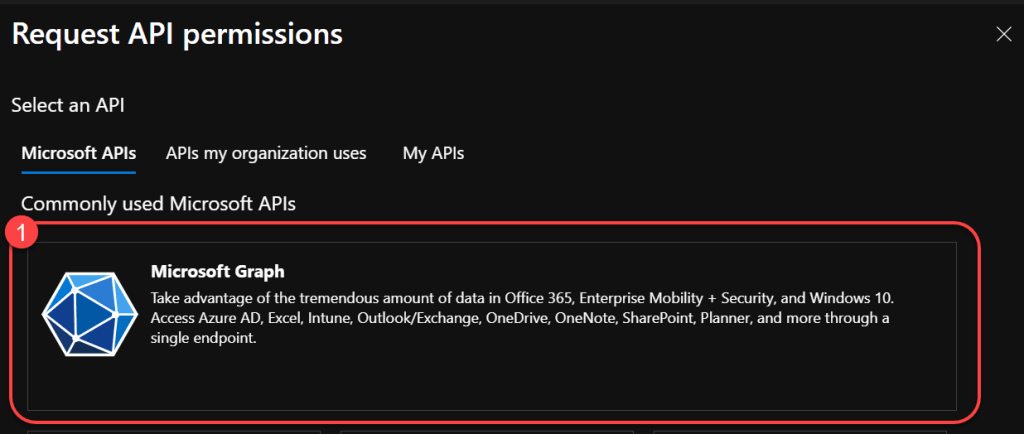
- Select Microsoft Graph.
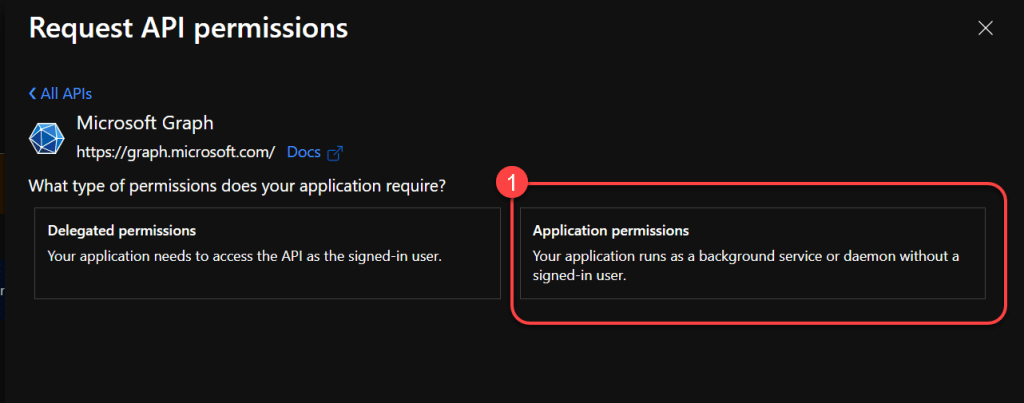
- Select Application permissions.
-
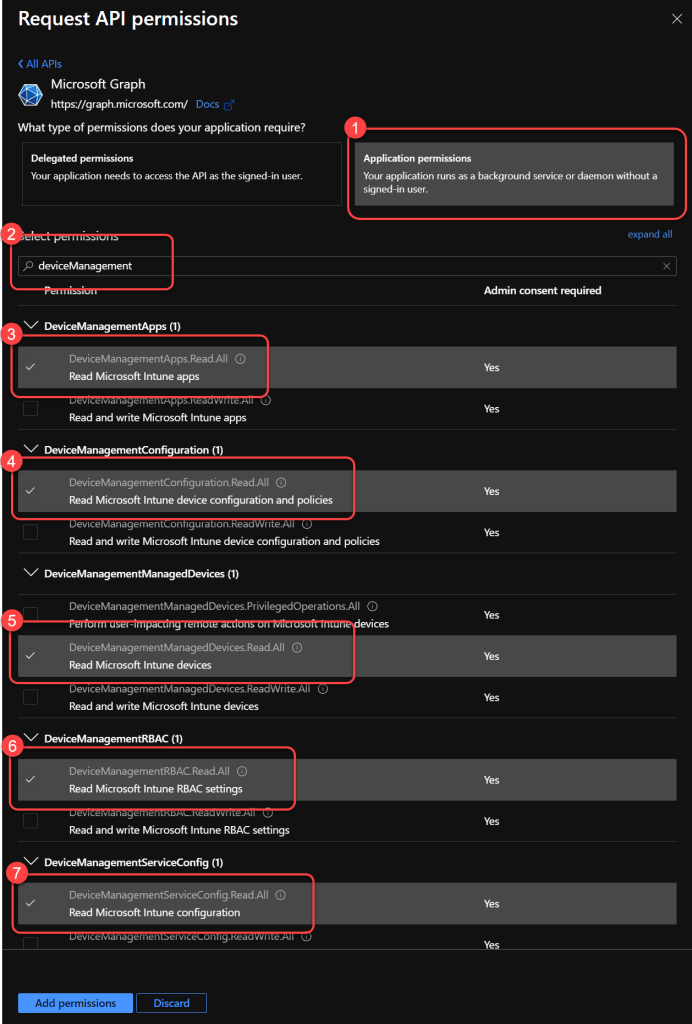
Search for DeviceManagement and select these permissions. Do not select Add permissions yet — you add several permissions before applying them.
- DeviceManagementApps.Read.All
- DeviceManagementConfiguration.Read.All
- DeviceManagementManagedDevices.Read.All
- DeviceManagementRBAC.Read.All
- DeviceManagementScripts.Read.All
- DeviceManagementServiceConfig.Read.All
-
Search for Directory and select Directory.Read.All.
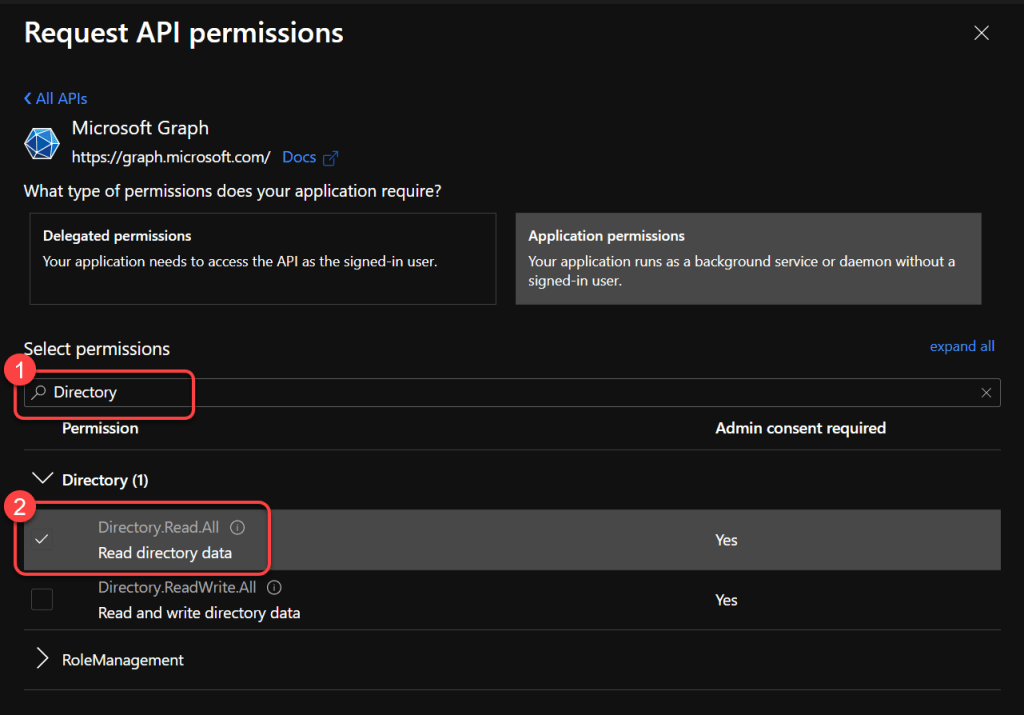
- Search for AuditLog and select AuditLog.Read.All.
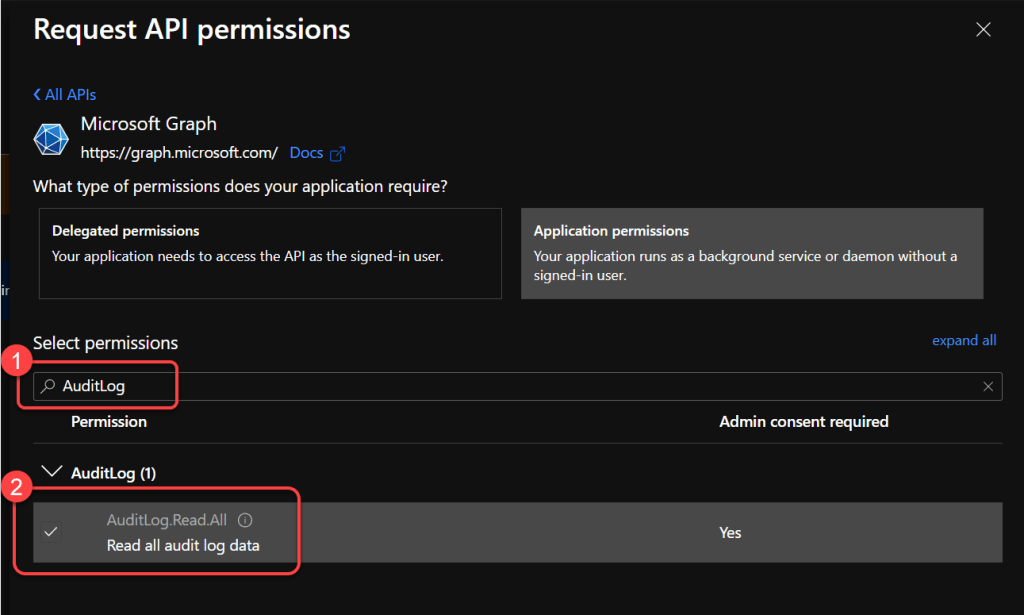
- Search for Policy and select Policy.Read.All.
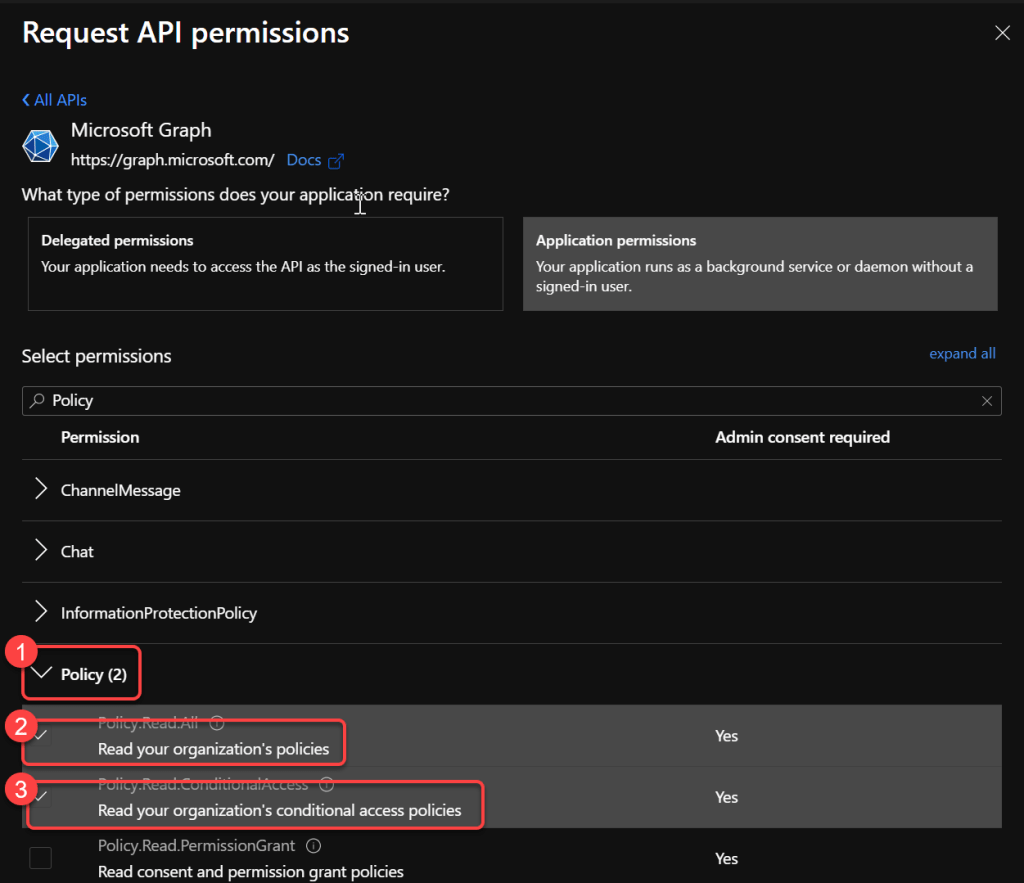
- Search for IdentityRiskyUser and select IdentityRiskyUser.Read.All.
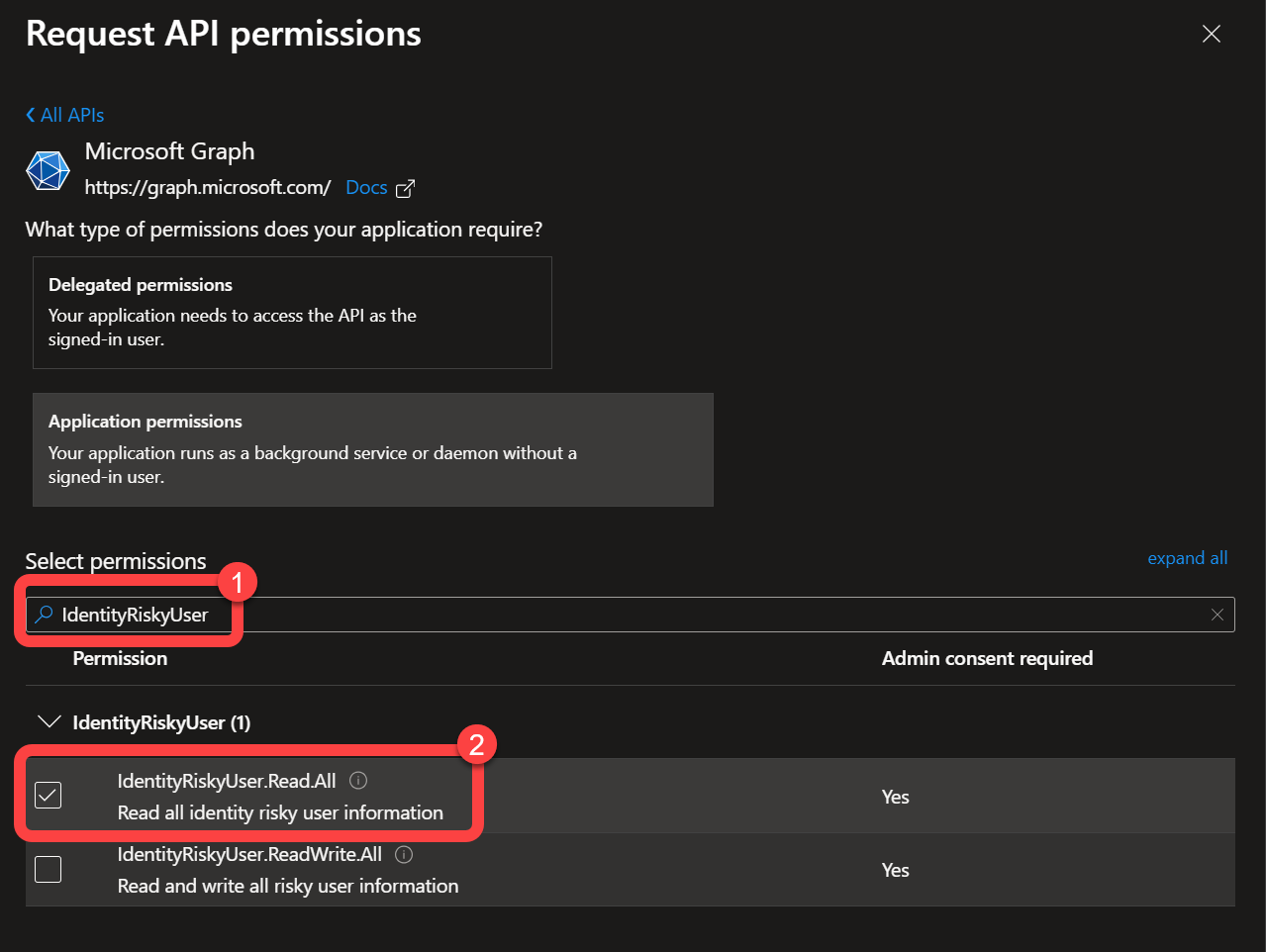
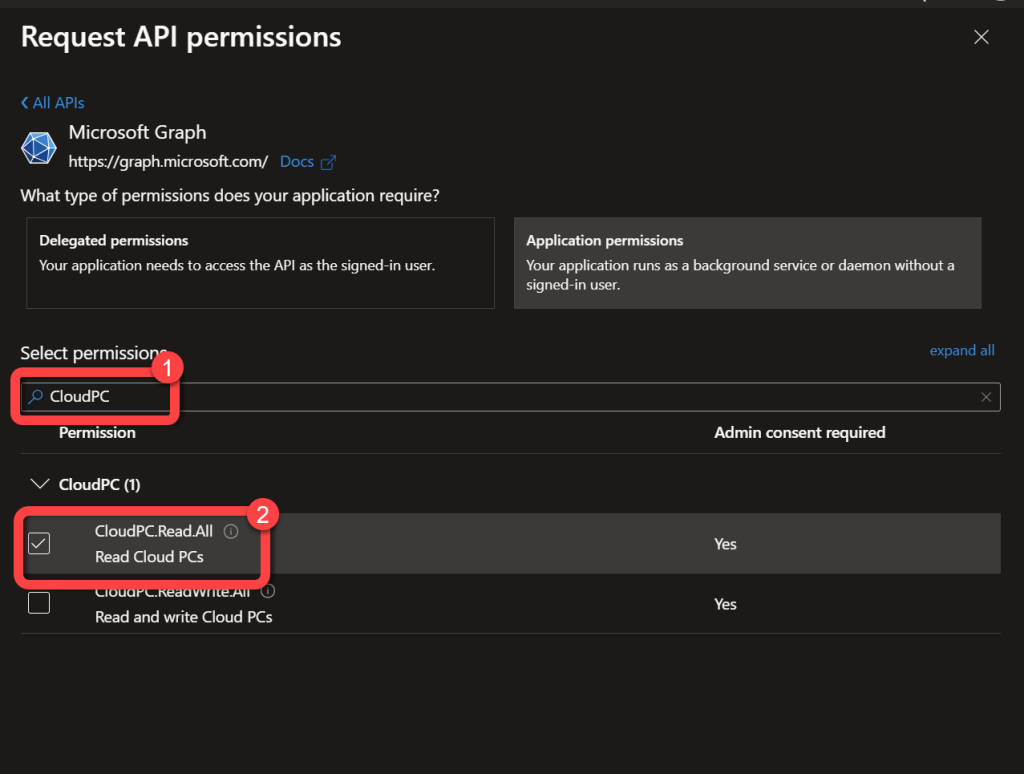
- (Optional — only for Windows 365 / Cloud PC) Search for CloudPC and select CloudPC.Read.All.
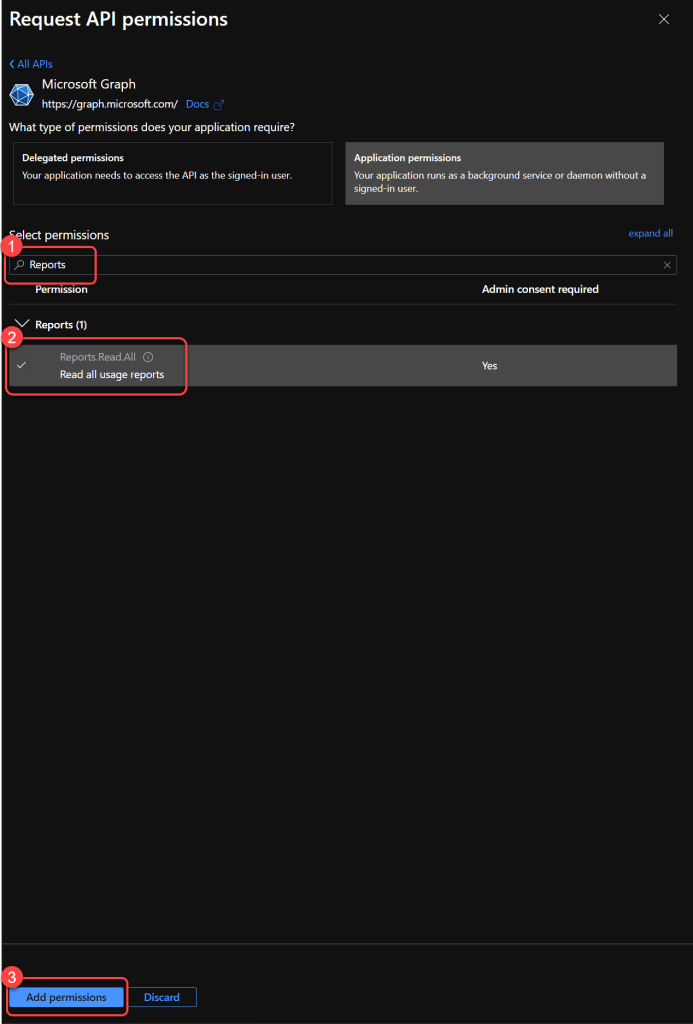
- Search for Reports, select Reports.Read.All, and select Add permissions.
Step 3: Add Log Analytics permissions
Only required for the Enhanced Inventory solution
Skip this step if you do not plan to use the Enhanced Inventory solution.
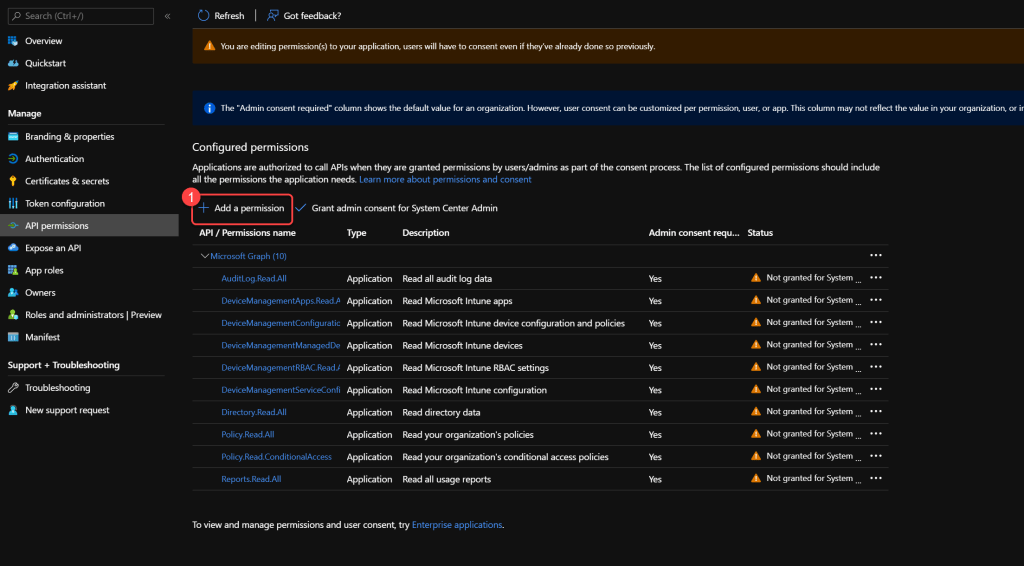
- Select Add a permission.
- Select APIs my organization uses.
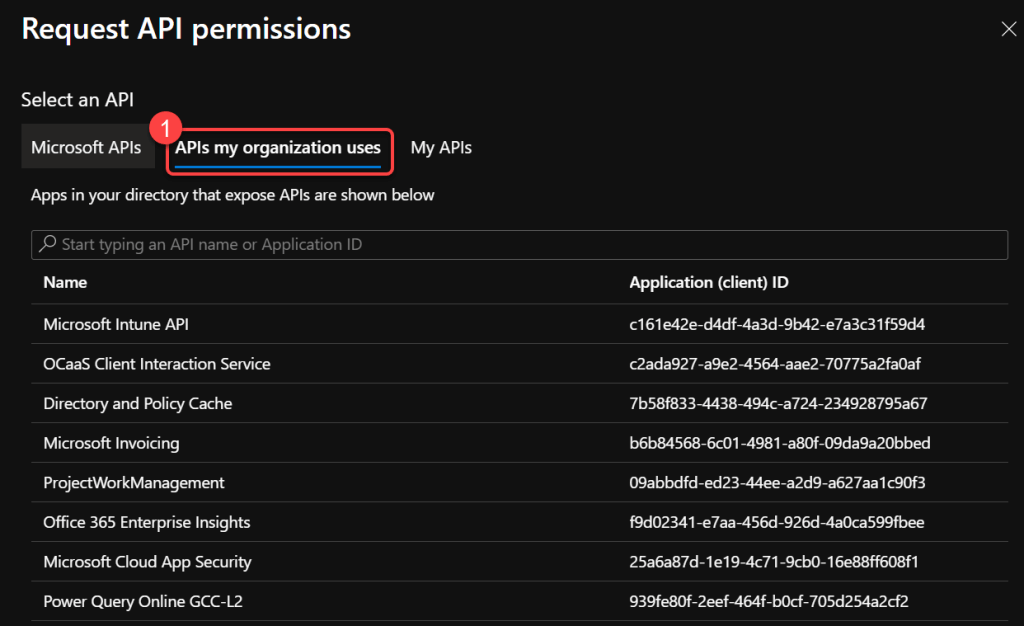
- Search for Log Analytics and select Log Analytics API.
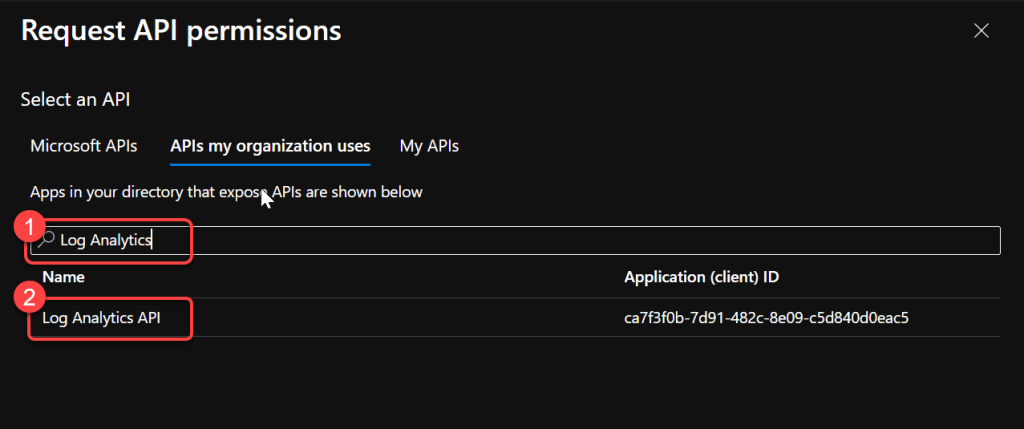
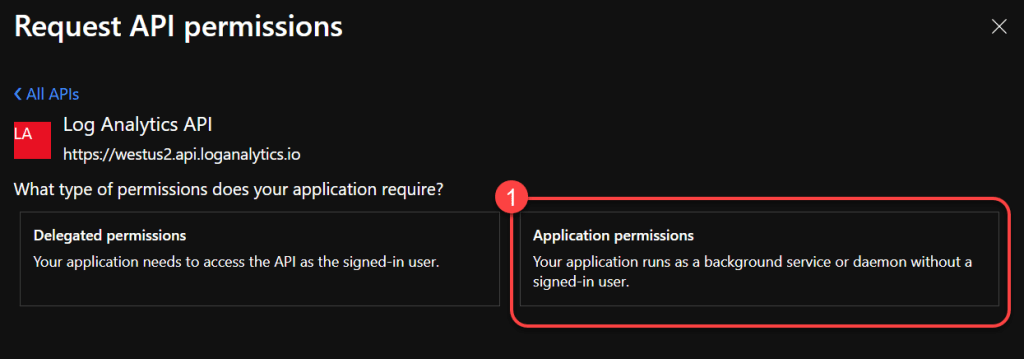
- Select Application Permissions.
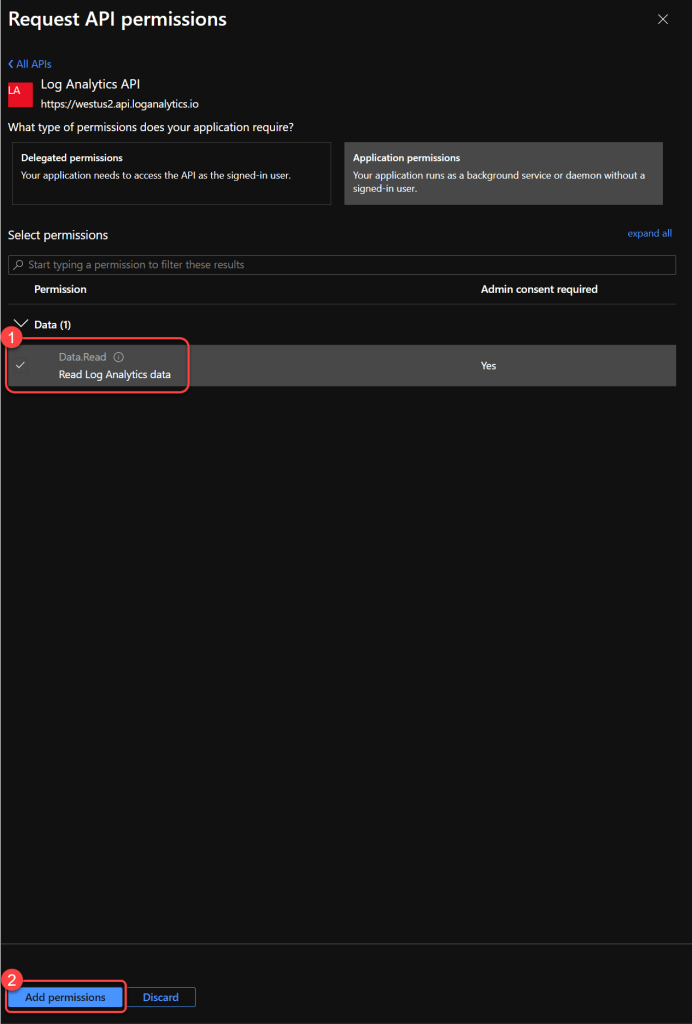
- Select Data.Read and select Add permissions.
Step 4: Grant admin consent
- Select Grant admin consent for your tenant.
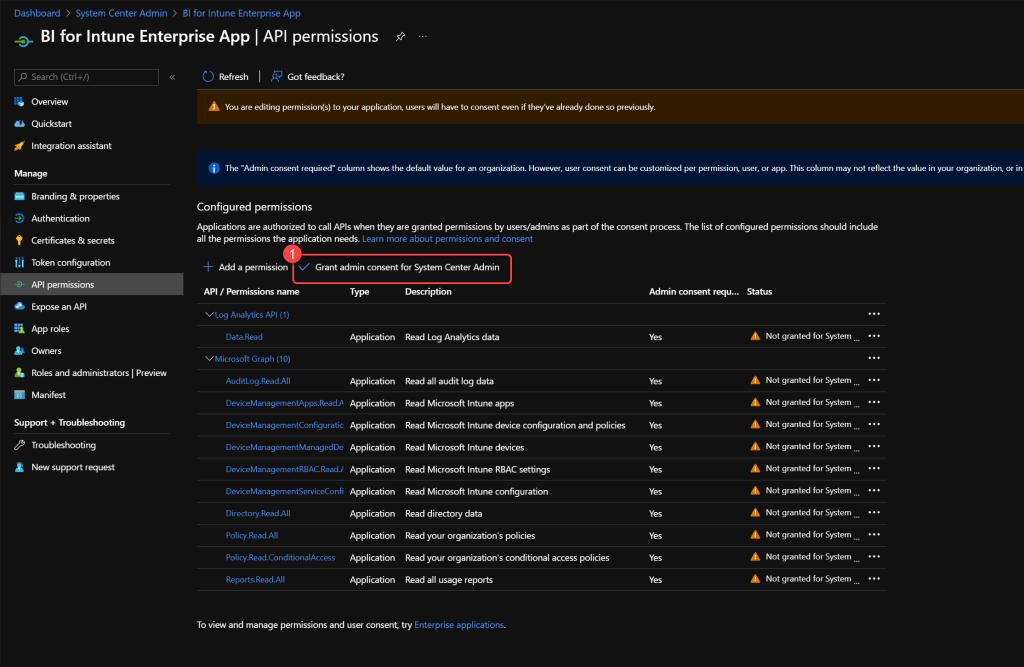
- Select Yes at the prompt.

Step 5: Add a client secret
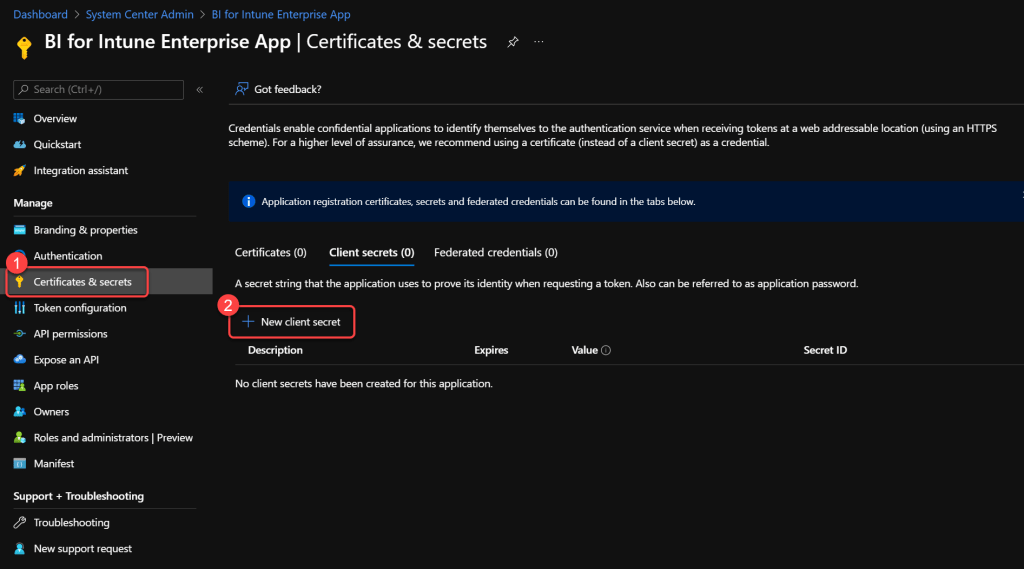
- Select Certificates & secrets, then select New client secret.
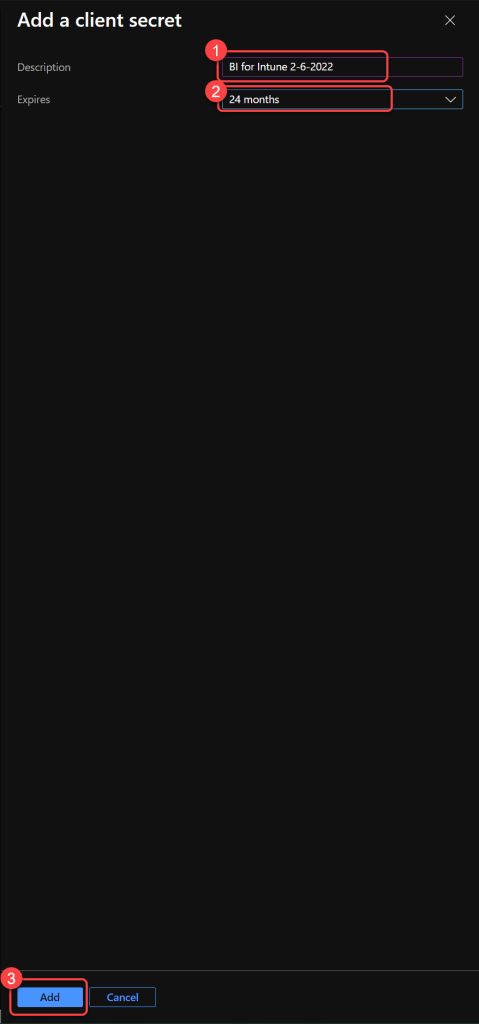
- Enter a Description, select a value for Expires, and select Add.
- Record the Value as the Microsoft Entra ID Client Secret. The value displays only once — if you fail to record it here, you must create a new client secret.

Step 6: Record the application IDs
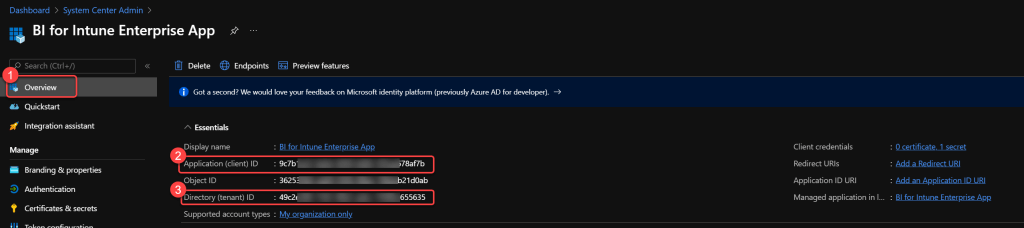
- Select Overview.
- Record the Application (client) ID as the Microsoft Entra ID Client ID. You use this later in the installation.
- Record the Directory (tenant) ID as the Microsoft Entra ID Tenant ID. You use this later in the installation.
The Microsoft Entra app registration is now complete.