Semantic model parameters
This page is a reference for every parameter in the BI for Intune semantic model. Each parameter is described with its default value, whether configuration is required, and what it controls.
If you are setting up BI for Intune for the first time, follow Configure the semantic model — it walks through only the parameters required for the initial install. For optional integrations, see Advanced Configuration.
Open the parameters page
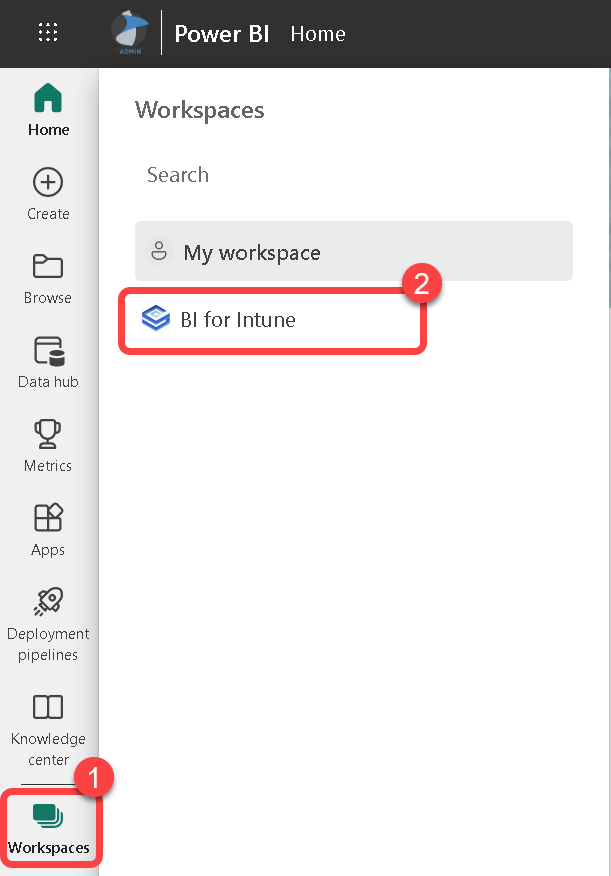
- In the Power BI service, select Workspaces.
-
Select the BI for Intune workspace.
-
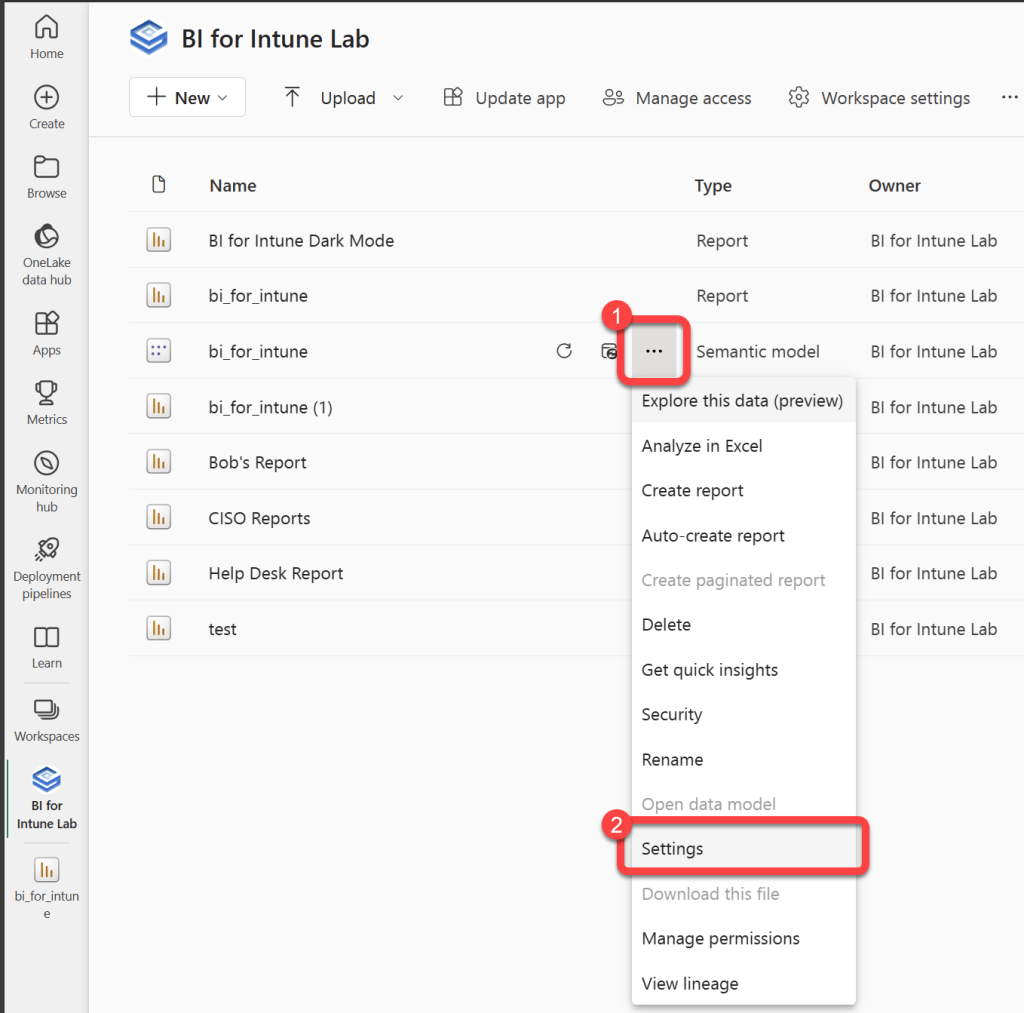
Point to the bi_for_intune semantic model to reveal the more options menu (three vertical dots), select the menu, then select Settings.
-
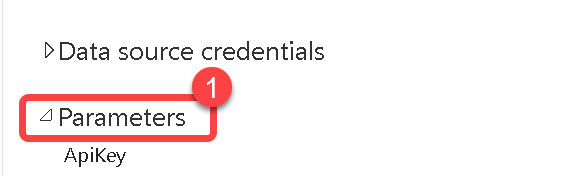
Expand Parameters.
Authentication
These parameters identify your tenant and authenticate BI for Intune to read data from Microsoft Graph. All four are required for the initial install.
ApiKey
Required: Yes Default: Blank
The API Key you received from PowerStacks after completing the Request a Trial License form.

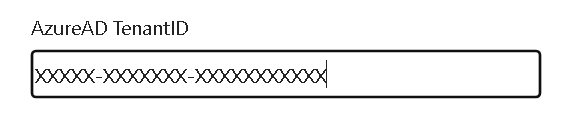
AzureAD TenantID
Required: Yes Default: Blank
Your Microsoft Entra tenant ID. An easy way to find this is to go to whatismytenantid.com.
AzureAD ClientID
Required: Yes Default: Blank
The Application (client) ID recorded during the Microsoft Entra app registration.

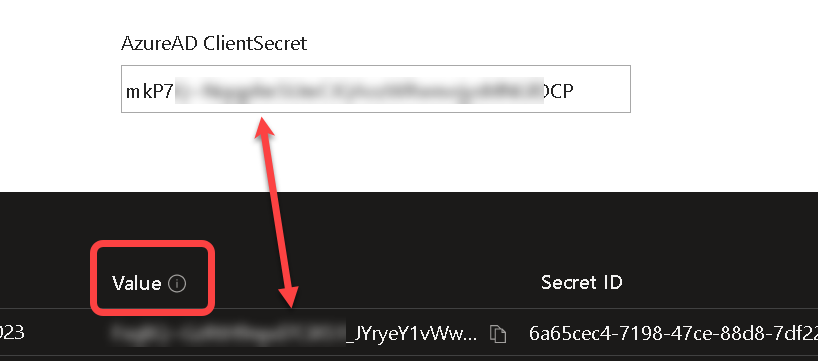
AzureAD ClientSecret
Required: Yes Default: Blank
The Microsoft Entra Client Secret recorded during the Microsoft Entra app registration.
Most common installation mistake
Use the Value column from the client secret page, not the Secret ID column. The Client Secret does not have dashes in it. It looks similar to this: aBcDE~fGh.I.JKlmnopqRsTuVwXyZ1234567890
Sign-in data
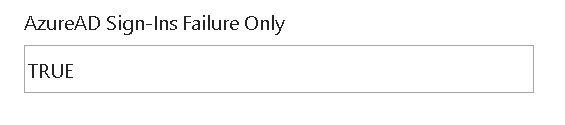
AzureAD Sign-Ins Failure Only
Required: No Default: TRUE
Determines whether successful sign-ins are available in the reports. By default, only failed sign-in data is loaded. Loading successful sign-in data slows synchronization and can cause sync timeouts.
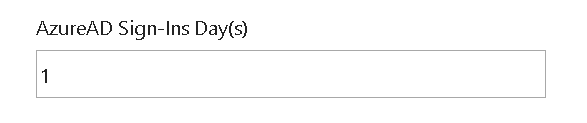
AzureAD Sign-Ins Day(s)
Required: No Default: 1 Max value: 7
Number of days of sign-in data to load. Setting this higher slows synchronization and can cause sync timeouts. Set to -1 to disable sign-in data entirely.
Log Analytics
These parameters connect BI for Intune to a Log Analytics workspace for Windows Update for Business reports and Enhanced Inventory data. Required only if you use one or both of those add-ons.
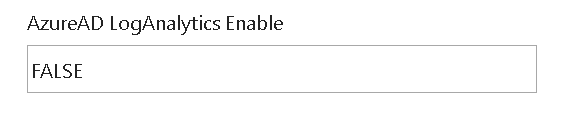
AzureAD LogAnalytics Enable
Required: Yes, for Windows Update for Business reports and/or Enhanced Inventory Default: FALSE
Enables BI for Intune to read from Log Analytics.
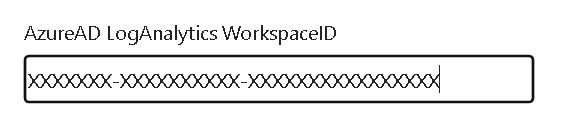
AzureAD LogAnalytics WorkspaceID
Required: Yes, for Windows Update for Business reports and/or Enhanced Inventory Default: Blank
The Workspace ID of the Log Analytics workspace where Enhanced Inventory and Windows Update for Business reports data are stored. Both add-ons must use the same workspace.
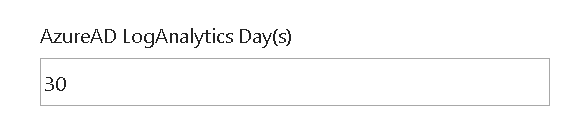
AzureAD LogAnalytics Day(s)
Required: No Default: 30
Number of days of data to pull from Log Analytics.
AzureAD LogAnalytics PageSize API
Required: No Default: 10000
Page size for Log Analytics queries. Do not change unless instructed by PowerStacks support.

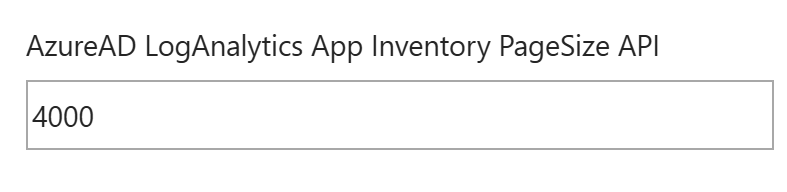
AzureAD LogAnalytics App Inventory PageSize API
Required: No Default: 10000
Page size for Log Analytics app inventory queries. Do not change unless instructed by PowerStacks support.
Intune Export API
These parameters control whether BI for Intune uses the Intune Export API directly or routes through the PowerStacks redirect API. Direct use is more secure and avoids the PowerStacks redirect API.
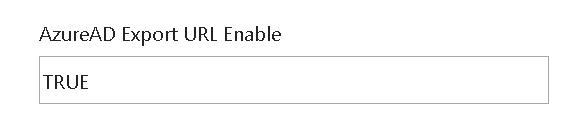
AzureAD Export URL Enable
Required: Yes, if AzureAD Export URL is populated Default: FALSE
Determines whether to use the URL set in AzureAD Export URL or to discover it automatically.
Setting this to TRUE creates a new data source credential that must be configured:
- Authentication method: Anonymous
- Privacy Level: Organizational
- Check "Skip test connection"
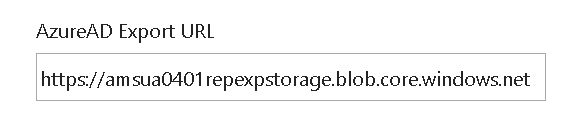
AzureAD Export URL
Required: No Default: Blank
The Export URL varies by tenant. If left blank, BI for Intune finds the correct URL automatically through the PowerStacks redirect API. For better security, set this parameter and also set AzureAD Export URL Enable to TRUE. See Configure Intune Export API for the steps to find your URL.
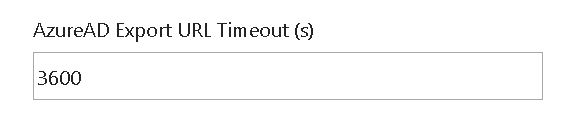
AzureAD Export URL Timeout (s)
Required: No Default: 3600
How long (in seconds) the sync process waits for each Intune export job before timing out. Do not change unless instructed by PowerStacks support.
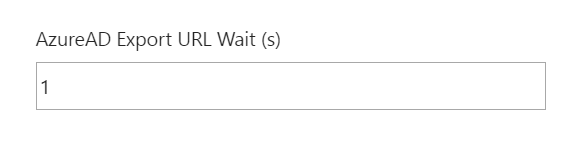
AzureAD Export URL Wait (s)
Required: No Default: 1
How long (in seconds) the sync process waits between status checks on each Intune export job. Do not change unless instructed by PowerStacks support.
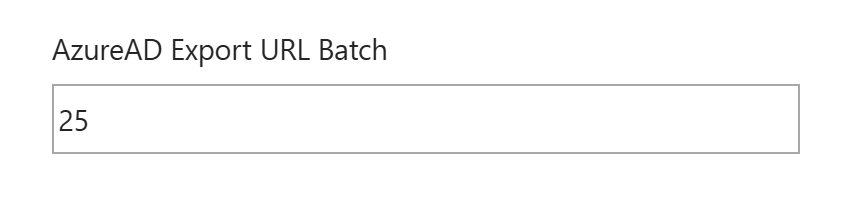
AzureAD Export URL Batch
Required: No Default: Refer to product defaults
Controls batching behavior for Intune Export API requests. Do not change unless instructed by PowerStacks support.
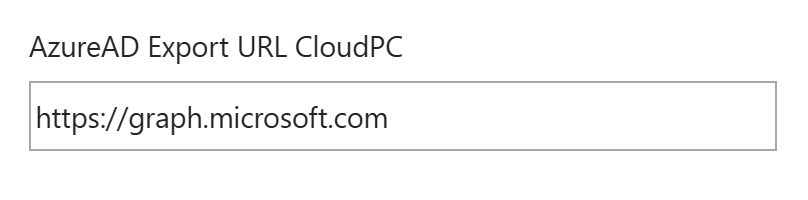
AzureAD Export URL CloudPC
Required: No (only for Windows 365 / Cloud PC environments)
Default: https://graph.microsoft.com
Only needs to be configured in environments using Windows 365 (Cloud PC) AND that have configured AzureAD Export URL.
Group memberships
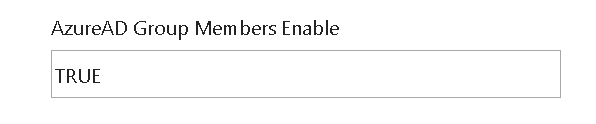
AzureAD Group Members Enable
Required: No Default: TRUE
Whether Microsoft Entra group memberships are available in the reports. Tenants with a large number of groups may need to disable this to avoid synchronization failures. By default, only members of dynamic groups are loaded; this is controlled by AzureAD Group Dynamic Members Only.
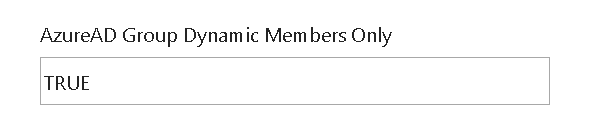
AzureAD Group Dynamic Members Only
Required: No Default: TRUE
When TRUE, only members of dynamic groups are loaded. Setting to FALSE also loads members of assigned groups, but this is more intensive and can cause sync timeouts.
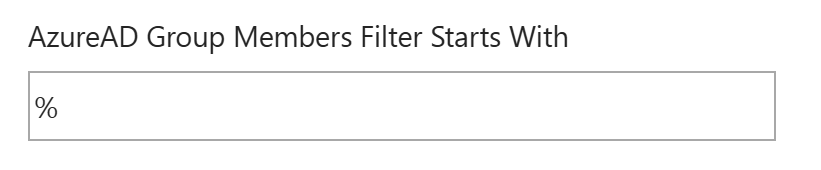
AzureAD Group Members Filter Starts With
Required: No
Default: % (filter disabled)
A group-name prefix to limit which groups are synchronized. Only groups starting with the prefix are loaded.
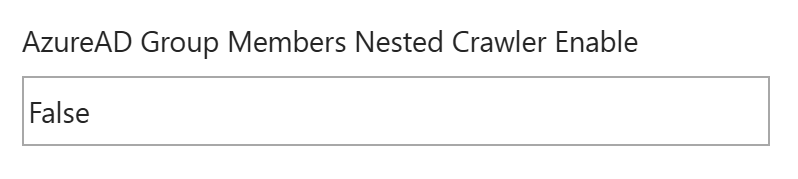
AzureAD Group Members Nested Crawler Enable
Required: No Default: FALSE
Only applies when a prefix is set in AzureAD Group Members Filter Starts With. When TRUE, transitive (nested) group memberships are included. By default (filter = %), transitive memberships are always loaded.
Sync performance
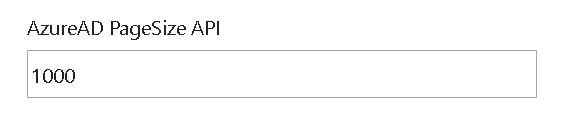
AzureAD PageSize API
Required: No Default: 10000
Page size for Microsoft Graph queries. Do not change unless instructed by PowerStacks support.
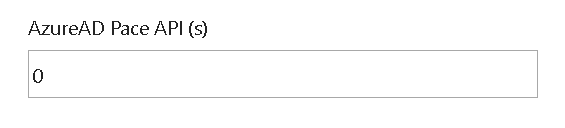
AzureAD Pace API (s)
Required: No Default: 0
How long the sync process waits for a response from paced APIs before looping. Do not change unless instructed by PowerStacks support.
Feature toggles
These parameters enable or disable specific data sources within the sync.
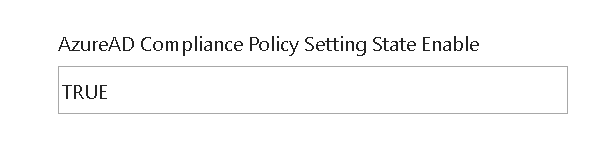
AzureAD Compliance Policy Setting State Enable
Required: No Default: TRUE
Controls synchronization of Configuration Profiles of the Settings Catalog type. Added to mitigate periodic sync failures in a small number of Azure data centers. Leave at the default unless instructed by PowerStacks support.
AzureAD Application State Enable
Required: No Default: TRUE
Whether application state data is included in the synchronization. Leave at the default unless instructed by PowerStacks support.
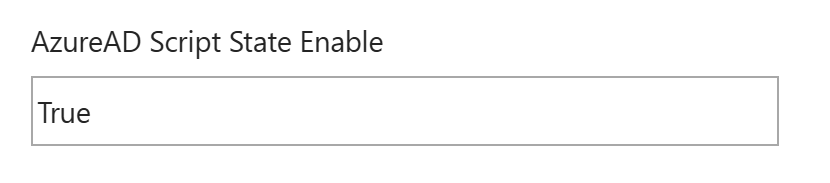
AzureAD Script State Enable
Required: No Default: TRUE
Whether device script execution state data is included in the synchronization. Leave at the default unless instructed by PowerStacks support.
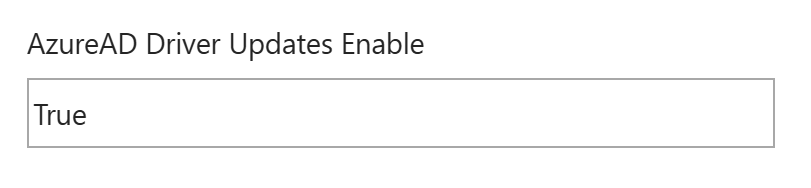
AzureAD Driver Updates Enable
Required: No Default: TRUE
Whether Windows Driver Updates data is included in the synchronization. Setting to FALSE can significantly reduce sync time in environments with thousands of approved drivers. For best results, be selective about which drivers are approved.
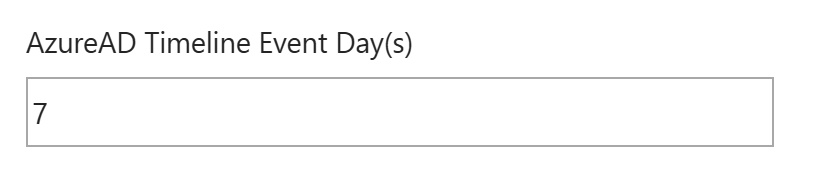
AzureAD Timeline Event Day(s)
Required: No (Microsoft Intune Suite add-on customers only) Default: 7 Max value: 30
Number of days of device timeline data to pull from Endpoint Analytics. Set to -1 to disable.
Disk health thresholds
These parameters set the thresholds used to calculate device disk health. Defaults are based on Microsoft's MSFT_StorageReliabilityCounter class.
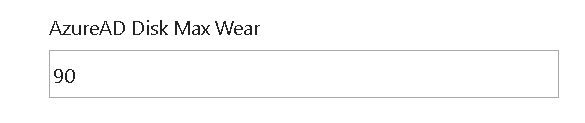
AzureAD Disk Max Wear
Required: No Default: 90
AzureAD Disk Max Read Errors
Required: No Default: 100

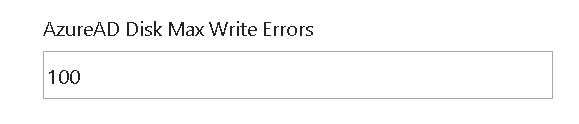
AzureAD Disk Max Write Errors
Required: No Default: 100
Multi-cloud URLs
These parameters override Microsoft's default endpoint URLs. Only used in multi-cloud or sovereign-cloud environments (for example, customers using both the public cloud and a Government cloud).
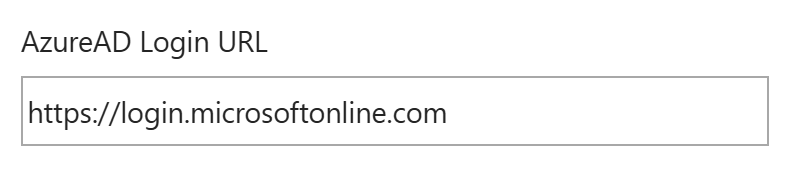
AzureAD Login URL
Required: No
Default: https://login.microsoftonline.com
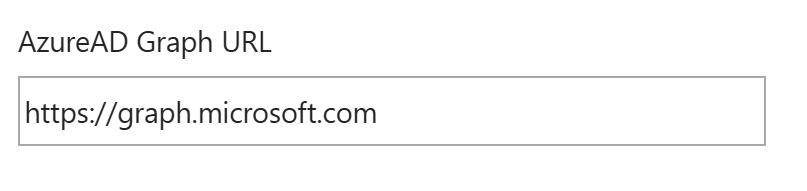
AzureAD Graph URL
Required: No
Default: https://graph.microsoft.com
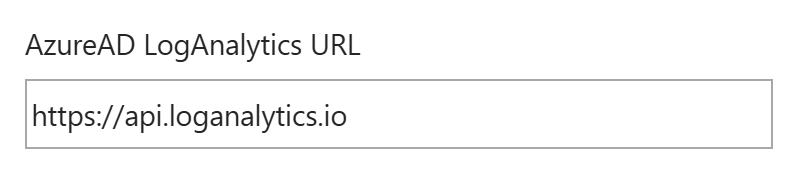
AzureAD LogAnalytics URL
Required: No
Default: https://api.loganalytics.io