Inventory Local Administrators Group Members
In order to populate the data required to see members of the local administrators group you must first add the data to WMI using the following script. The recommended way to do this is using a Configuration Baseline. Once the data is in WMI on a test computer you can then add it as custom hardware inventory. Skipping this step will not generate any errors however, the "Antivirus & Antispyware" page will not populate. The Antivirus & Antispyware page reports on both third-party and Microsoft Defender installation and activation status.
For more information on extending Configuration Manager hardware inventory see the section Add a new inventory class on the How to extend hardware inventory in Configuration Manager documentation page.
Prerequisites:
- Hardware inventory must be enabled.
- Permissions to edit the default hardware inventory settings. Script Credits:**https://mickitblog.blogspot.com/2016/11/sccm-local-administrators-reporting.html https://sqlbenjamin.wordpress.com/2018/01/27/collecting-members-of-the-local-administrators-group/ https://blog.ctglobalservices.com/configuration-manager-sccm/kea/using-the-archive_reports-sms-file-to-monitor-inventory-data/ PowerShell
<#
.SYNOPSIS
    Script to assist with auditing members of a Local Security Group through SCCM.
.DESCRIPTION
Intended Use
    This script intended to be used in conjunction with SCCM Configuration Baselines. Providing
    SCCM access to this information through Hardware Inventory, with the end outcome of the data
    being presented in SCCM reports.
    Please see the article for detailed implementation into SCCM.
    Warning: Verbose must be SilentlyContinue when in production, otherwise CCM Agent will state
    it is non-compliant. CCM Agent expects a return of a Boolean value for success.
Error Codes
    1: Compliance script failed due to orphaned SIDs.
    2: Compliance script failed due to the WMI class being empty.
About
    The script started life as LocalAdmins.ps1 written by Mick Pletcher. It went through a few
    iterations for our use, but it got to the point where the script was so vastly different from
    the original that I decided to release it as a standalone script, with its own documentation.
    The script resolves a few issues from original. Post SCCM 2016, only two records where presented
    in the v_GS_Local_Administrators table, the rest being aged to the v_HS_Local_Administrators
    table - this was due to duplicate (primary) keys on the domain column. Please note the WMI
    class is now named FatStacks_Local_Admins, thus the table is now named
    v_GS_FatStacks_Local_Admins. This was to reflect the scalable solution this now offers.
    The script will return the correct SID if the user is from another domain in the forest, using
    the cmdlet Get-LocalGroupMember. If there is a orphaned SID in the Local Security Group, then
    ADSI will be used. Via this method there will be no ability to retrieve the SID's correctly
    from cross forest domains where object is also in the current domain, this is due to
    SID-History on object in the current domain.
    The script functionality has been expanded with scalability in mind, multiple Local Security
    Groups can now be audited.
Known Defects/Bugs
  * If the cmdlet Get-LocalGroupMember is unable to run, then the script will not return the SID
    for any of the accounts in that particular Local Security Group by design.
  * If the cmdlet Get-LocalGroupMember is unable to run, then the script will be unable to discover
    any orphaned objects in that particular Local Security Group.
Code Snippet Credits
  * https://mickitblog.blogspot.com/2016/11/sccm-local-administrators-reporting.html
  * https://github.com/MicksITBlogs/PowerShell/blob/master/LocalAdmins.ps1
  * https://stackoverflow.com/questions/31949541/print-local-group-members-in-powershell-5-0/35064645
Version History
    1.00 25/03/2020
    Initial release.
Copyright & Intellectual Property
    Feel to copy, modify and redistribute, but please pay credit where it is due.
    Feedback is welcome, please contact me on LinkedIn.
.LINK
Author:.......http://www.linkedin.com/in/rileylim
 Source Code:..https://gist.github.com/rileyz/40ec2e8ca9c15c85ce2de70bd1f5fdea
 Article:......https://www.itninja.com/blog/view/audit-local-administrator-group-with-sccm
#>
# Function List ###################################################################################
Function Invoke-SCCMHardwareInventory {
<#
    .SYNOPSIS
        Initiate a Hardware Inventory
    .DESCRIPTION
        This will initiate a hardware inventory that does not include a full hardware inventory. This is enought to collect the WMI data.
    .EXAMPLE
                PS C:> Invoke-SCCMHardwareInventory
    .NOTES
        Additional information about the function.
#>
    [CmdletBinding()]
    param ()
    if (((Get-WmiObject -Class "SMS_Client" -List -Namespace 'rootccm' -ErrorAction SilentlyContinue) -ne $null)) {
        Write-Verbose "Found CCM Agent, performing Hardware Inventory."
        $ComputerName = $env:COMPUTERNAME
        $SMSCli = [wmiclass] "\$ComputerNamerootccm:SMS_Client"
        $SMSCli.TriggerSchedule("{00000000-0000-0000-0000-000000000001}") | Out-Null
    }
    else {
        Write-Warning "CCM Agent not found, will not perform Hardware Inventory!"
    }
}
Function New-WMIClass {
    [CmdletBinding()]
    param
    (
        [ValidateNotNullOrEmpty()][string]
        $Class
    )
    $WMITest = Get-WmiObject $Class -ErrorAction SilentlyContinue
    if ($WMITest -ne $null) {
        $Output = "Deleting " + $Class + " WMI class....."
        Remove-WmiObject $Class
        $WMITest = Get-WmiObject $Class -ErrorAction SilentlyContinue
        if ($WMITest -eq $null) {
            $Output += "success"
        } else {
            $Output += "Failed"
            exit 1
        }
        Write-Verbose $Output
    }
    $Output = "Creating " + $Class + " WMI class....."
    $newClass = New-Object System.Management.ManagementClass("rootcimv2", [String]::Empty, $null);
    $newClass["__CLASS"] = $Class;
    $newClass.Qualifiers.Add("Static", $true)
    $newClass.Properties.Add("PrimaryKey", [System.Management.CimType]::String, $false)
    $newClass.Properties["PrimaryKey"].Qualifiers.Add("key", $true)
    $newClass.Properties["PrimaryKey"].Qualifiers.Add("read", $true)
    $newClass.Properties.Add("SID", [System.Management.CimType]::String, $false)
    $newClass.Properties["SID"].Qualifiers.Add("key", $true)
    $newClass.Properties["SID"].Qualifiers.Add("read", $true)
    $newClass.Properties.Add("LocalSecurityGroup", [System.Management.CimType]::String, $false)
    $newClass.Properties["LocalSecurityGroup"].Qualifiers.Add("key", $true)
    $newClass.Properties["LocalSecurityGroup"].Qualifiers.Add("read", $true)
    $newClass.Properties.Add("Domain", [System.Management.CimType]::String, $false)
    $newClass.Properties["Domain"].Qualifiers.Add("key", $true)
    $newClass.Properties["Domain"].Qualifiers.Add("read", $true)
    $newClass.Properties.Add("User", [System.Management.CimType]::String, $false)
    $newClass.Properties["User"].Qualifiers.Add("key", $false)
    $newClass.Properties["User"].Qualifiers.Add("read", $true)
    $newClass.Put() | Out-Null
    $WMITest = Get-WmiObject $Class -ErrorAction SilentlyContinue
    if ($WMITest -eq $null) {
        $Output += "success"
    } else {
        $Output += "Failed"
        exit 1
    }
    Write-Verbose $Output
}
Function New-WMIInstance {
<#
    .SYNOPSIS
        Write new instance
    .DESCRIPTION
        A detailed description of the New-WMIInstance function.
    .PARAMETER MappedDrives
        List of mapped drives
    .PARAMETER Class
        A description of the Class parameter.
    .EXAMPLE
        PS C:> New-WMIInstance
    .NOTES
        Additional information about the function.
#>
    [CmdletBinding()]
    param
    (
        [ValidateNotNullOrEmpty()][array]
        $LocalAdministrators,
        [string]
        $Class
    )
    foreach ($LocalAdministrator in $LocalAdministrators) {
        $Output = "Writing" + [char]32 +$LocalAdministrator.User + [char]32 + "instance to" + [char]32 + $Class + [char]32 + "class....."
        $Return = Set-WmiInstance -Class $Class -Arguments @{PrimaryKey = $LocalAdministrator.PrimaryKey;
                                                             SID = $LocalAdministrator.SID;
                                                             LocalSecurityGroup = $LocalAdministrator.LocalSecurityGroup;
                                                             Domain = $LocalAdministrator.Domain;
                                                             User = $LocalAdministrator.User}
        if ($Return -like "*" + $LocalAdministrator.User + "*") {
            $Output += "Success"
        } else {
            $Output += "Failed"
        }
        Write-Verbose $Output
    }
}
#<<< End Of Function List >>>
# Setting up housekeeping #########################################################################
$VerbosePreference = 'SilentlyContinue' #SilentlyContinue|Continue
$ScriptPath = Split-Path -Parent $MyInvocation.MyCommand.Definition
$LocalSecurityGroups = @('Administrators') #'Administrators'|'Users'|'Administrators','Users'
$OutputFileLocation = '' #''|C:WindowsLogs
$SCCMReporting = $true
#<<< End of Setting up housekeeping >>>


# Start of script work ############################################################################
$GetLocalGroupAlternative = @()
$i = $null
$InventoryWMIClass = 'FATSTACKS_LOCAL_ADMINS'
$LocalInventory = @()
#Use PowerShell 2.0 member enumeration for Windows Server 2008R2 compatibility 'Get-CimInstance' instead of 'Get-LocalGroup'.
$GetLocalGroupAlternative = Get-WmiObject -Class Win32_Group -Filter "Domain = '$env:COMPUTERNAME'"
foreach ($LocalSecuirtyGroup in $LocalSecurityGroups) {
    #Use PowerShell 2.0 member enumeration for Windows Server 2008R2 compatibility '@($GetLocalGroupAlternative | Select-Object -Expand Name)' instead of '$GetLocalGroupAlternative.Name'.
    if (!$(@($GetLocalGroupAlternative | Select-Object -Expand Name) -contains $LocalSecuirtyGroup)) {
        Write-Warning "Skipping Local Security Group '$LocalSecuirtyGroup' as it does not exist!"
        continue
    }
    Write-Verbose 'Clearing error variable.'
    $Error.Clear()
    Write-Verbose "Get members of Local Security Group '$LocalSecuirtyGroup'."
    Try {
        $Members = Get-LocalGroupMember $LocalSecuirtyGroup -ErrorAction SilentlyContinue
    }
    Catch{
        Write-Verbose 'Get-LocalGroupMember had an issue, most likely with orphaned SIDs or cmdlet Get-LocalGroupMember failed.'
    }
    if ($Error.Count -ne 0) {
        Write-Verbose 'Using legacy method for backwards compatibility.'
        $Group = [ADSI]("WinNT://localhost/$LocalSecuirtyGroup,group")
        foreach ($Member in $($Group.Members())) {
            $AdsPath = $Member.GetType.Invoke().InvokeMember("Adspath", 'GetProperty', $null, $Member, $null)
            # Domain members will have an ADSPath like WinNT://DomainName/UserName.
            # Local accounts will have a value like WinNT://DomainName/ComputerName/UserName.
            $a = $AdsPath.split('/',[StringSplitOptions]::RemoveEmptyEntries)
            $name = $a[-1]
            $domain = $a[-2]
            $class = $Member.GetType.Invoke().InvokeMember("Class", 'GetProperty', $null, $Member, $null)
            $LocalInventory += $i++ | select @{Label='PrimaryKey'; Expression={$i}},
                                          @{Label='SID'; Expression={'Unknown'}},
                                          @{Label='LocalSecurityGroup'; Expression={$LocalSecuirtyGroup}},
                                          @{Label='Domain'; Expression={Switch -Exact ($domain) {
                                                                            "$env:COMPUTERNAME" {'BUILTIN'}
                                                                            'WinNT:'            {'Unknown'}
                                                                            default             {$domain}}}},
                                          @{Label="User"; Expression={$name}}
        }
    }
    else {
        Write-Verbose 'Get-LocalGroupMember ran OK, and didnt run into orphaned SID problems.'
        foreach ($Member in $Members) {
            #Create new object
            $Admin = New-Object -TypeName System.Management.Automation.PSObject
            $MemberAccount = $Member.Name.Split("")
            if ($MemberAccount[0] -contains $env:COMPUTERNAME) {
                $LocalInventory += $i++ | select @{Label='PrimaryKey'; Expression={$i}},
                                              @{Label='SID'; Expression={$Member.SID}},
                                              @{Label='LocalSecurityGroup'; Expression={$LocalSecuirtyGroup}},
                                              @{Label='Domain'; Expression={'BUILTIN'}},
                                              @{Label='User'; Expression={$MemberAccount[1]}}
            }
            else {
                $LocalInventory += $i++ | select @{Label='PrimaryKey'; Expression={$i}},
                                              @{Label='SID'; Expression={$Member.SID}},
                                              @{Label='LocalSecurityGroup'; Expression={$LocalSecuirtyGroup}},
                                              @{Label='Domain'; Expression={$MemberAccount[0]}},
                                              @{Label='User'; Expression={$MemberAccount[1]}}
            }
        }
    }
}
Write-Verbose 'Report output to WMI which will report up to SCCM.'
if ($SCCMReporting) {
    New-WMIClass -Class "$InventoryWMIClass"
    New-WMIInstance -Class "$InventoryWMIClass" -LocalAdministrators $LocalInventory
    Write-Verbose 'Report WMI entry to SCCM.'
    Invoke-SCCMHardwareInventory
}
if ($OutputFileLocation -ne '') {
    Write-Verbose "Writing to file location '$OutputFileLocation'"
    $FileName = "Inventory-LocalAdministratorsGroup"
    if ($OutputFileLocation[$OutputFileLocation.Length - 1] -ne "") {
        $File = $OutputFileLocation + "" + $FileName + ".log"
    } else {
        $File = $OutputFileLocation + $FileName + ".log"
    }
    Write-Verbose 'Delete old log file if it exists.'
    $Output = "Deleting $FileName.log....."
    if ((Test-Path $File) -eq $true) {
        Remove-Item -Path $File -Force
    }
    if ((Test-Path $File) -eq $false) {
        $Output += "Success"
    } else {
        $Output += "Failed"
    }
    Write-Verbose $Output
    $Output = "Writing local admins to $FileName.log....."
    $LocalInventory | Format-Table | Out-File $File
    if ((Test-Path $File) -eq $true) {
        $Output += "Success"
    } else {
        $Output += "Failed"
    }
    Write-Verbose $Output
}
Write-Verbose "Display members Local Security Group '$LocalSecurityGroups'."
Write-Verbose "$($LocalInventory | Format-Table | Out-String)"
if (((Get-WmiObject -Class "$InventoryWMIClass" -ComputerName $env:COMPUTERNAME -Namespace 'ROOTcimv2').Count -gt 0)) {
    #Use PowerShell 2.0 member enumeration for Windows Server 2008R2 compatibility.
    if ((@($LocalInventory| Select-Object -Expand User) -match 'S-1-5-21').Count -ne 0) {
        Write-Verbose 'Return 1 to SCCM, to notify compliance script failed due to orphaned SIDs.'
        return 1
    }
    else {
        Write-Verbose 'Return true to SCCM, to notify compliance script ran OK.'
        return 0
    }
}
else {
Write-Verbose 'Return 2 to SCCM, to notify compliance script failed due to the WMI class being empty.'
return 2
}
#<<< End of script work >>>
<#
.SYNOPSIS Script to assist with auditing members of a Local Security Group through SCCM. .DESCRIPTION Intended Use This script intended to be used in conjunction with SCCM Configuration Baselines. Providing SCCM access to this information through Hardware Inventory, with the end outcome of the data being presented in SCCM reports. Please see the article for detailed implementation into SCCM. Warning: Verbose must be SilentlyContinue when in production, otherwise CCM Agent will state it is non-compliant. CCM Agent expects a return of a Boolean value for success. Error Codes 1: Compliance script failed due to orphaned SIDs. 2: Compliance script failed due to the WMI class being empty. About The script started life as LocalAdmins.ps1 written by Mick Pletcher. It went through a few iterations for our use, but it got to the point where the script was so vastly different from the original that I decided to release it as a standalone script, with its own documentation. The script resolves a few issues from original. Post SCCM 2016, only two records where presented in the v_GS_Local_Administrators table, the rest being aged to the v_HS_Local_Administrators table - this was due to duplicate (primary) keys on the domain column. Please note the WMI class is now named FatStacks_Local_Admins, thus the table is now named v_GS_FatStacks_Local_Admins. This was to reflect the scalable solution this now offers. The script will return the correct SID if the user is from another domain in the forest, using the cmdlet Get-LocalGroupMember. If there is a orphaned SID in the Local Security Group, then ADSI will be used. Via this method there will be no ability to retrieve the SID's correctly from cross forest domains where object is also in the current domain, this is due to SID-History on object in the current domain. The script functionality has been expanded with scalability in mind, multiple Local Security Groups can now be audited. Known Defects/Bugs * If the cmdlet Get-LocalGroupMember is unable to run, then the script will not return the SID for any of the accounts in that particular Local Security Group by design. * If the cmdlet Get-LocalGroupMember is unable to run, then the script will be unable to discover any orphaned objects in that particular Local Security Group. Code Snippet Credits * https://mickitblog.blogspot.com/2016/11/sccm-local-administrators-reporting.html * https://github.com/MicksITBlogs/PowerShell/blob/master/LocalAdmins.ps1 * https://stackoverflow.com/questions/31949541/print-local-group-members-in-powershell-5-0/35064645 Version History 1.00 25/03/2020 Initial release. Copyright & Intellectual Property Feel to copy, modify and redistribute, but please pay credit where it is due. Feedback is welcome, please contact me on LinkedIn. .LINK Author:.......http://www.linkedin.com/in/rileylim Source Code:..https://gist.github.com/rileyz/40ec2e8ca9c15c85ce2de70bd1f5fdea Article:......https://www.itninja.com/blog/view/audit-local-administrator-group-with-sccm
>
Function List
Function Invoke-SCCMHardwareInventory { <# .SYNOPSIS Initiate a Hardware Inventory .DESCRIPTION This will initiate a hardware inventory that does not include a full hardware inventory. This is enought to collect the WMI data. .EXAMPLE PS C:> Invoke-SCCMHardwareInventory .NOTES Additional information about the function.
>
[CmdletBinding()]
param ()
if (((Get-WmiObject -Class "SMS_Client" -List -Namespace 'rootccm' -ErrorAction SilentlyContinue) -ne $null)) {
    Write-Verbose "Found CCM Agent, performing Hardware Inventory."
    $ComputerName = $env:COMPUTERNAME
    $SMSCli = [wmiclass] "\$ComputerNamerootccm:SMS_Client"
    $SMSCli.TriggerSchedule("{00000000-0000-0000-0000-000000000001}") | Out-Null
}
else {
    Write-Warning "CCM Agent not found, will not perform Hardware Inventory!"
}
} Function New-WMIClass { [CmdletBinding()] param ( [ValidateNotNullOrEmpty()][string] $Class ) $WMITest = Get-WmiObject $Class -ErrorAction SilentlyContinue if ($WMITest -ne $null) { $Output = "Deleting " + $Class + " WMI class....." Remove-WmiObject $Class $WMITest = Get-WmiObject $Class -ErrorAction SilentlyContinue if ($WMITest -eq $null) { $Output += "success" } else { $Output += "Failed" exit 1 } Write-Verbose $Output } $Output = "Creating " + $Class + " WMI class....." $newClass = New-Object System.Management.ManagementClass("rootcimv2", [String]::Empty, $null); $newClass["__CLASS"] = $Class; $newClass.Qualifiers.Add("Static", $true) $newClass.Properties.Add("PrimaryKey", [System.Management.CimType]::String, $false) $newClass.Properties["PrimaryKey"].Qualifiers.Add("key", $true) $newClass.Properties["PrimaryKey"].Qualifiers.Add("read", $true) $newClass.Properties.Add("SID", [System.Management.CimType]::String, $false) $newClass.Properties["SID"].Qualifiers.Add("key", $true) $newClass.Properties["SID"].Qualifiers.Add("read", $true) $newClass.Properties.Add("LocalSecurityGroup", [System.Management.CimType]::String, $false) $newClass.Properties["LocalSecurityGroup"].Qualifiers.Add("key", $true) $newClass.Properties["LocalSecurityGroup"].Qualifiers.Add("read", $true) $newClass.Properties.Add("Domain", [System.Management.CimType]::String, $false) $newClass.Properties["Domain"].Qualifiers.Add("key", $true) $newClass.Properties["Domain"].Qualifiers.Add("read", $true) $newClass.Properties.Add("User", [System.Management.CimType]::String, $false) $newClass.Properties["User"].Qualifiers.Add("key", $false) $newClass.Properties["User"].Qualifiers.Add("read", $true) $newClass.Put() | Out-Null $WMITest = Get-WmiObject $Class -ErrorAction SilentlyContinue if ($WMITest -eq $null) { $Output += "success" } else { $Output += "Failed" exit 1 } Write-Verbose $Output } Function New-WMIInstance { <# .SYNOPSIS Write new instance .DESCRIPTION A detailed description of the New-WMIInstance function. .PARAMETER MappedDrives List of mapped drives .PARAMETER Class A description of the Class parameter. .EXAMPLE PS C:> New-WMIInstance .NOTES Additional information about the function.
>
[CmdletBinding()]
param
(
    [ValidateNotNullOrEmpty()][array]
    $LocalAdministrators,
    [string]
    $Class
)
foreach ($LocalAdministrator in $LocalAdministrators) {
    $Output = "Writing" + [char]32 +$LocalAdministrator.User + [char]32 + "instance to" + [char]32 + $Class + [char]32 + "class....."
    $Return = Set-WmiInstance -Class $Class -Arguments @{PrimaryKey = $LocalAdministrator.PrimaryKey;
                                                         SID = $LocalAdministrator.SID;
                                                         LocalSecurityGroup = $LocalAdministrator.LocalSecurityGroup;
                                                         Domain = $LocalAdministrator.Domain;
                                                         User = $LocalAdministrator.User}
    if ($Return -like "*" + $LocalAdministrator.User + "*") {
        $Output += "Success"
    } else {
        $Output += "Failed"
    }
    Write-Verbose $Output
}
}
<<< End Of Function List >>>
Setting up housekeeping
$VerbosePreference = 'SilentlyContinue' #SilentlyContinue|Continue $ScriptPath = Split-Path -Parent $MyInvocation.MyCommand.Definition $LocalSecurityGroups = @('Administrators') #'Administrators'|'Users'|'Administrators','Users' $OutputFileLocation = '' #''|C:WindowsLogs $SCCMReporting = $true
<<< End of Setting up housekeeping >>>
Start of script work
$GetLocalGroupAlternative = @() $i = $null $InventoryWMIClass = 'FATSTACKS_LOCAL_ADMINS' $LocalInventory = @()
Use PowerShell 2.0 member enumeration for Windows Server 2008R2 compatibility 'Get-CimInstance' instead of 'Get-LocalGroup'.
$GetLocalGroupAlternative = Get-WmiObject -Class Win32_Group -Filter "Domain = '$env:COMPUTERNAME'" foreach ($LocalSecuirtyGroup in $LocalSecurityGroups) { #Use PowerShell 2.0 member enumeration for Windows Server 2008R2 compatibility '@($GetLocalGroupAlternative | Select-Object -Expand Name)' instead of '$GetLocalGroupAlternative.Name'. if (!$(@($GetLocalGroupAlternative | Select-Object -Expand Name) -contains $LocalSecuirtyGroup)) { Write-Warning "Skipping Local Security Group '$LocalSecuirtyGroup' as it does not exist!" continue } Write-Verbose 'Clearing error variable.' $Error.Clear() Write-Verbose "Get members of Local Security Group '$LocalSecuirtyGroup'." Try { $Members = Get-LocalGroupMember $LocalSecuirtyGroup -ErrorAction SilentlyContinue } Catch{ Write-Verbose 'Get-LocalGroupMember had an issue, most likely with orphaned SIDs or cmdlet Get-LocalGroupMember failed.' } if ($Error.Count -ne 0) { Write-Verbose 'Using legacy method for backwards compatibility.' $Group = ADSI foreach ($Member in $($Group.Members())) { $AdsPath = $Member.GetType.Invoke().InvokeMember("Adspath", 'GetProperty', $null, $Member, $null) # Domain members will have an ADSPath like WinNT://DomainName/UserName. # Local accounts will have a value like WinNT://DomainName/ComputerName/UserName. $a = $AdsPath.split('/',[StringSplitOptions]::RemoveEmptyEntries) $name = $a[-1] $domain = $a[-2] $class = $Member.GetType.Invoke().InvokeMember("Class", 'GetProperty', $null, $Member, $null) $LocalInventory += $i++ | select @{Label='PrimaryKey'; Expression={$i}}, @{Label='SID'; Expression={'Unknown'}}, @{Label='LocalSecurityGroup'; Expression={$LocalSecuirtyGroup}}, @{Label='Domain'; Expression={Switch -Exact ($domain) { "$env:COMPUTERNAME" {'BUILTIN'} 'WinNT:' {'Unknown'} default {$domain}}}}, @{Label="User"; Expression={$name}} } } else { Write-Verbose 'Get-LocalGroupMember ran OK, and didnt run into orphaned SID problems.' foreach ($Member in $Members) { #Create new object $Admin = New-Object -TypeName System.Management.Automation.PSObject $MemberAccount = $Member.Name.Split("") if ($MemberAccount[0] -contains $env:COMPUTERNAME) { $LocalInventory += $i++ | select @{Label='PrimaryKey'; Expression={$i}}, @{Label='SID'; Expression={$Member.SID}}, @{Label='LocalSecurityGroup'; Expression={$LocalSecuirtyGroup}}, @{Label='Domain'; Expression={'BUILTIN'}}, @{Label='User'; Expression={$MemberAccount[1]}} } else { $LocalInventory += $i++ | select @{Label='PrimaryKey'; Expression={$i}}, @{Label='SID'; Expression={$Member.SID}}, @{Label='LocalSecurityGroup'; Expression={$LocalSecuirtyGroup}}, @{Label='Domain'; Expression={$MemberAccount[0]}}, @{Label='User'; Expression={$MemberAccount[1]}} } } } } Write-Verbose 'Report output to WMI which will report up to SCCM.' if ($SCCMReporting) { New-WMIClass -Class "$InventoryWMIClass" New-WMIInstance -Class "$InventoryWMIClass" -LocalAdministrators $LocalInventory Write-Verbose 'Report WMI entry to SCCM.' Invoke-SCCMHardwareInventory } if ($OutputFileLocation -ne '') { Write-Verbose "Writing to file location '$OutputFileLocation'" $FileName = "Inventory-LocalAdministratorsGroup" if ($OutputFileLocation[$OutputFileLocation.Length - 1] -ne "") { $File = $OutputFileLocation + "" + $FileName + ".log" } else { $File = $OutputFileLocation + $FileName + ".log" } Write-Verbose 'Delete old log file if it exists.' $Output = "Deleting $FileName.log....." if ((Test-Path $File) -eq $true) { Remove-Item -Path $File -Force } if ((Test-Path $File) -eq $false) { $Output += "Success" } else { $Output += "Failed" } Write-Verbose $Output $Output = "Writing local admins to $FileName.log....." $LocalInventory | Format-Table | Out-File $File if ((Test-Path $File) -eq $true) { $Output += "Success" } else { $Output += "Failed" } Write-Verbose $Output } Write-Verbose "Display members Local Security Group '$LocalSecurityGroups'." Write-Verbose "$($LocalInventory | Format-Table | Out-String)" if (((Get-WmiObject -Class "$InventoryWMIClass" -ComputerName $env:COMPUTERNAME -Namespace 'ROOTcimv2').Count -gt 0)) { #Use PowerShell 2.0 member enumeration for Windows Server 2008R2 compatibility. if ((@($LocalInventory| Select-Object -Expand User) -match 'S-1-5-21').Count -ne 0) { Write-Verbose 'Return 1 to SCCM, to notify compliance script failed due to orphaned SIDs.' return 1 } else { Write-Verbose 'Return true to SCCM, to notify compliance script ran OK.' return 0 } } else { Write-Verbose 'Return 2 to SCCM, to notify compliance script failed due to the WMI class being empty.' return 2 }
<<< End of script work >>>
Create the Configuration Baseline
Step 1: Create Configuration Item
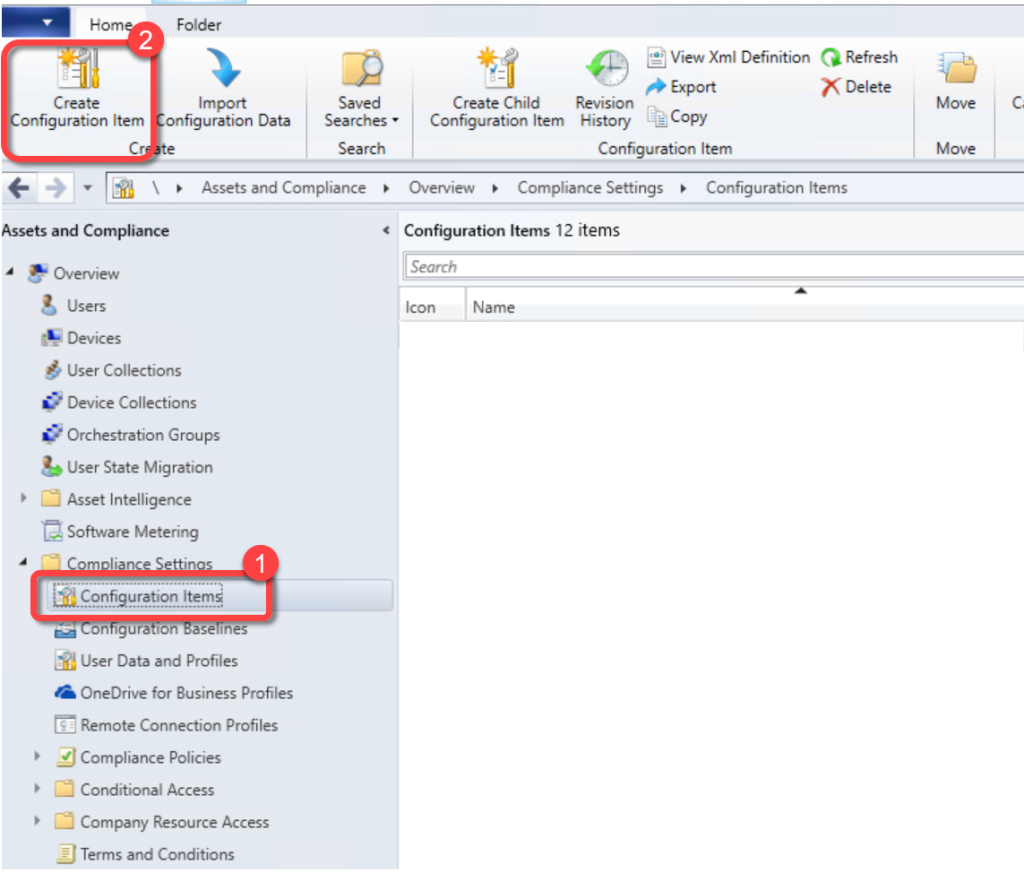
In the **Configuration Manager console**, go to the **Assets and Compliance** workspace, expand **Compliance Settings**, and select the **Configuration Items** node.On the **Home** tab of the ribbon, in the **Create group**, select **Create Configuration Item**.
Step 2: Name and Set Type
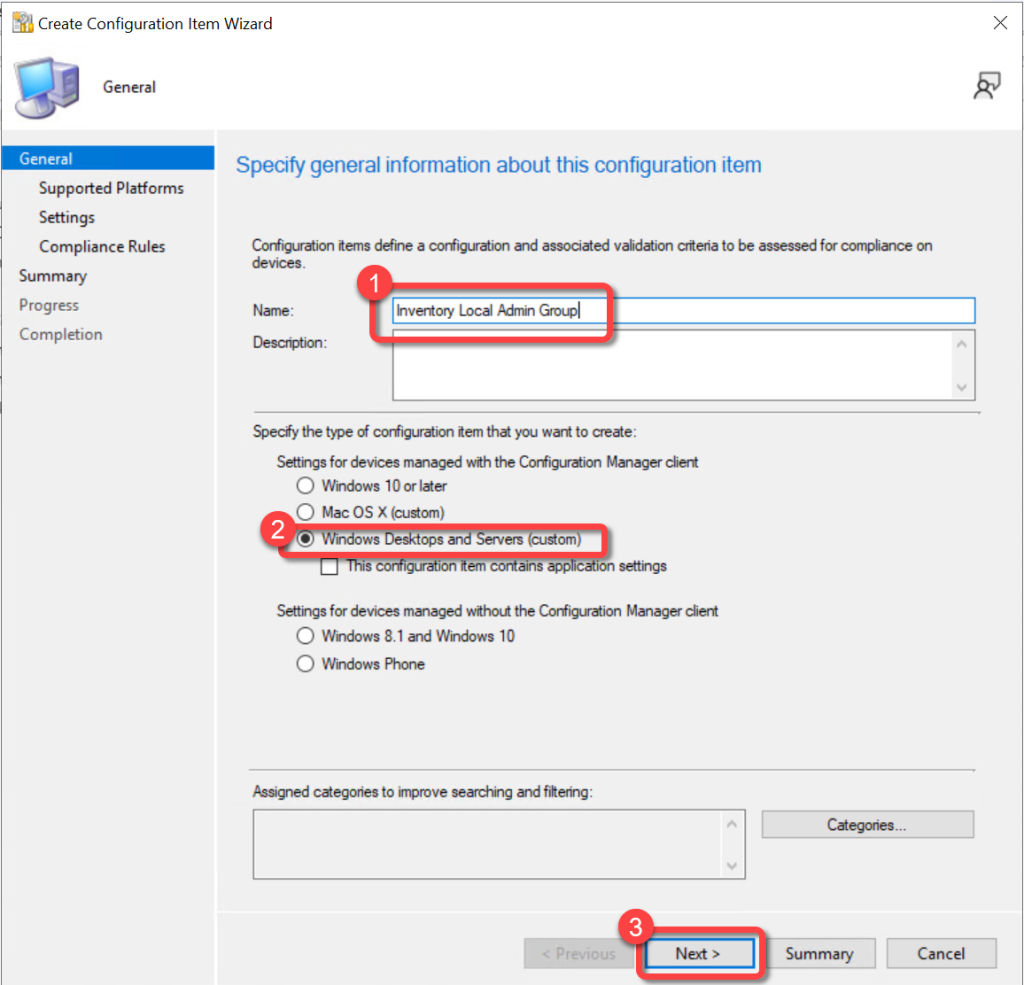
On the **General** page of the **Create Configuration Item Wizard**, specify a name for the configuration item.Under **Specify the type of configuration item that you want to create**, select **Windows Desktops and Servers (custom)**.Select **Next**.
Step 3: Select Supported Platforms
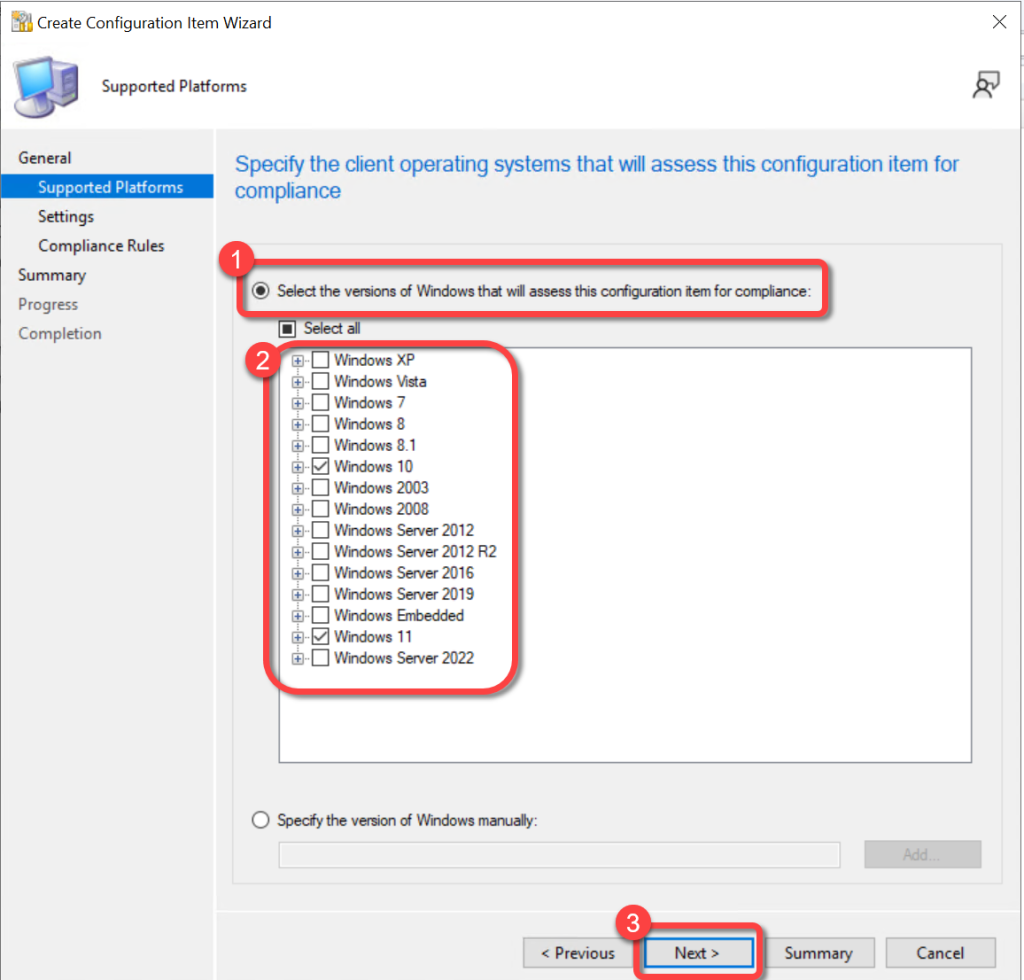
On the **Supported Platforms** page of the **Create Configuration Item Wizard**, specify the **applicable platforms** for which the item will be applied.Select **Next**.
Step 4: Add Discovery Script
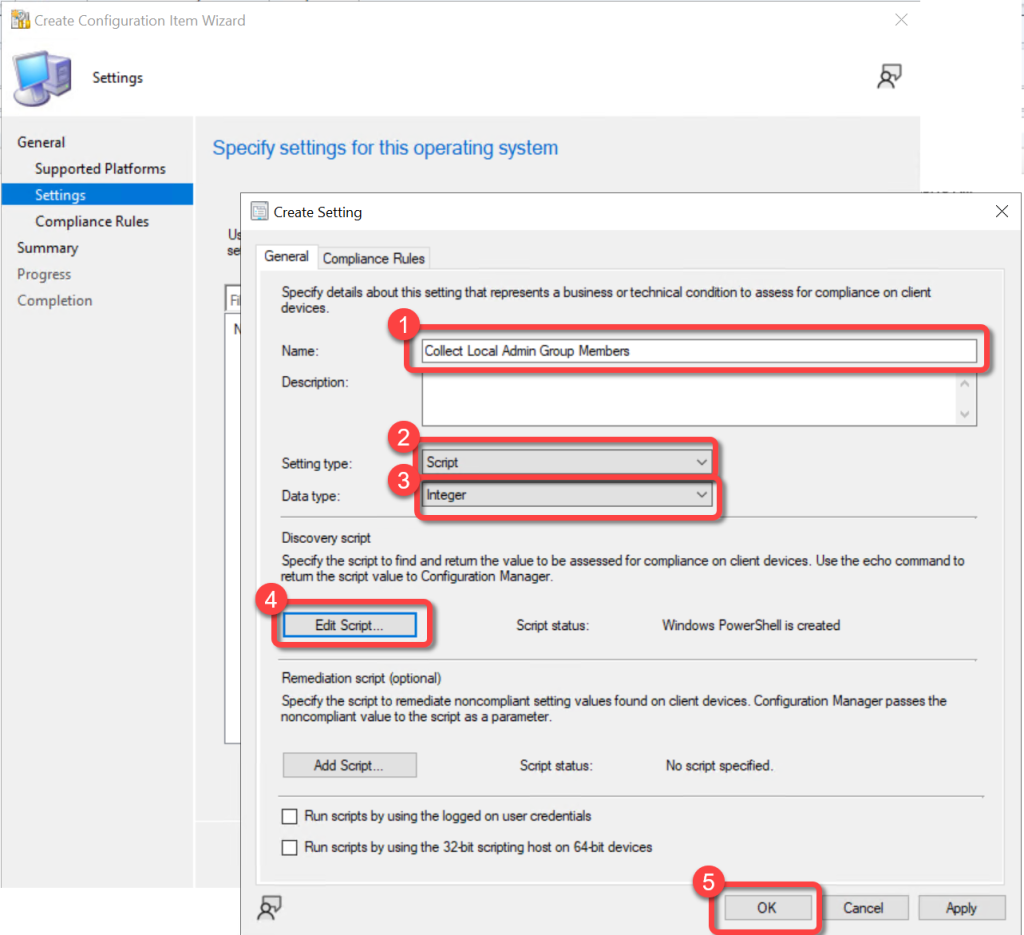
On the **Settings** page of the **Create Configuration Item Wizard**, select **New**.On the **General** tab of the **Create Setting** dialog, provide the following information:**Name**: Enter a unique name for the setting. For example, "**Collect Local Admin Group Members**"**Setting Type**: Script**Data Type**: Integer**Discovery Script**: Paste in the contents of the PowerShell script from above.Select **OK**
Step 5: Proceed to Compliance Rules
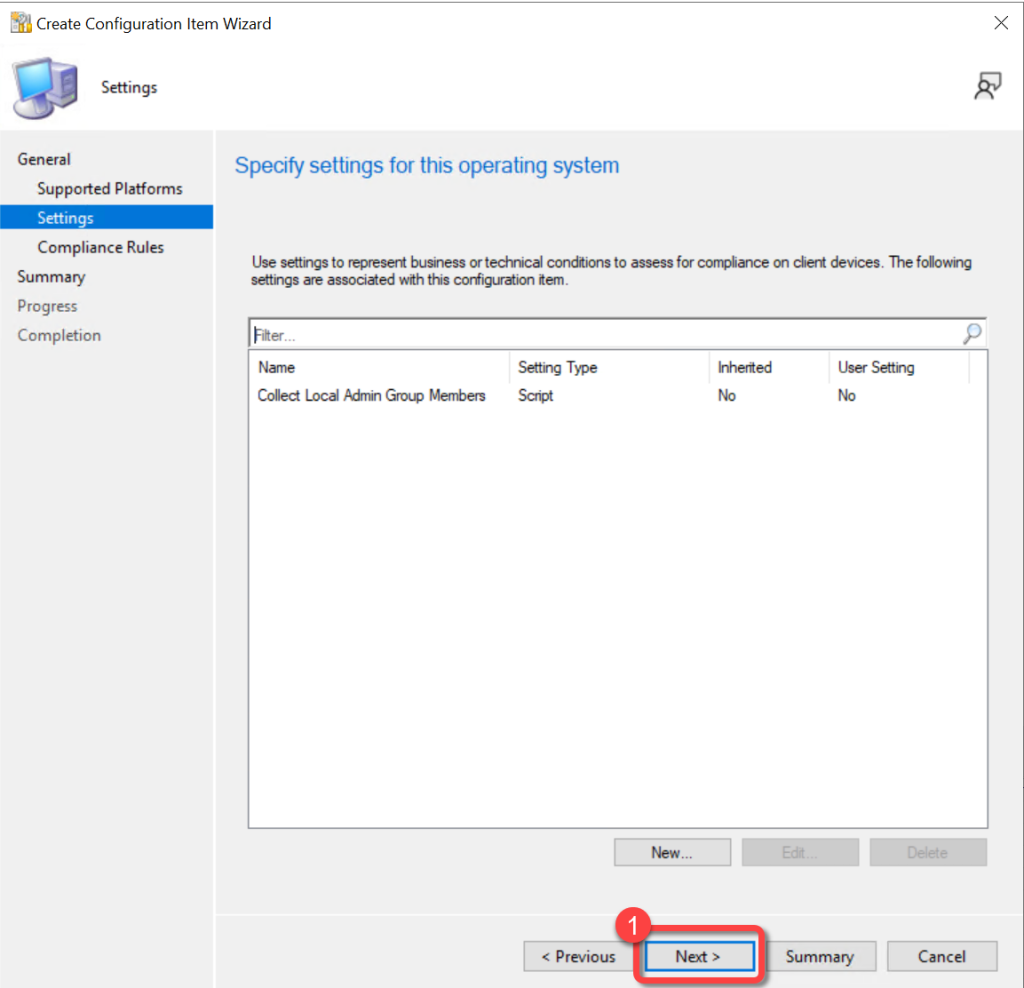
On the **Settings** page of the **Create Configuration Item Wizard **select **Next**.
Step 6: Create Compliance Rule
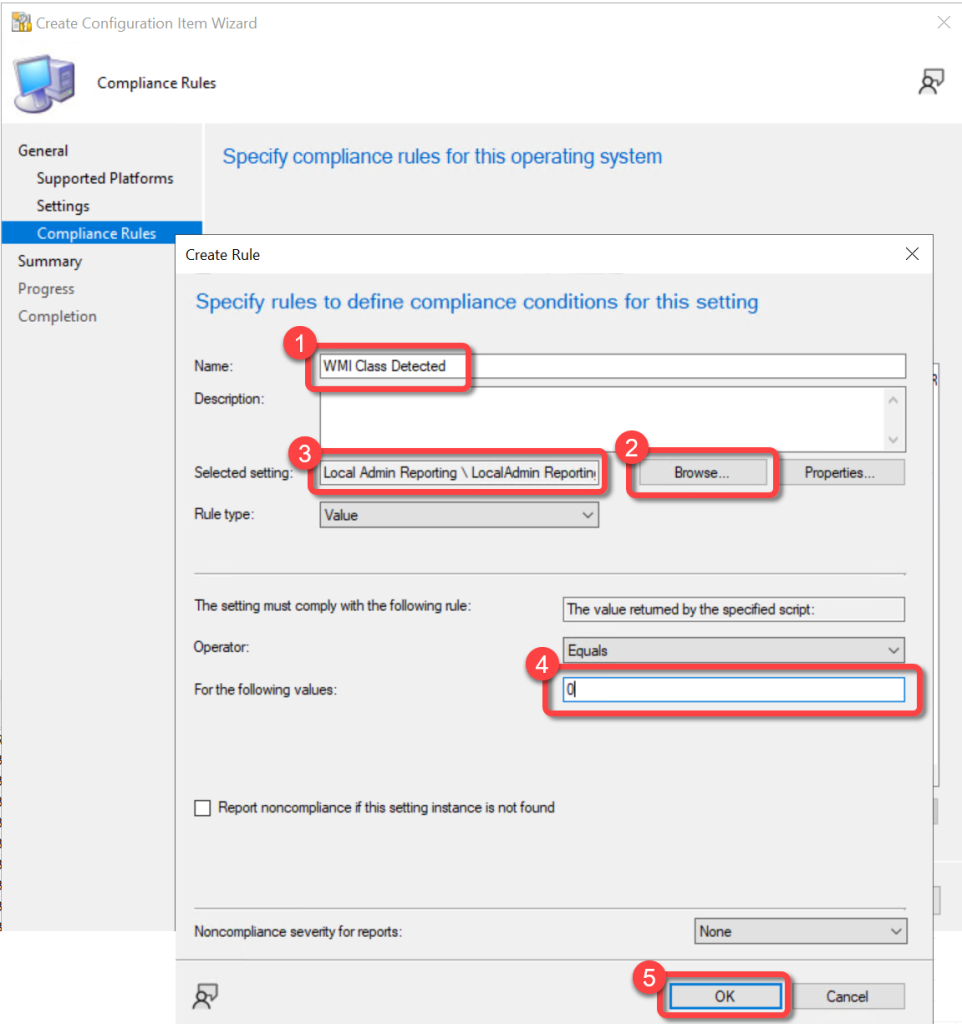
On the **Compliance Rules** page of the **Create Configuration Item Wizard**, select **New**.In the **Create Rule** dialog, provide the following information:**Name**: Enter a unique name for this rule. For example, "**WMI Class Detected**"**Selected setting**: Select **Browse** to open the **Select Setting** dialog. Select the setting that you created in Step 4 above and then choose **Select**.**Rule type**: Select **Value**.**Operator**: Select **Equals**.**For the following values**: Enter **0** (zero).Select **OK** to close the **Create Rule** dialog.
Step 7: Proceed Past Compliance Rules
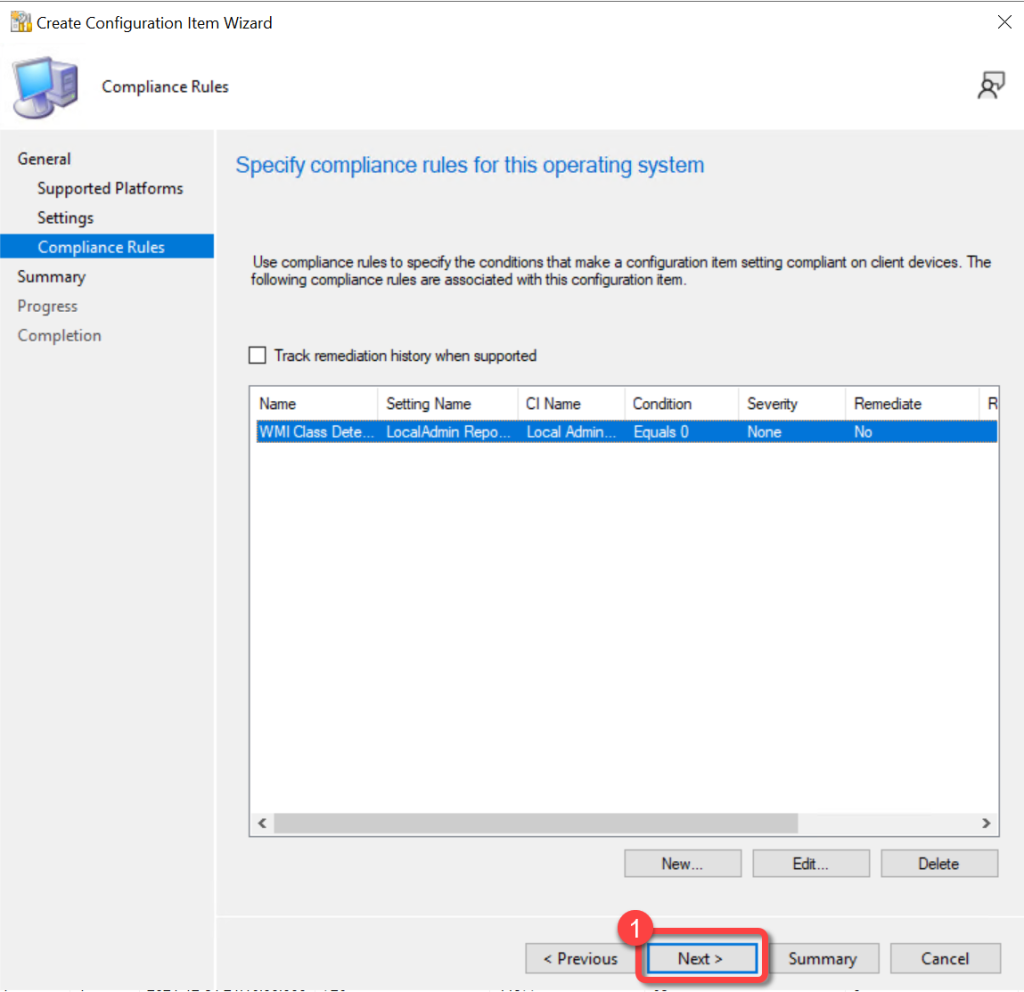
On the **Compliance Rules** tab of the **Create Configuration Items Wizard**, select **Next**.
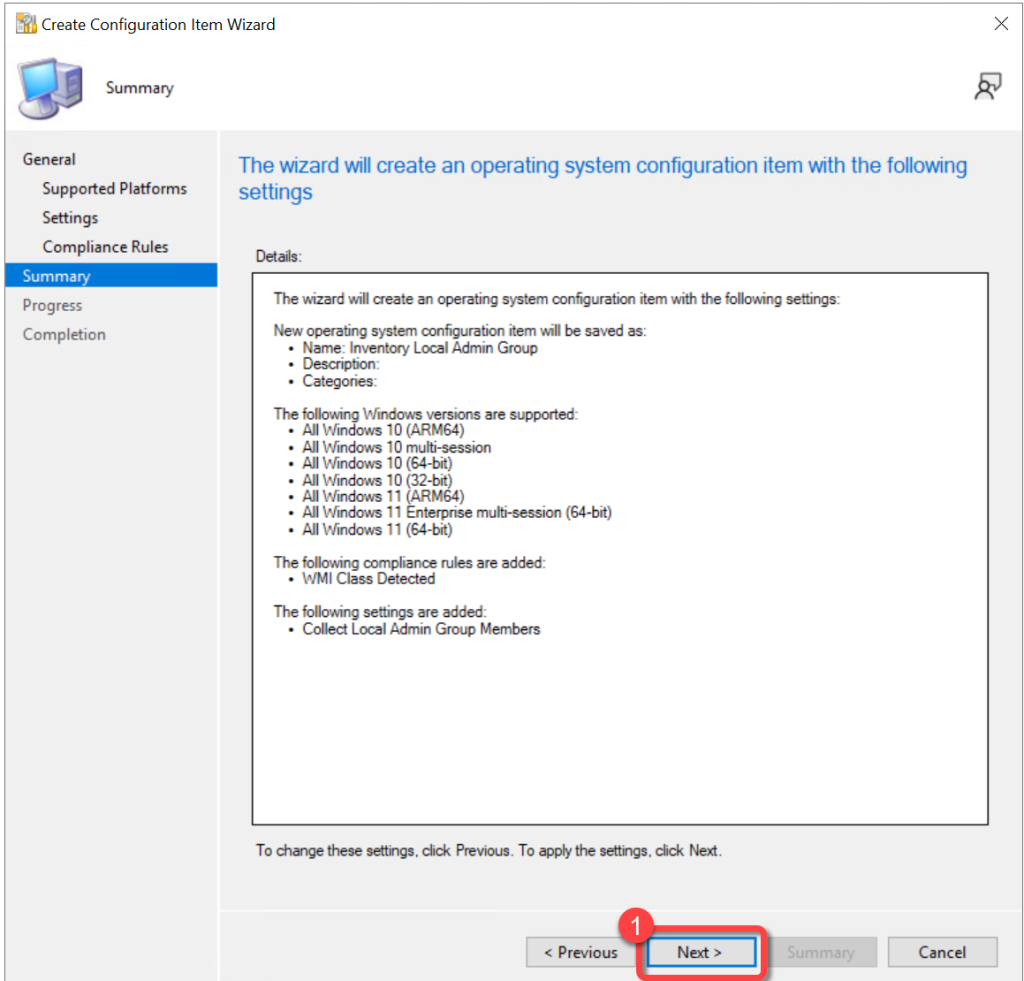
Step 8: Review Summary
On the **Summary** tab of the **Create Configuration Items Wizard,** select **Next**.
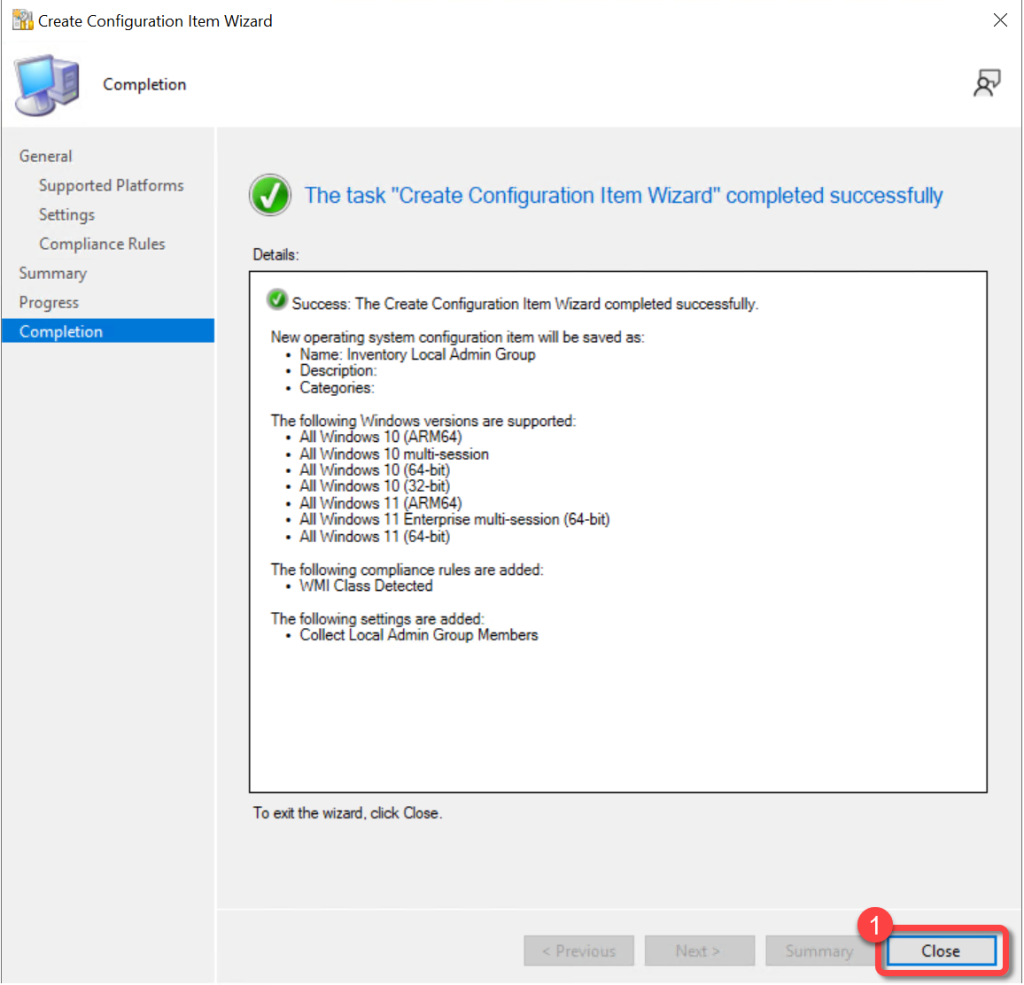
Step 9: Close the Wizard
On the **Completion** tab of the **Create Configuration Items Wizard**, select **Close**.
Deploy The Configuration Baseline
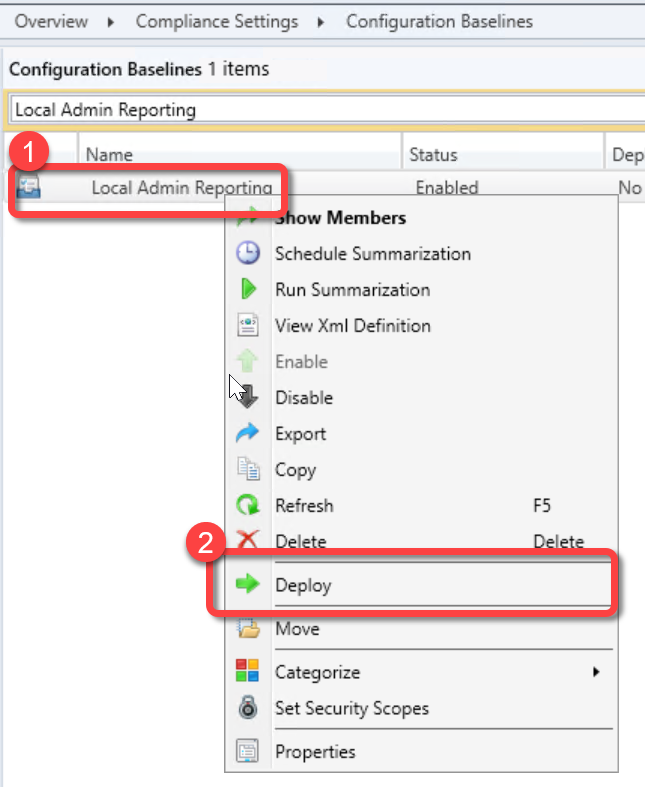
Step 1: Deploy the Baseline
In the **Configuration Manager console**, go to the **Assets and Compliance** workspace, expand **Compliance Settings**, and select the **Configuration Items** node.In the **Configuration Baselines list**, select the configuration baseline that you created, right-click, select **Deploy**.
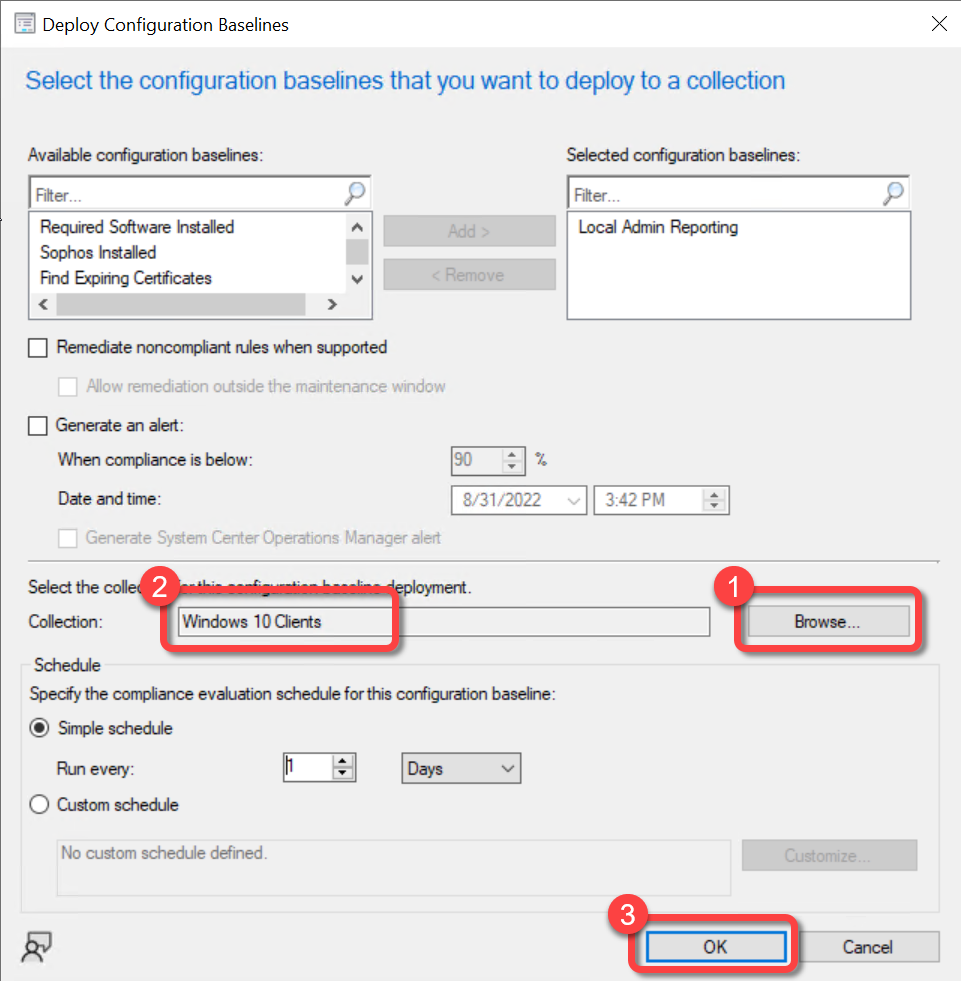
Step 2: Select Target Collection
Select **Browse** to select the **collection** where you want to deploy the configuration baseline.Select **OK**.
Configure Hardware Inventory
You must manually run the PowerShell script or have run the baseline on at least one computer before you can add the local admin data into ConfigMgr hardware inventory.
Step 1: Open Default Client Settings
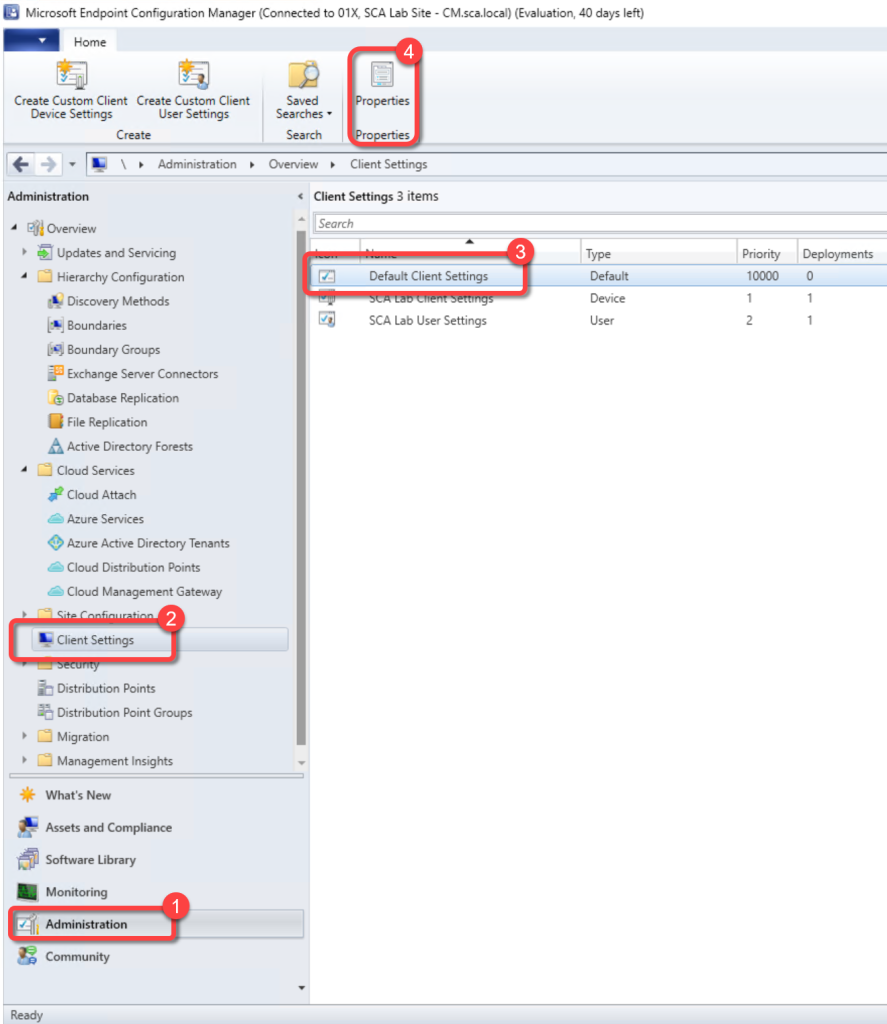
In the Configuration Manager console, go to the **Administration** workspace.Select the **Client Settings** node.Select the **Default Client Settings**. (**Note**: New classes must be added in the Default Client Settings.)On the **Home** tab, in the **Properties** group, choose **Properties**.
Step 2: Open Hardware Inventory Classes
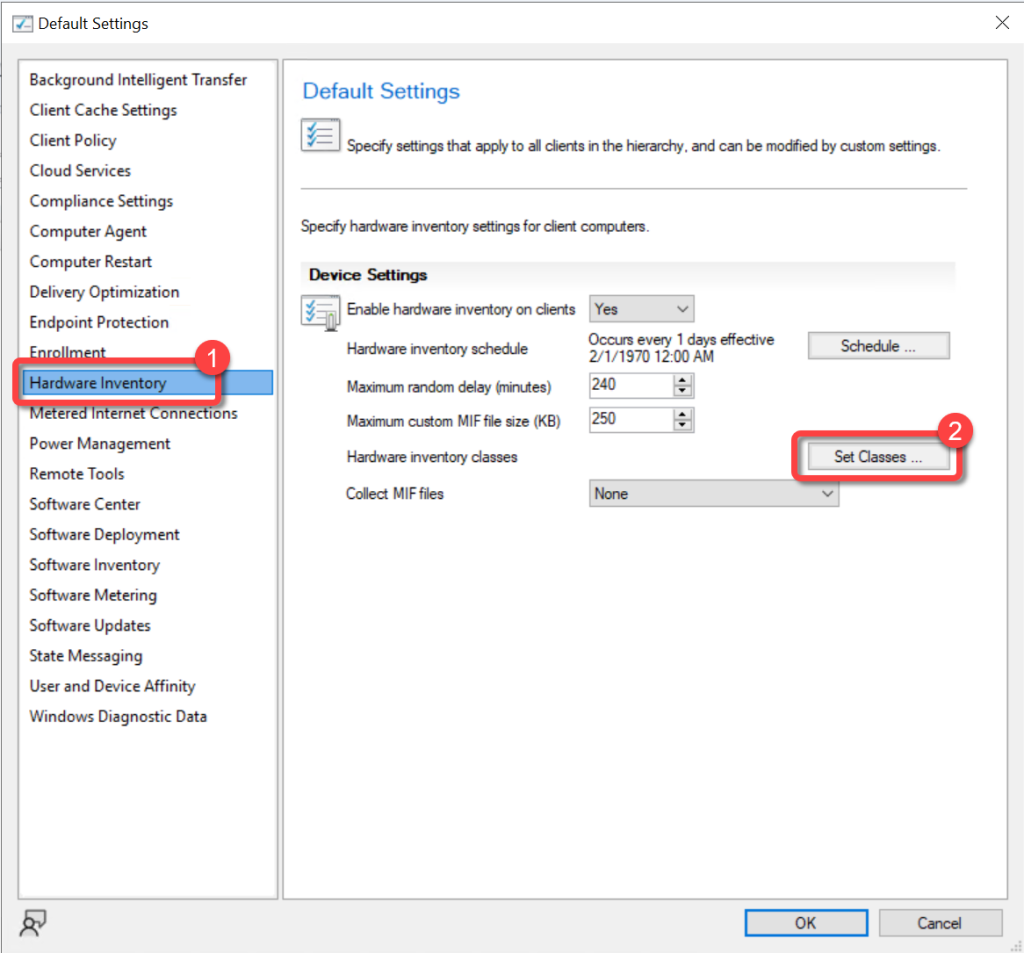
In the **Default Settings** dialog, choose **Hardware Inventory**.In the **Device Settings** list, select **Set Classes**.
Step 3: Add New Inventory Class
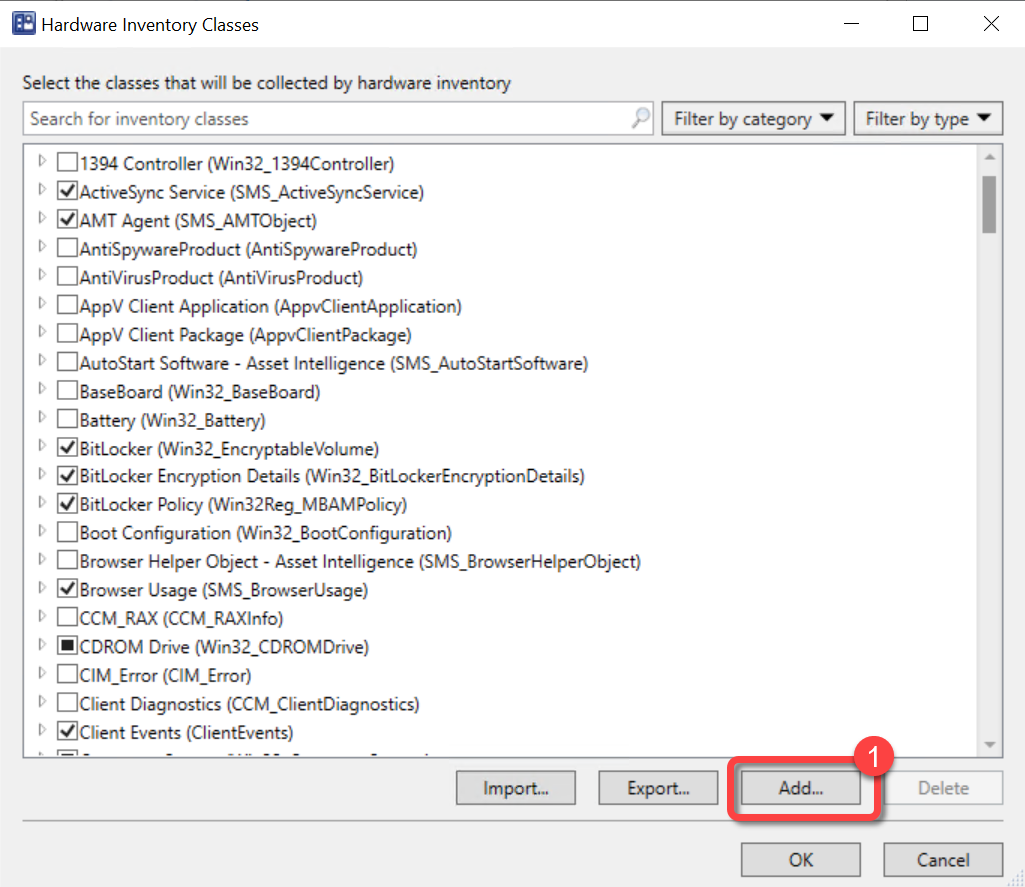
In the **Hardware Inventory Classes** dialog select **Add**.
Step 4: Connect to WMI
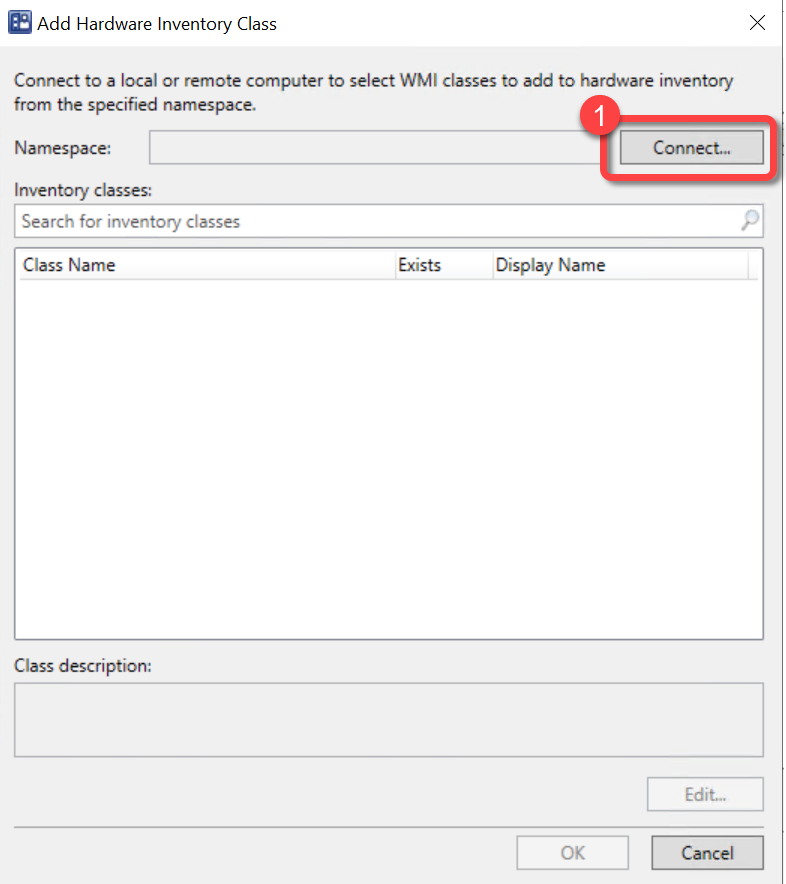
In the **Add Hardware Inventory Class** dialog, select **Connect**.
Step 5: Specify WMI Computer
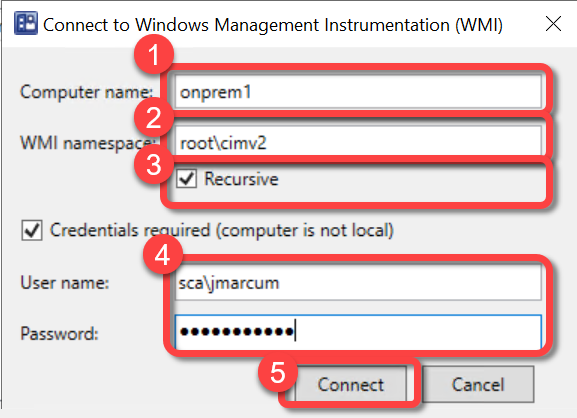
In the **Connect to Windows Management Instrumentation (WMI)** dialog, specify the name a computer that has run the PowerShell script.Do not change the **WMI namespace**, it should be **rootcimv2**.Select **Recursive**.Enter a **username** and **password** if required.Select **Connect**.
Step 6: Select Local Admins Class
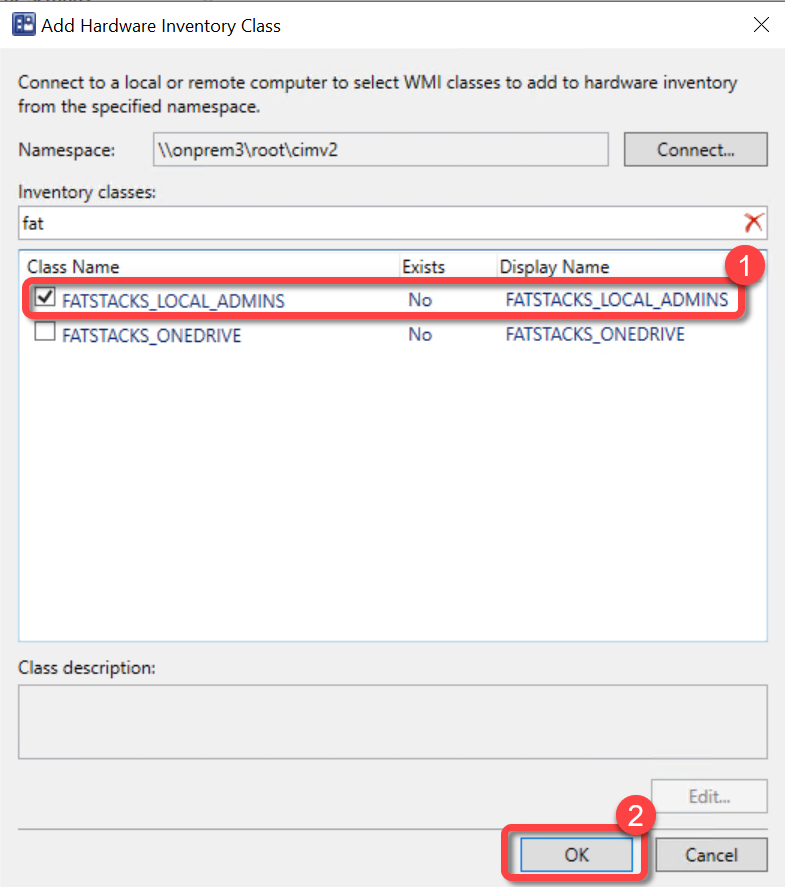
In the **Add Hardware Inventory Class** dialog, select the **FATSTACKS_LOCAL_ADMINS** inventory classes. Select **OK**.
Step 7: Review Inventory Classes
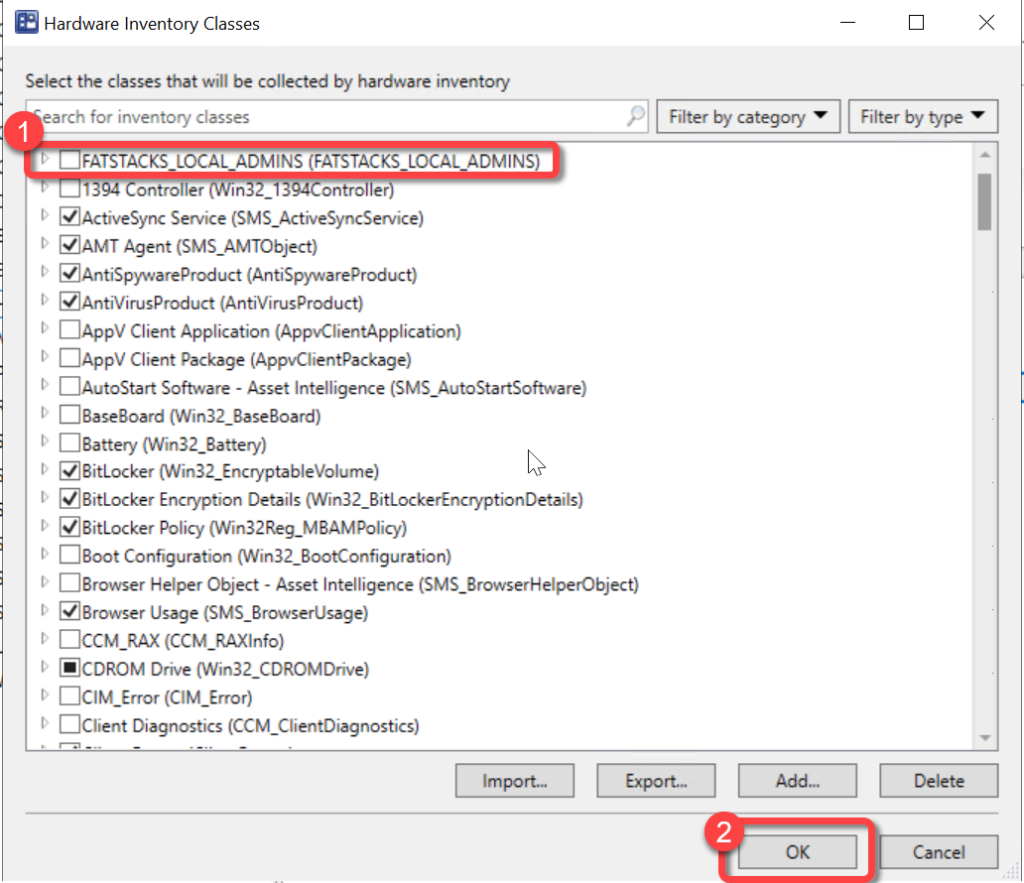
In the **Hardware Inventory Classes** dialog, you might want to **clear** the **FATSTACKS_LOCAL_ADMINS** inventory classes and add it to a custom client agent setting instead. Using a custom client agent setting is typically advised, however it is not covered in this document. If you would like to have the monitor inventory collected using the Default Client Settings do not clear **FATSTACKS_LOCAL_ADMINS** inventory class here. Select **OK**.
Step 8: Confirm Default Settings
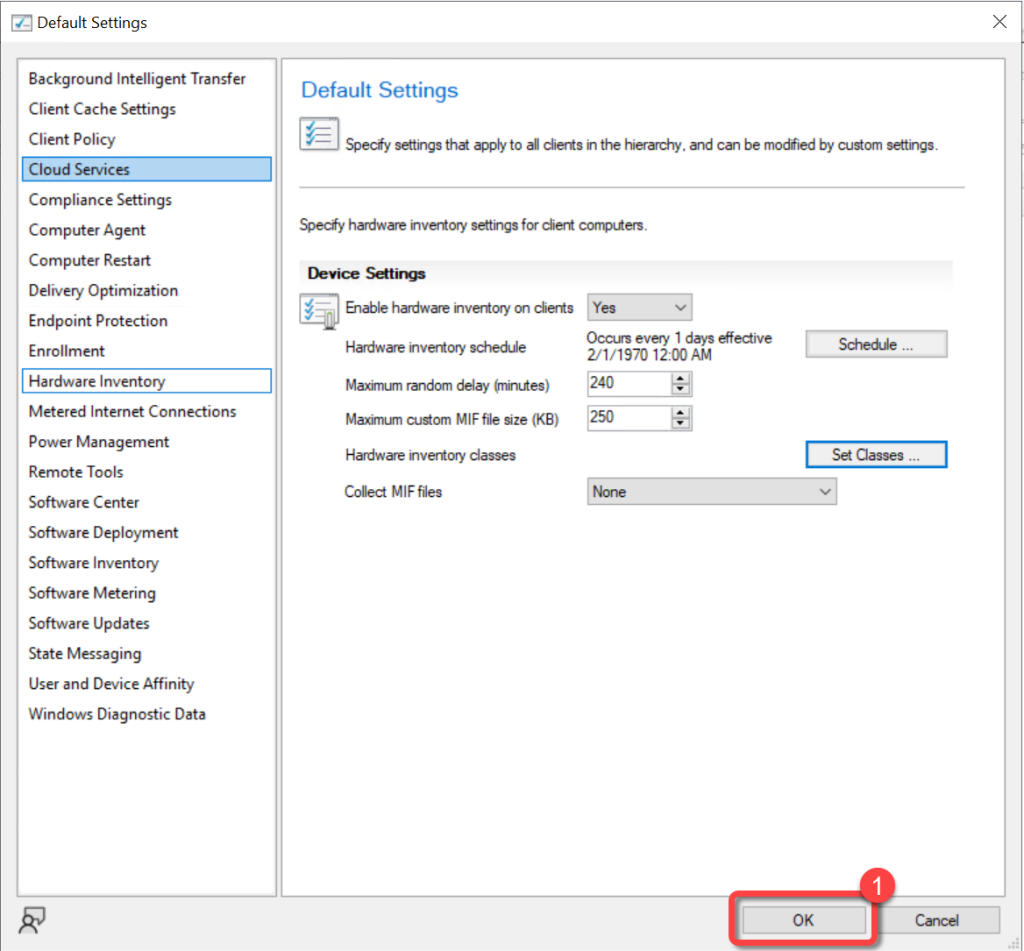
- In the Default Settings dialog, select OK.