Configure Intune export API
Microsoft has migrated some of the data that BI for Intune uses to the new Intune Export API. Each region in which Microsoft hosts Intune has a unique download URL that is sent as a response to queries made against this API. For this reason we have introduced new dataset parameters that should be configured for this data to be imported into Power BI. Configuring these parameters is not mandatory, however if you do not configure these parameters as described here BI for Intune will make a call to a redirect API owned by PowerStacks. The purpose of the redirect API is to automate locating the correct download URL for your Intune tenant and pass that URL back to BI for Intune to download content from the Export API to Power BI. No protected data is passed through PowerStacks if you use the redirect API. However, we recommend that customers follow this guide to bypass using our redirect API altogether.
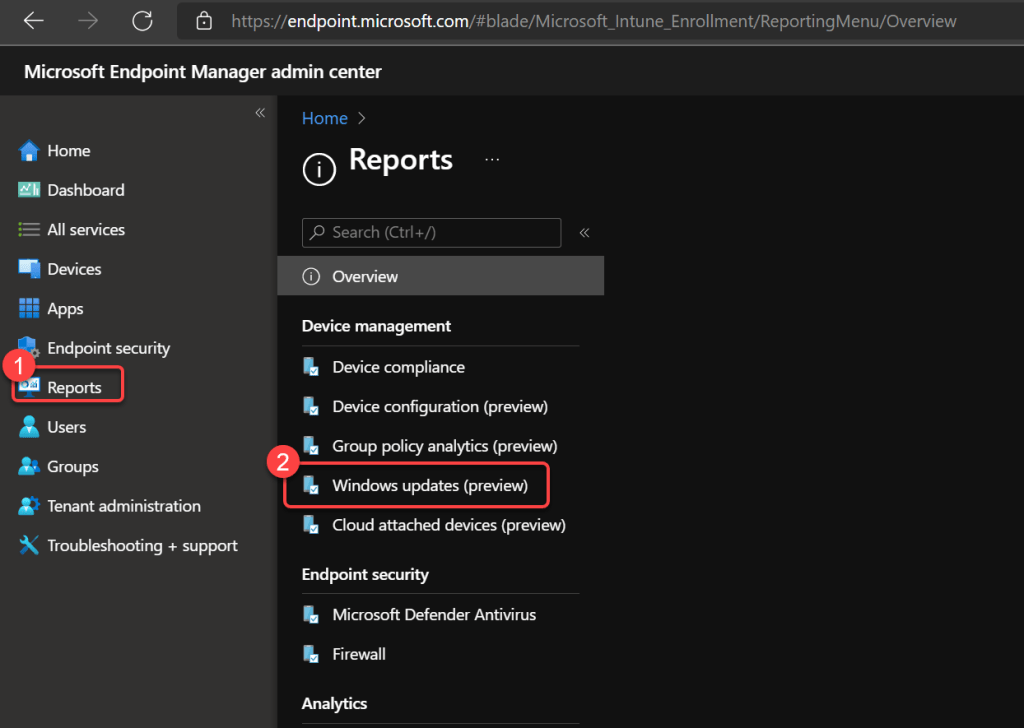
Step 1: Open Windows Updates report
- In the Intune admin center select the Reports pane.
- Select Windows Updates (preview).
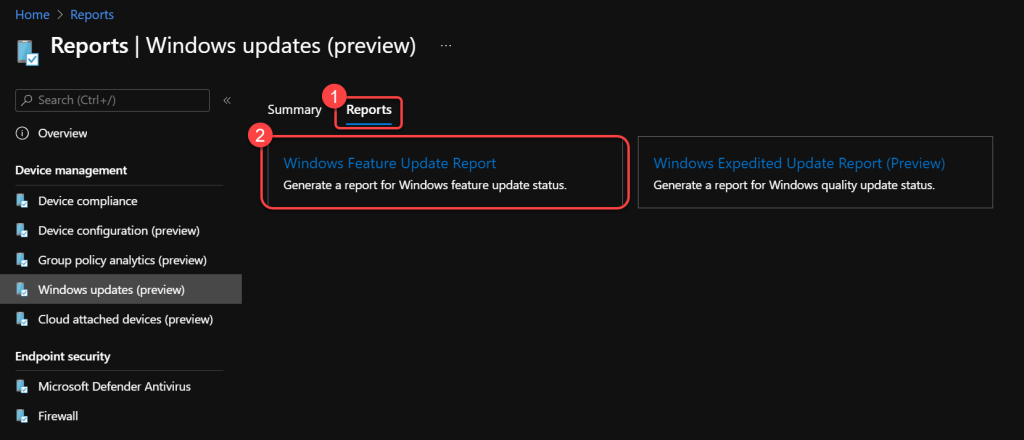
Step 2: Open feature update report
- Select the Reports tab.
- Select the Windows Feature Update report.
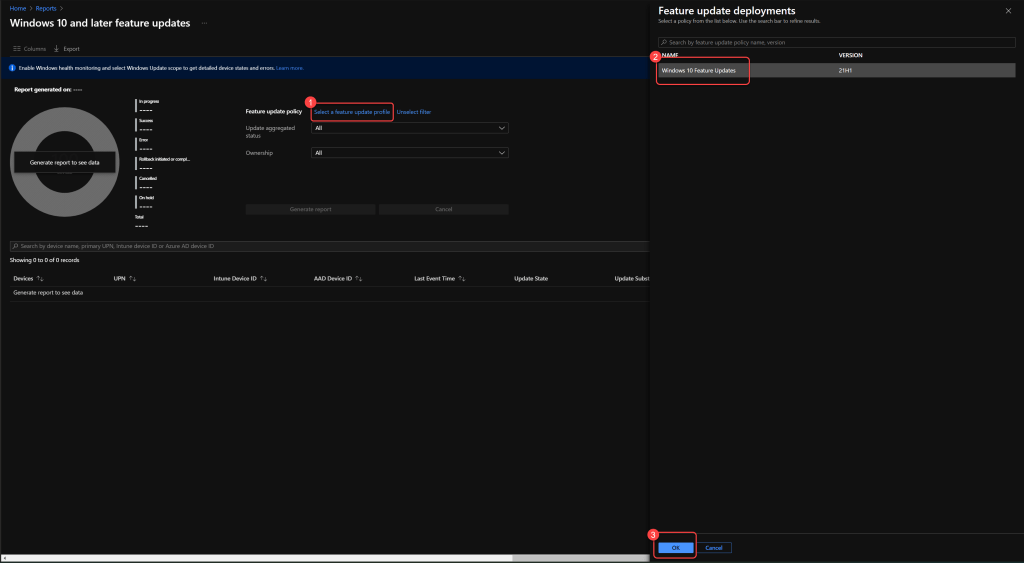
Step 3: Select a feature update profile
- Select a feature update profile.
- Select Ok.
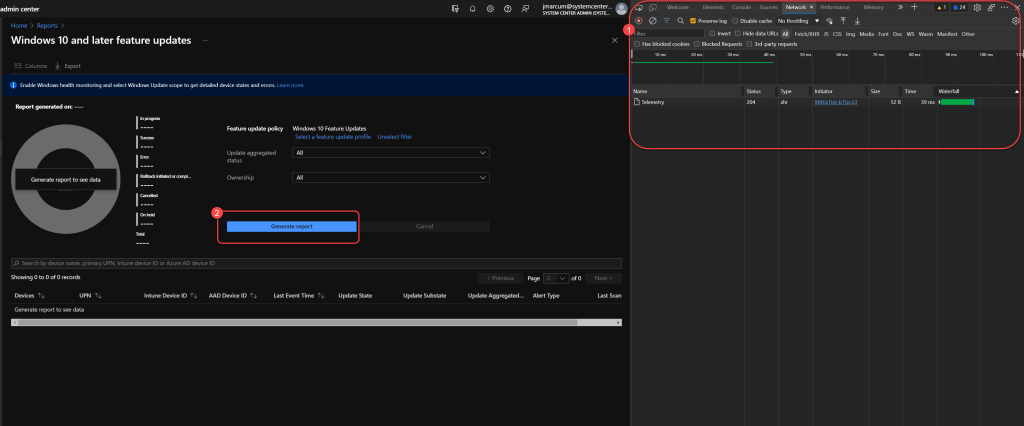
Step 4: Open developer tools and generate
- Press F12 to open the developer tools in your browser.
- Select Generate report.
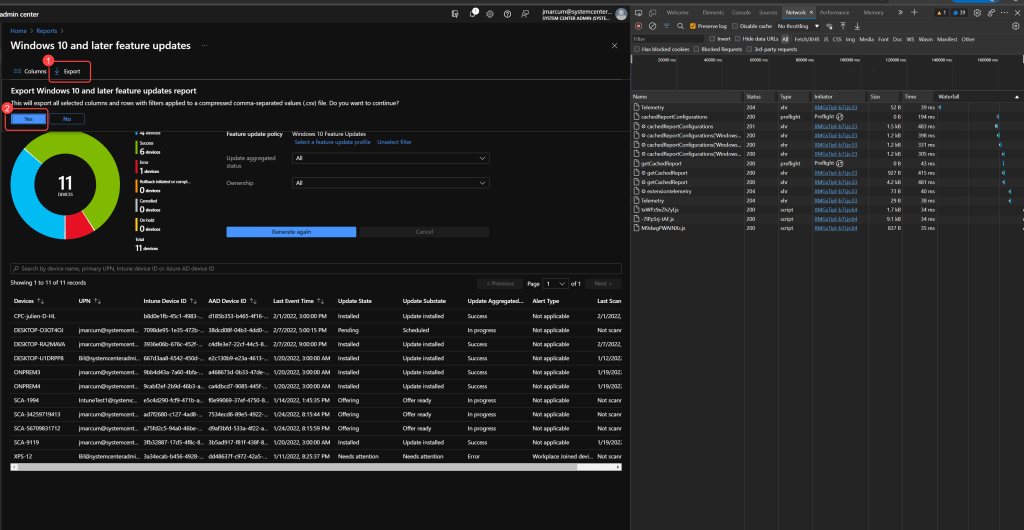
Step 5: Export the report as CSV
- Select Export.
- Select Yes at the prompt to export a .csv.
Step 6: Copy the export request URL
- On the Network tab of the Developer pane in the browser watch for the line starting with WindowsUpdatePerPolicyPerDeviceStatus.
- Select the line starting with WindowsUpdatePerPolicyPerDeviceStatus, this will contain the Request URL.
- Copy the Request URL and save it for use later. It should look something like this:
https://amsua0401repexpstorage.blob.core.windows.net.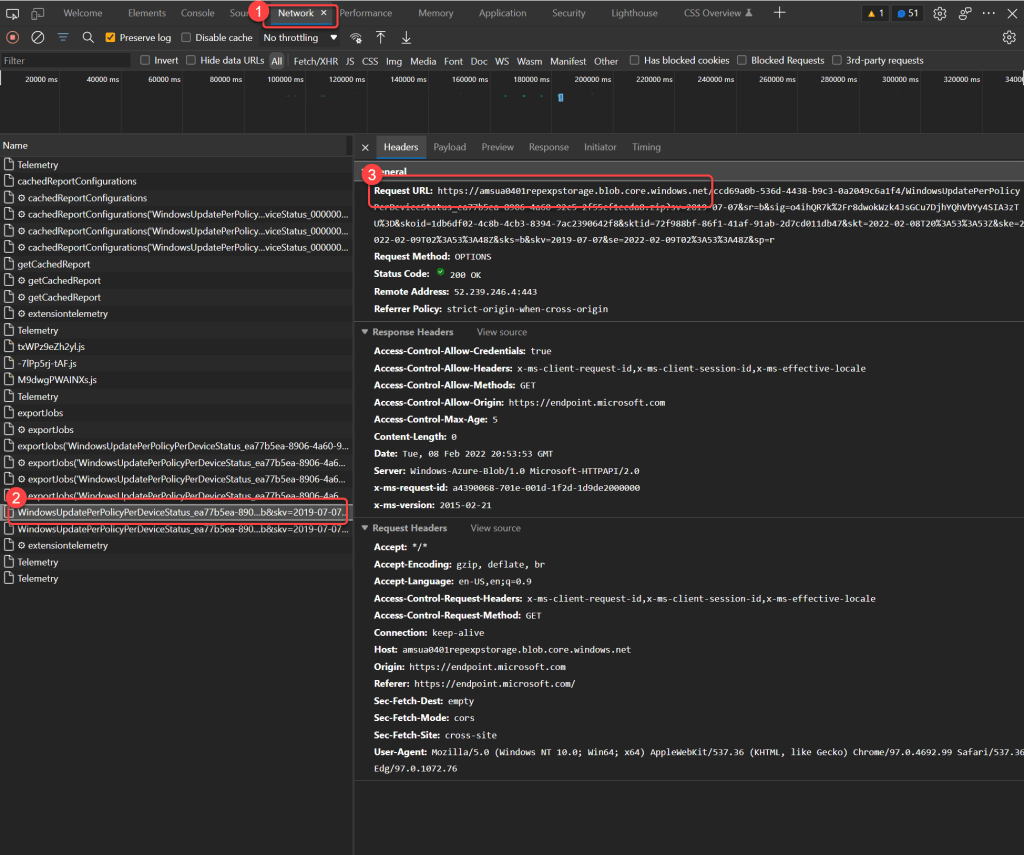
Step 7: Open the semantic model settings
- In Power BI go to the BI for Intune workspace.
- Open the semantic model settings.
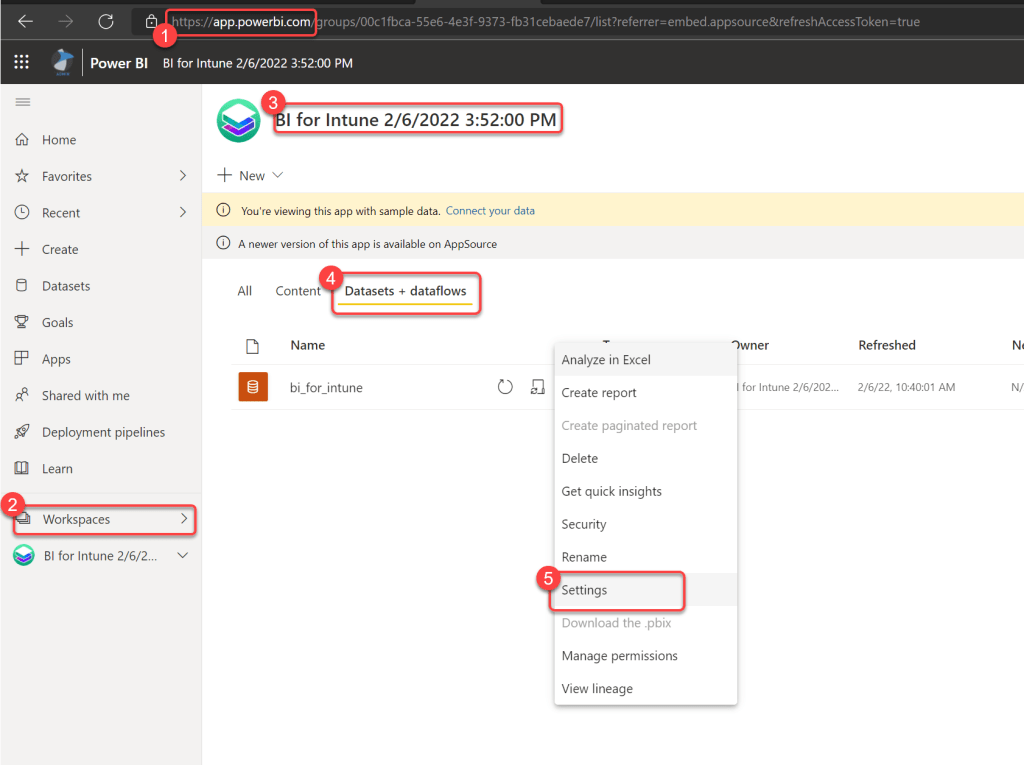
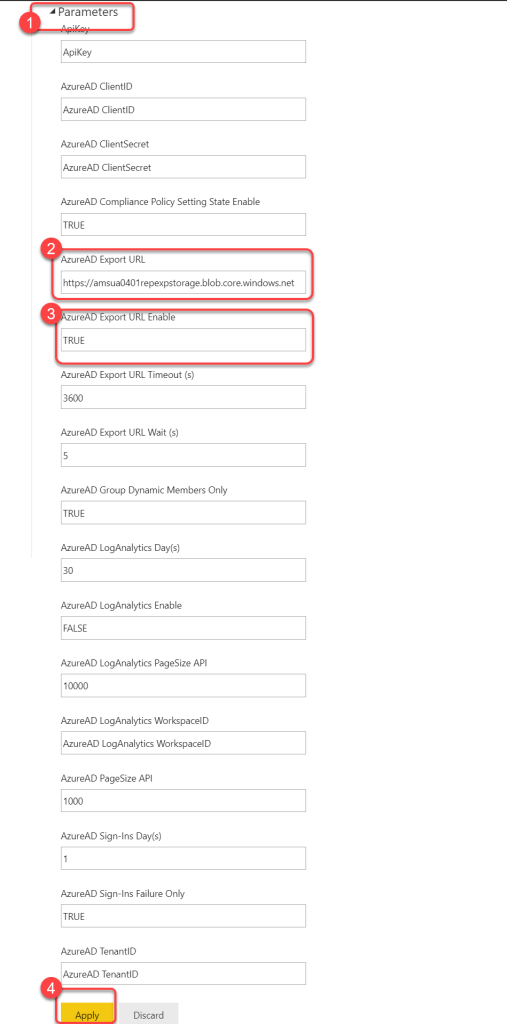
Step 8: Enter the export URL parameters
- Expand Parameters.
- Enter the Export URL that you previously saved in the AzureAD Export URL parameter.
- Enter TRUE in the AzureAD Export URL Enable parameter.
- Select Apply.