Backing Up Custom Reports
We strongly advise customers to always backup their custom reports before performing any in-place upgrades. Failure to do so could result in the loss of your custom reports!
Prerequisites:
- The user executing these steps should be an administrator of the BI for Intune workspace(s).
- A second install of BI for Intune to be used as a backup workspace. You do not need to configure the dataset parameters, this workspace is simply a place-holder to store a copy of your custom reports.
The PowerShell scripts referenced below are available on GitHub:

PowerStacks Report Backup repository
Step 1: Save the PowerShell script
- Copy the PowerShell code above, save it as a .ps1 file or paste it into your favorite code editor.
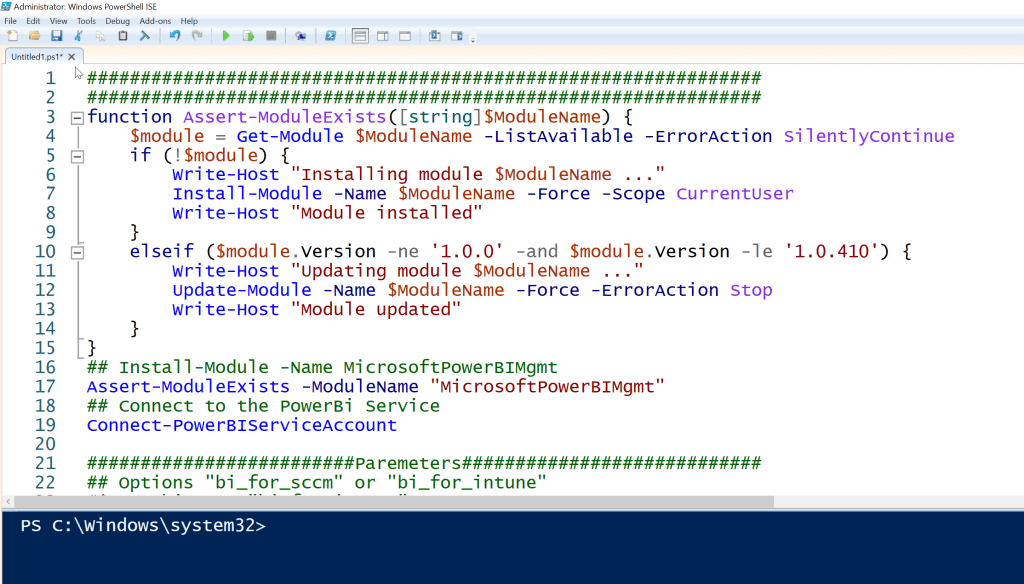
Step 2: Run the script and sign in
- Execute the code in the code editor or by running the .ps1 file.
- When prompted, sign in to Power BI.
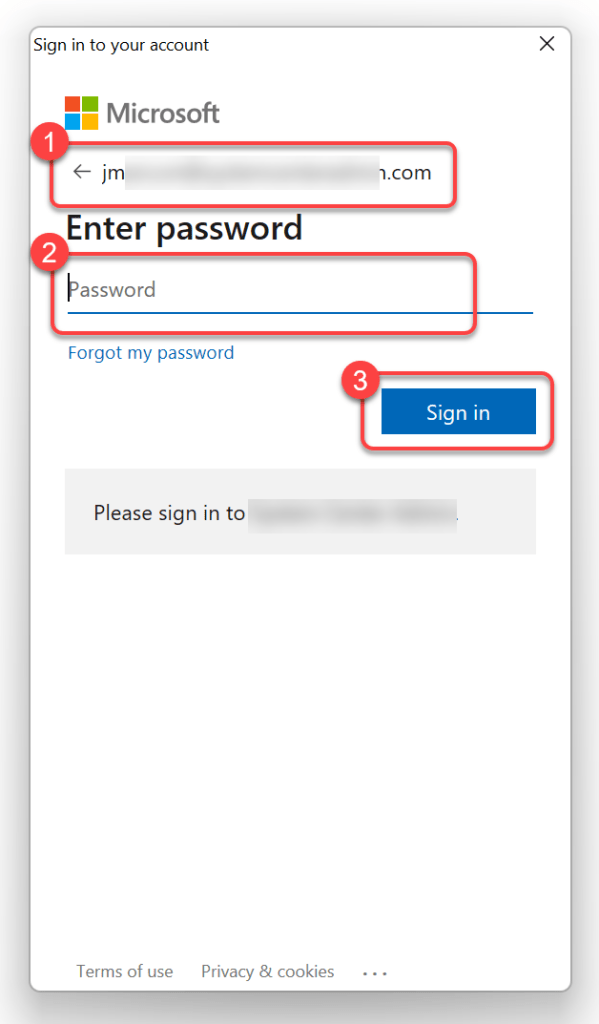
Step 3: Select apps to back up
- When prompted, select any BI for Intune apps that you may want to backup. (Note: This is only required if you have created apps containing custom reports)
- Select OK.
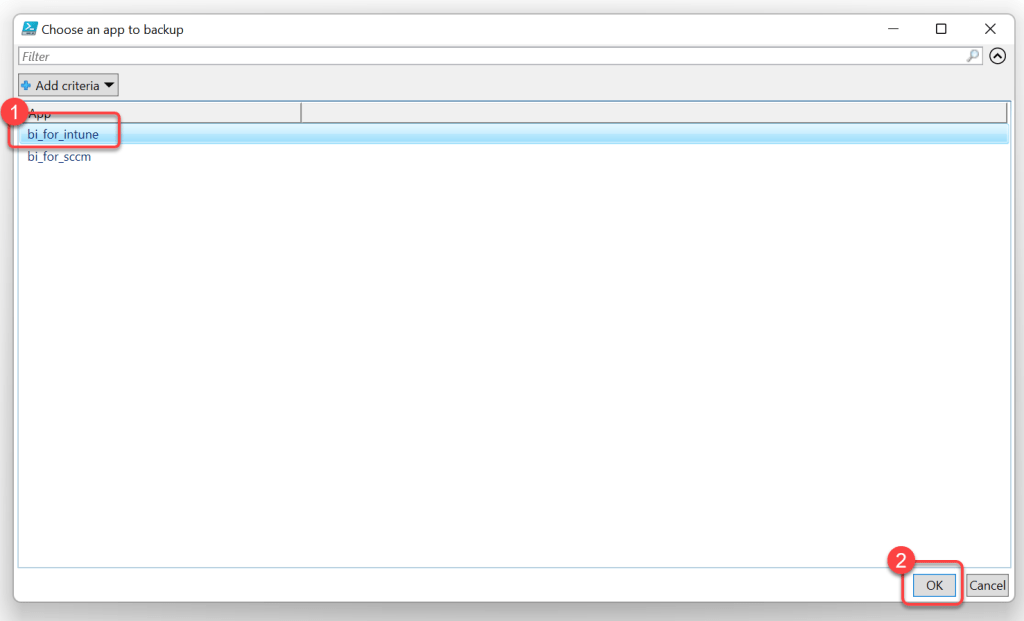 v*
v*
Step 4: Select the source workspace
- When prompted, select your production BI for Intune workspace. This is the source from which reports will be copied.
- Select OK.
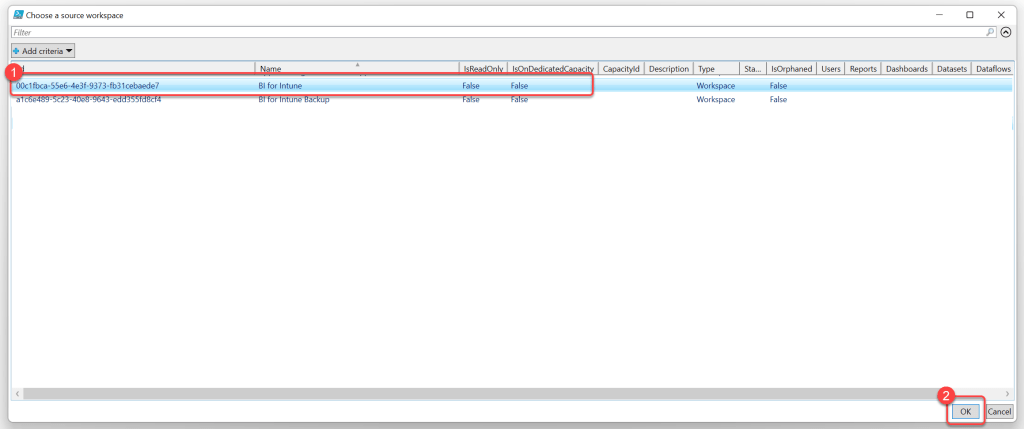
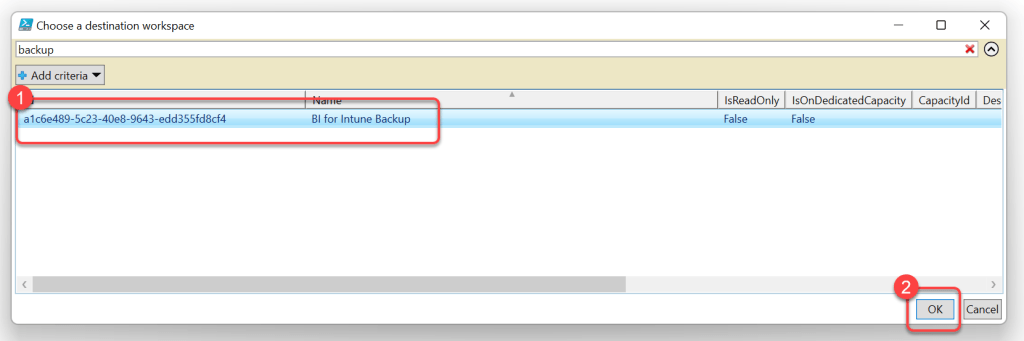
Step 5: Select the backup workspace
- When prompted, select your backup BI for Intune workspace. This is the destination which reports will be copied to.
- Select OK.
Step 6: Verify the backup output
- When running in a shell you should see output describing what was copied to the backup workspace.
- Log in to the backup workspace to confirm that your custom reports have been copied there.
