Configure the semantic model parameters
The BI for Intune dataset contains some parameters that must be configured to synchronize data from Intune to Power BI. Other parameters add additional functionality to BI for Intune. In this article we will only configure the parameters required for basic functionality. For a full list of dataset parameters please see the Dataset Parameters Explained document.
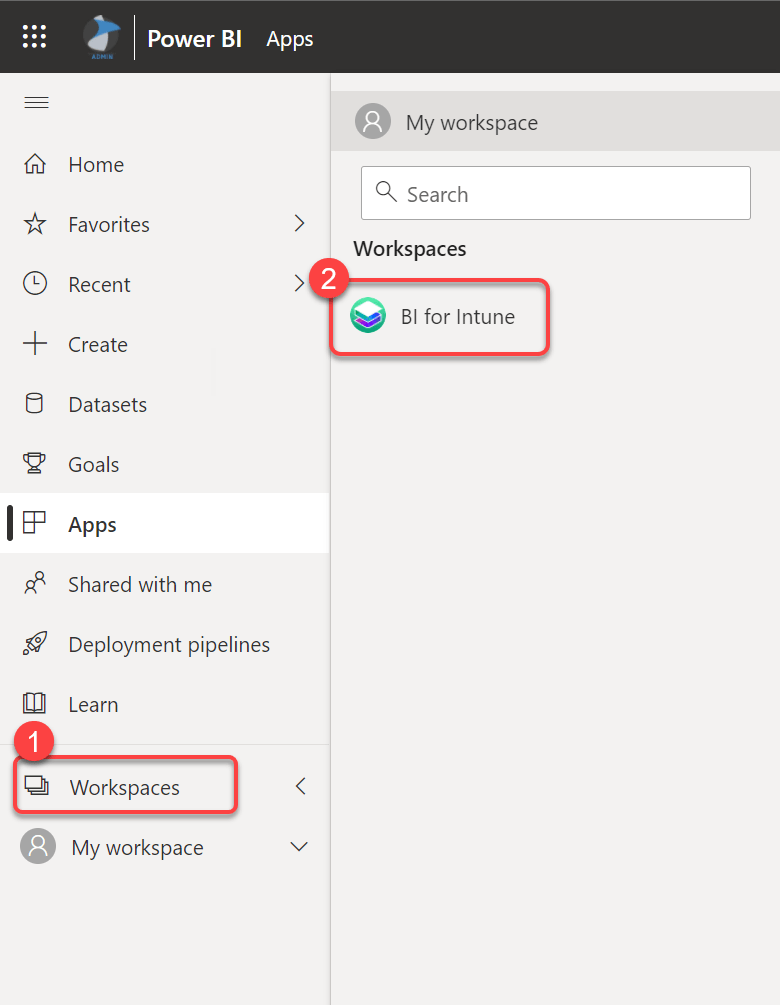
Step 1: Open the BI for Intune workspace
- Select Workspaces.
- Select the BI for Intune workspace.
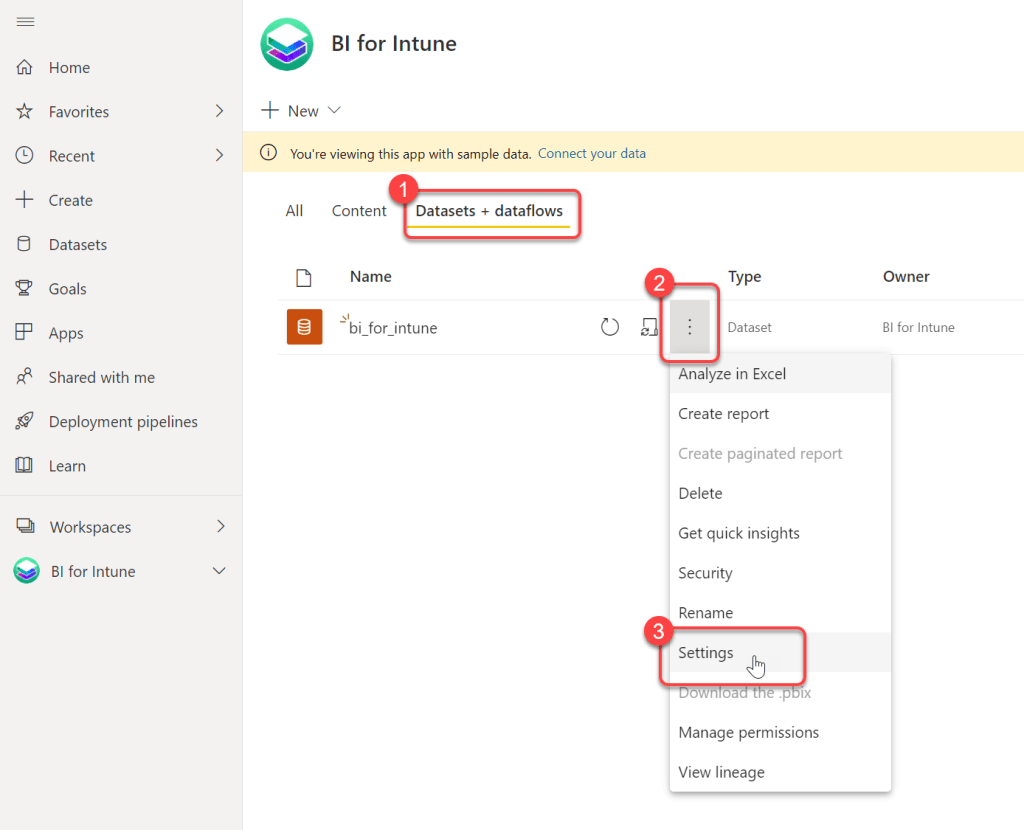
Step 2: Open dataset settings
- Select Datasets + dataflows.
- Point to the bi_for_intune dataset to reveal a More options menu (three vertical dots).
- Select the More options menu.
- Select Settings.
Step 3: Enter required dataset parameters
- Expand Parameters.
- Enter the API Key that you received from us after completing the Request a Trial Key form.
- Enter your Microsoft Entra ID tenant ID that you recorded during the configuration of the Microsoft Entra app registration.
- Enter the Microsoft Entra ID Client ID that you recorded during the configuration of the Microsoft Entra app registration.
-
Enter the Microsoft Entra ID Client Secret that you recorded during the configuration of the Microsoft Entra app registration. The client secret does not have dashes (-) in it. It looks similar to this:
aBcDE~fGh.I.JKlmnopqRsTuVwXyZ1234567890Warning
The most common mistake made when installing BI for Intune is on this step! The client secret does not look like this:
2f51572d-24ac-43bb-a73a-d3c346b69a45— it does look like this:aBcDE~fGh.I.JKlmnopqRsTuVwXyZ1234567890. -
Select Apply.

Step 4: Expand data source credentials
- Expand Data Source Credentials.
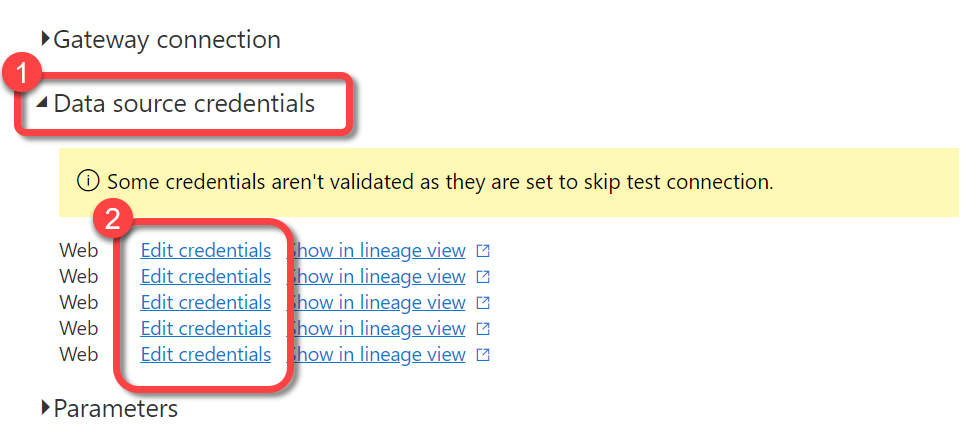
Step 5: Configure data source credentials
-
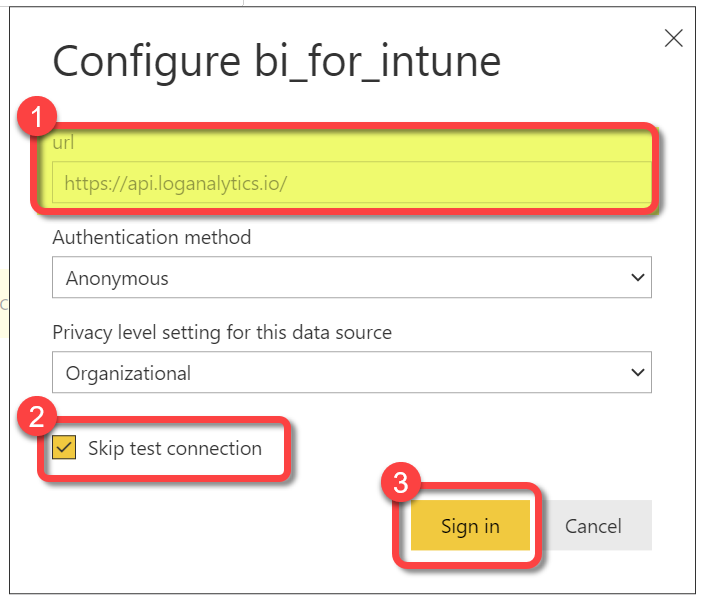
Select each occurrence of Edit credentials one by one and configure each as follows:
Note
Depending upon your configuration you may or may not have all of the referenced credentials.
-
Select Anonymous as the Authentication method and Organizational as the Privacy level for all credentials.
- Select Skip test connection only where the URL is
https://api.loganalytics.ioand/or similar tohttps://amsua0401repexpstorage.blob.core.windows.net. - Select Sign in on each of the credentials.