Inventory Disk Types (SSD or HDD)
To populate the data required for reporting on the drive type, Solid State Drive or Hard Disk Drive, you must extend hardware inventory to include the Logical Disk to Partition and the Disk Drive to Disk Partition classes. You must also add the Device_ID column to the default data collected from the Physical Disk WMI class. Skipping this step will not generate any errors however, you will not be able to report on the drive type. This may not be a concern for some environments as they already know that all devices have SSD's in them.
For more information on extending Configuration Manager hardware inventory see Enable or disable existing classes in the How to extend hardware inventory Configuration Manager documentation page.
Prerequisites:
Hardware inventory must be enabled.
Step 1: Open Client Settings Properties
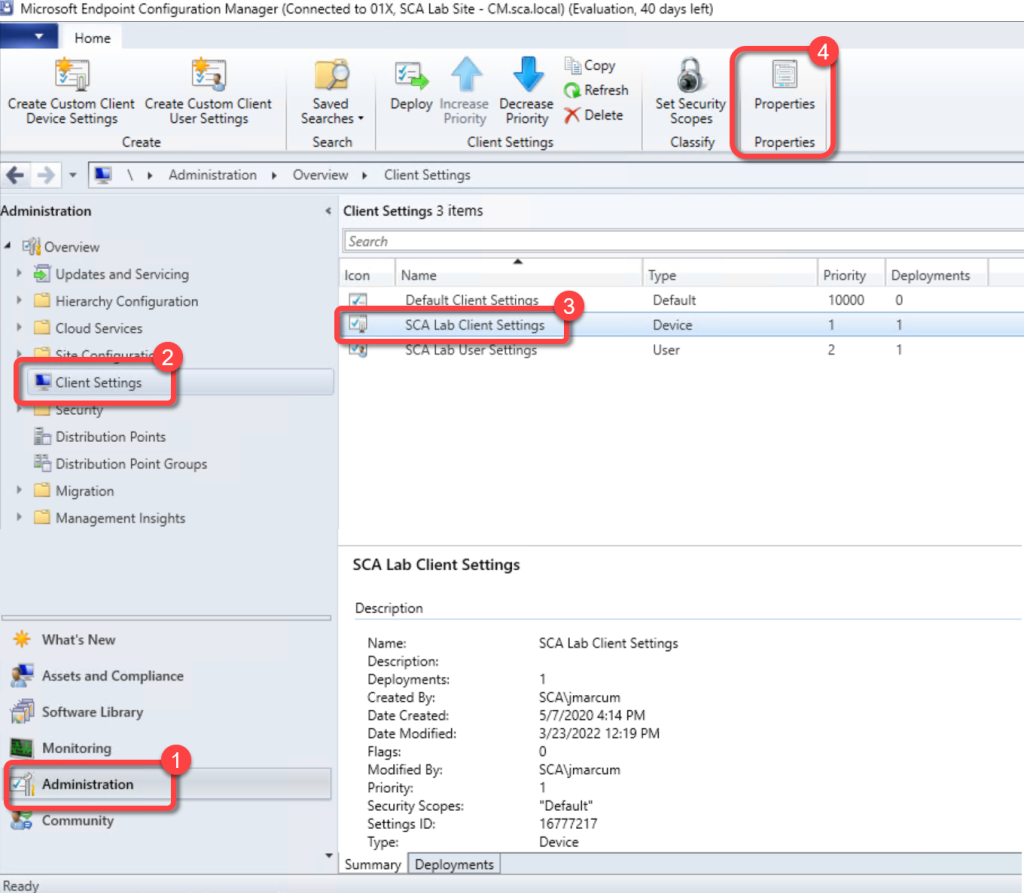
- In the Configuration Manager console, go to the Administration workspace.
- Select the Client Settings node.
- Select the client settings in which you have configured your hardware inventory settings.
- On the Home tab, in the Properties group, choose Properties.
Step 2: Open Hardware Inventory Classes
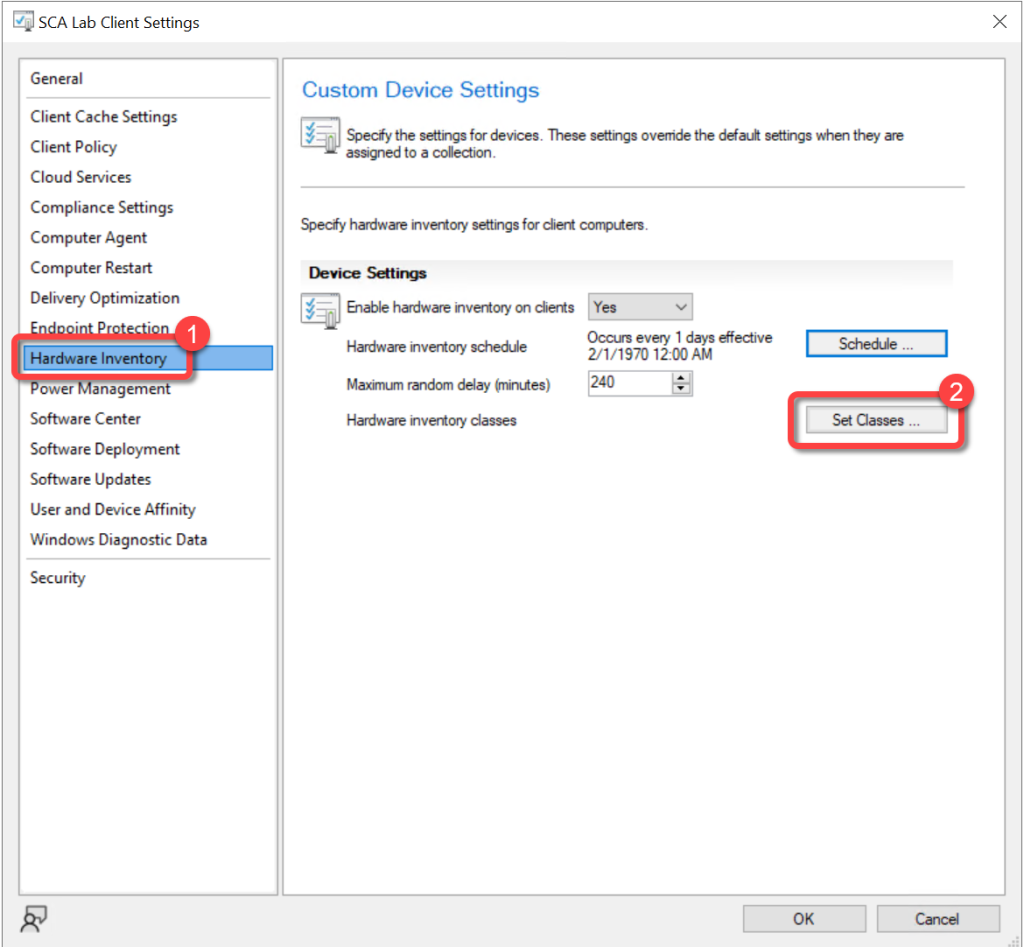
- In the client settings dialog, choose Hardware Inventory.
- In the Device Settings list, select Set Classes.
Step 3: Enable LogicalDiskToPartition Class
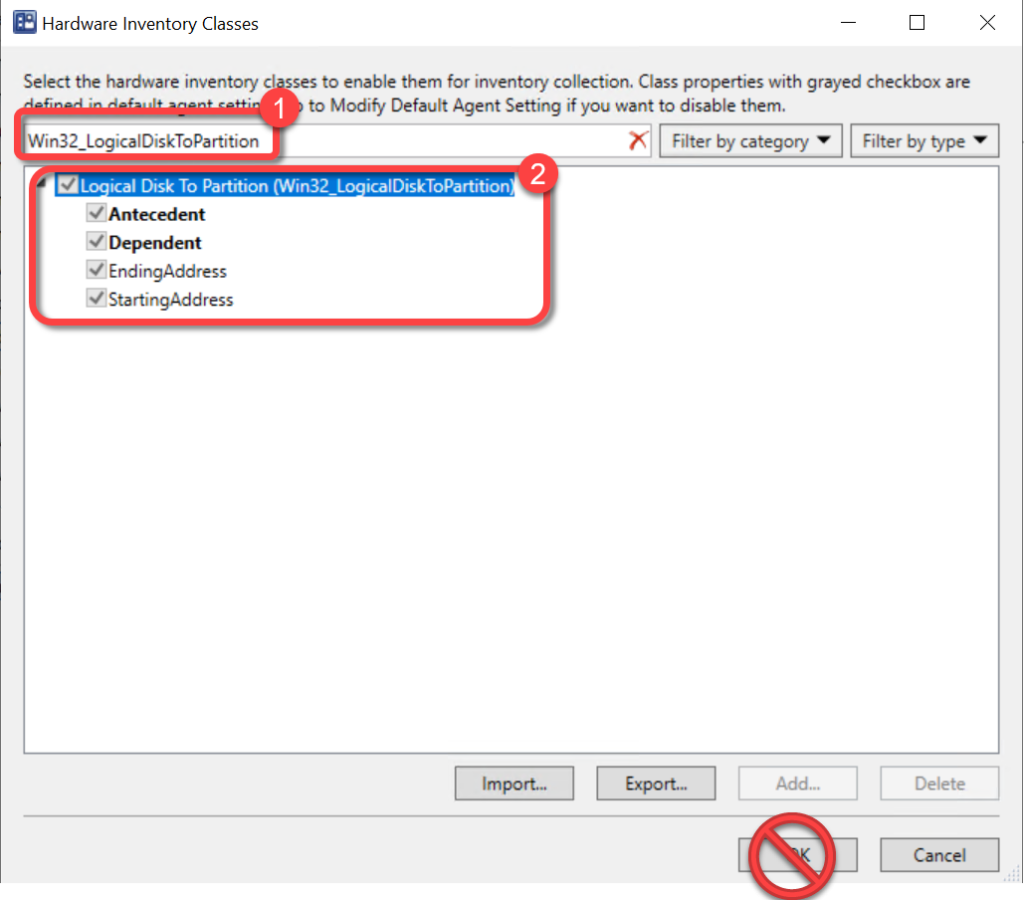
- In the Hardware Inventory Classes dialog, use the Search for inventory classes field to search for the Win32_LogicalDiskToPartitionclass.
- Select the Win32_LogicalDiskToPartitionclass.
- Do not select OK.
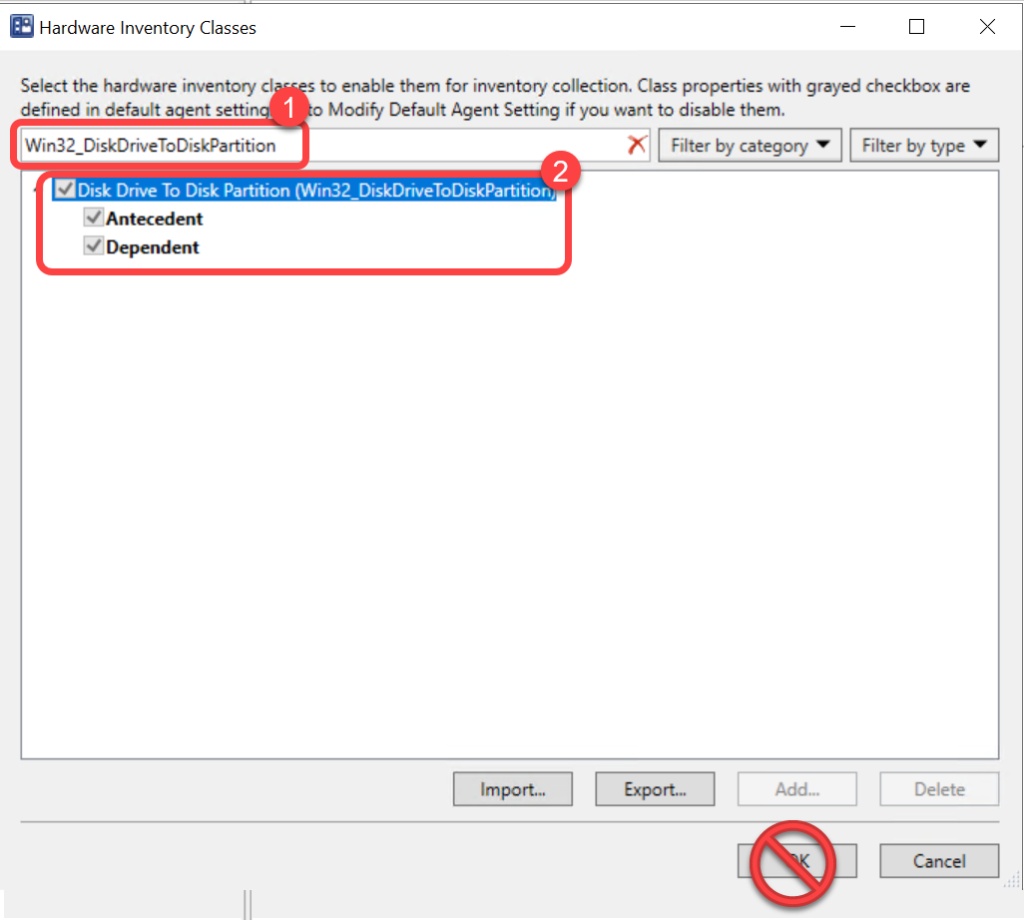
Step 4: Enable DiskDriveToDiskPartition Class
- In the Hardware Inventory Classes dialog, use the Search for inventory classes field to search for the Win32_DiskDriveToDiskPartitionclass.
- Select the Win32_DiskDriveToDiskPartitionclass.
- Do not select OK.
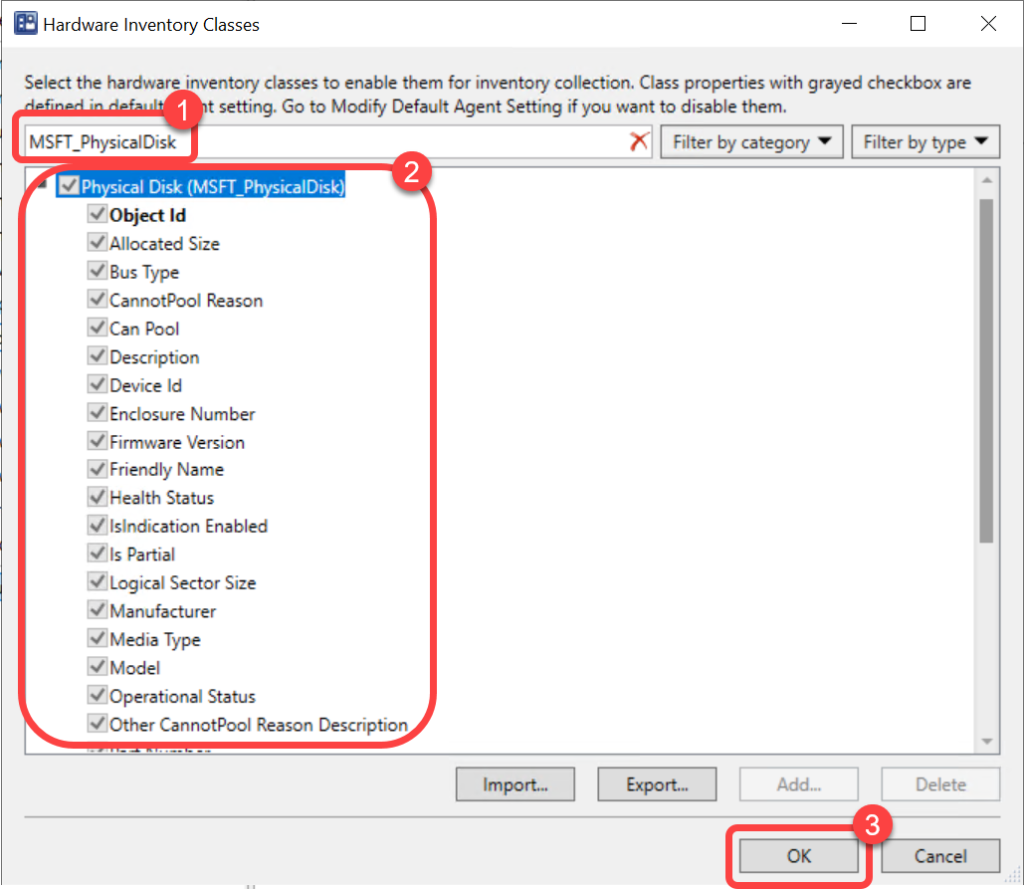
Step 5: Enable PhysicalDisk Class
- In the Hardware Inventory Classes dialog, use the Search for inventory classes field to search for the MSFT_PhysicalDiskclass.
- Select the MSFT_PhysicalDiskclass.
- Select OK.
Step 6: Confirm Client Settings
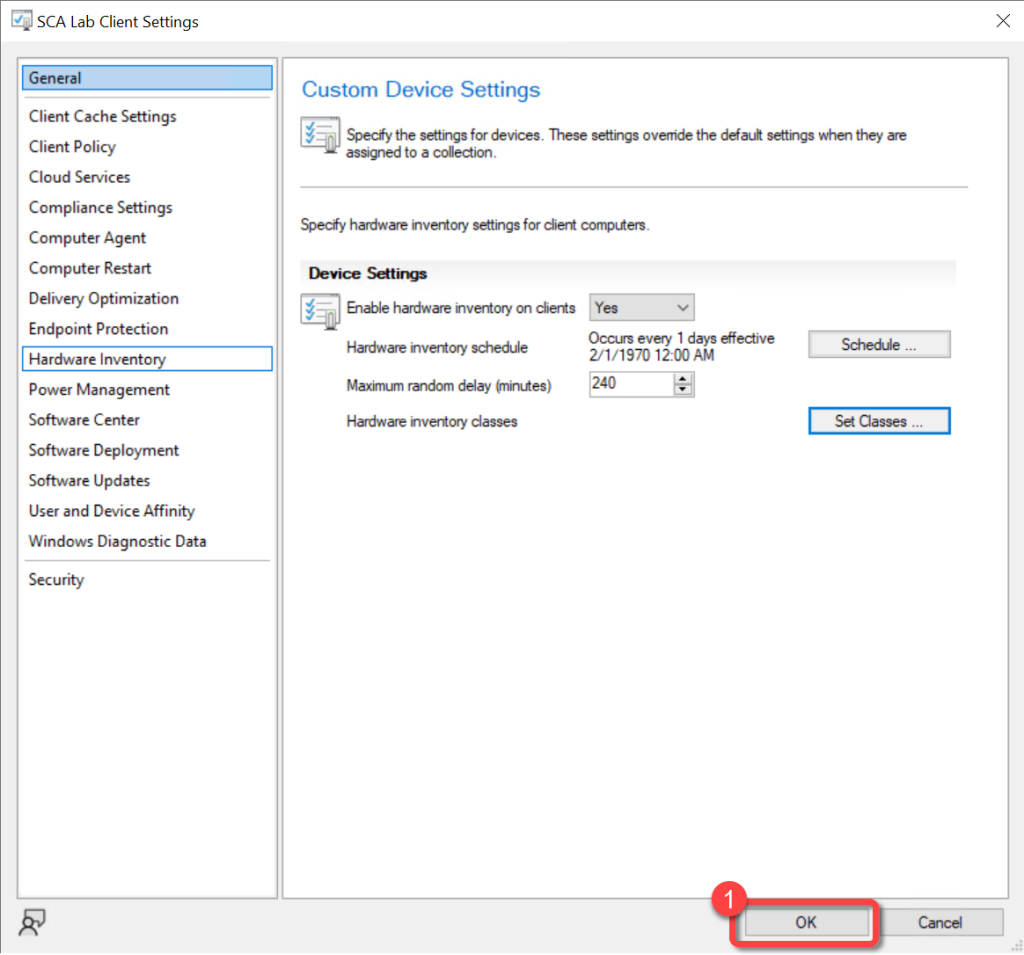
- In the client settings dialog, select OK.