Browsing apps
Home page
The home page displays:
- Hero app: a featured application highlighted by your admin
- Featured apps: curated apps recommended for your organization
- Browse by category: quick links to app categories (Productivity, Development, Communication, and so on)
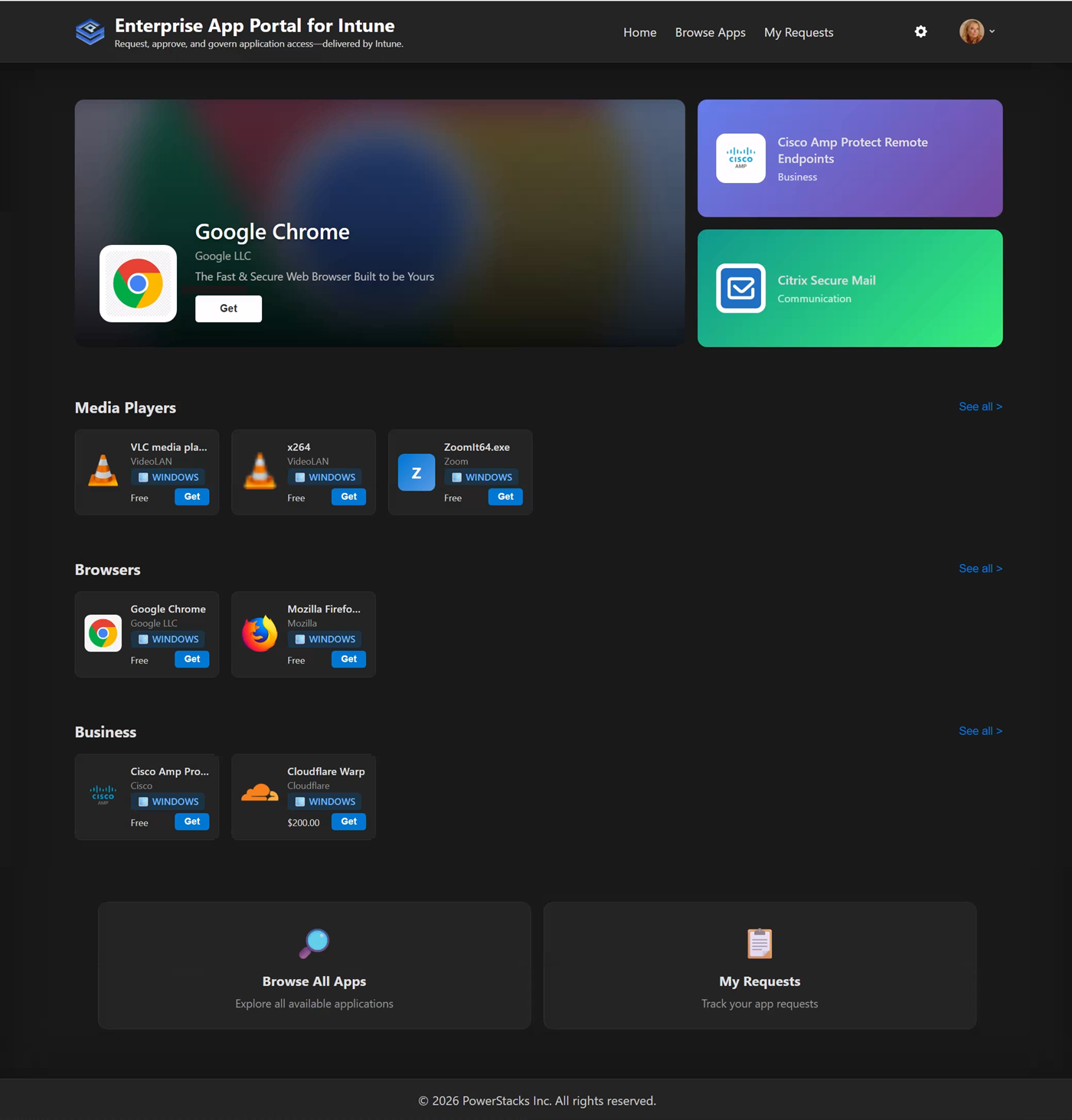 The home page showing featured apps and hero app
Browse apps page
Select Browse Apps in the navigation to see all available applications.
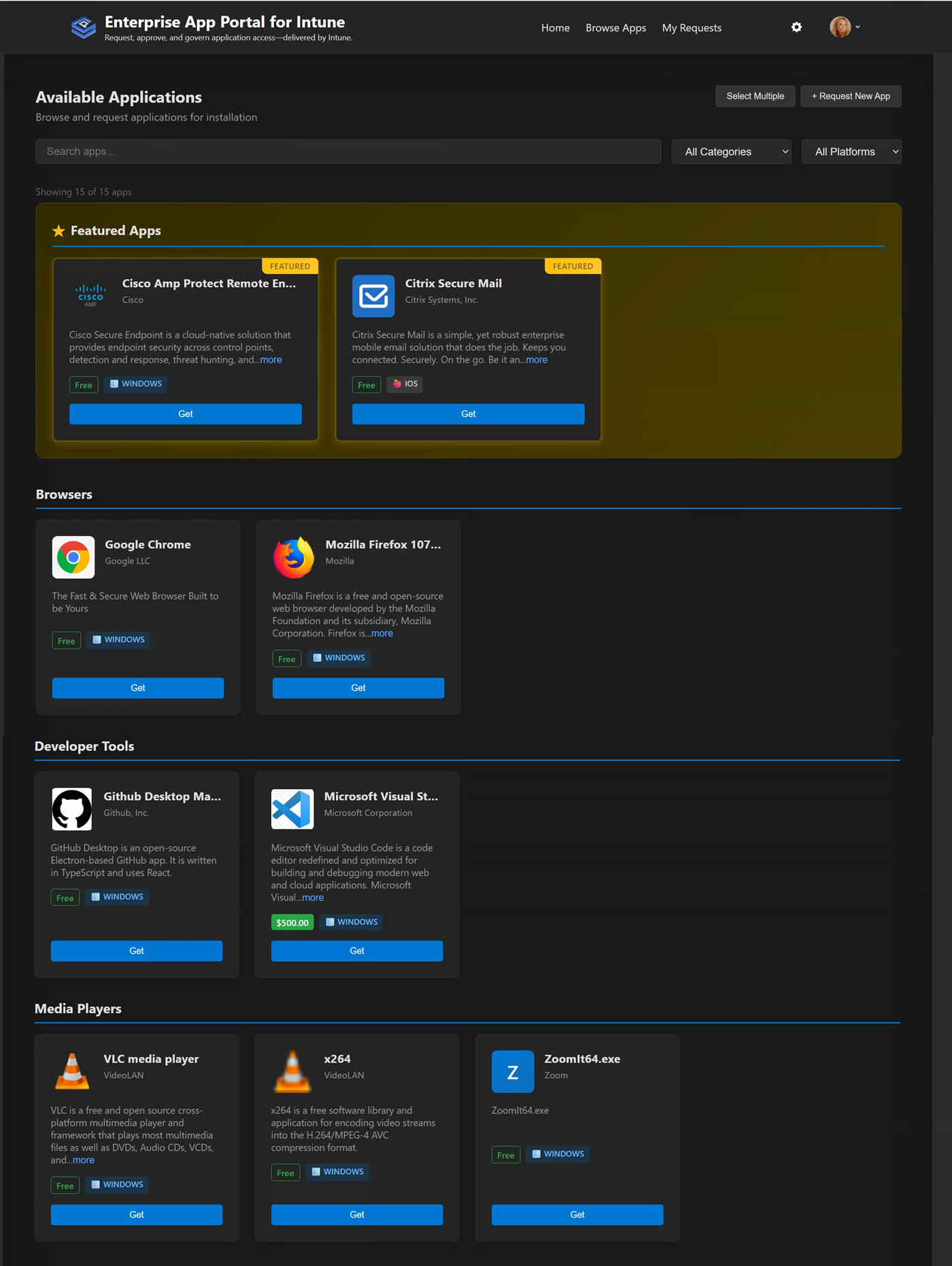 The browse apps page with search and filters
Filtering and search
- Search box: enter an app name, publisher, or description to search
- Platform filter: filter by Windows, iOS, Android, macOS, or Web
- Category filter: filter by app category
- Show requested: toggle to see only apps you've already requested
App cards
Each app card shows:
- App icon
- App name
- Publisher
- Platform icon (Windows, iOS, Android, and so on)
- Brief description
- Cost estimate (if configured)
- A Request or Requested button
Visual indicators on cards:
- Platform badge: the app's target platform
- New badge: apps added within the last 14 days
- Featured badge: featured apps
- Price indicator: cost, or a "Free" label
App detail page
Select any app card to open its detail view, which includes:
- A hero banner with the app icon
- App name, publisher, and category
- The full description
- App information (publisher, version, category, platform, approval status)
- A Request button to request the app